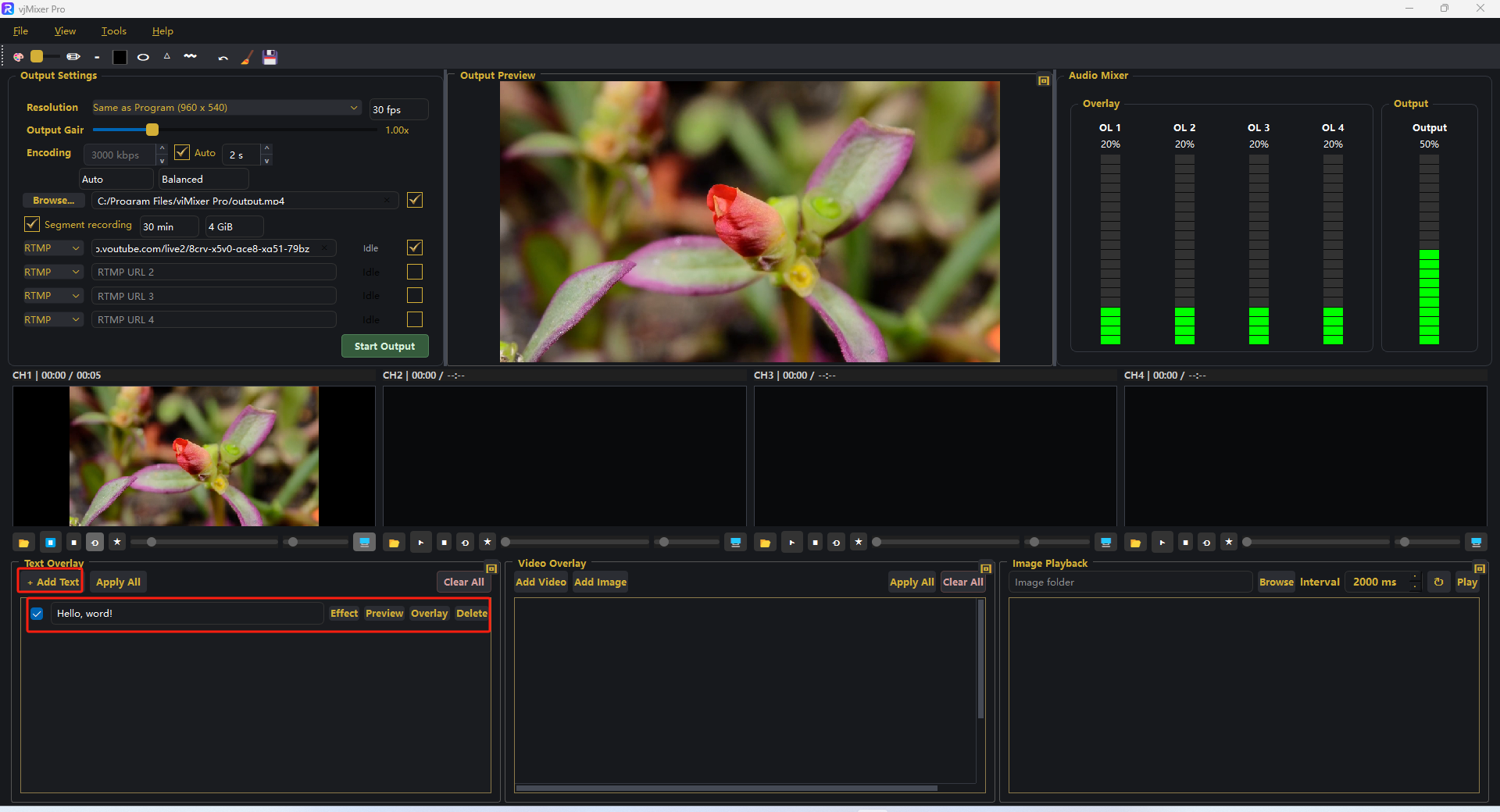
Titles, lower thirds, and captions are created in the Text Overlay panel at the bottom left. Each text row has a visibility checkbox, editable text, and four actions: Effect, Preview, Overlay, and Delete.
Step 1. Click + Add Text, type your title, then tick the checkbox to make it visible.
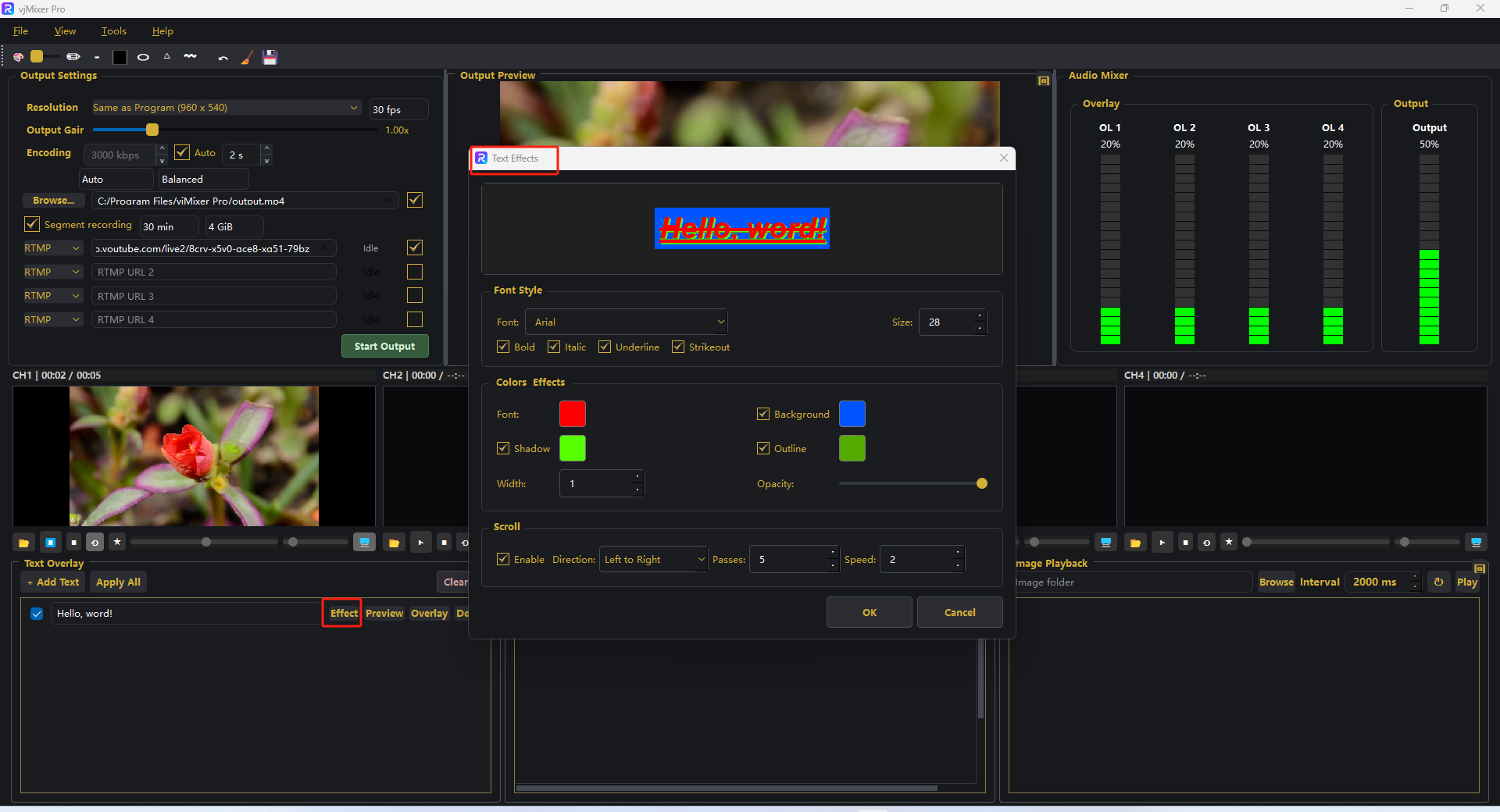
Step 2. Click Effect to open Text Effects. Choose font, size, colors, and scroll options, then click OK.
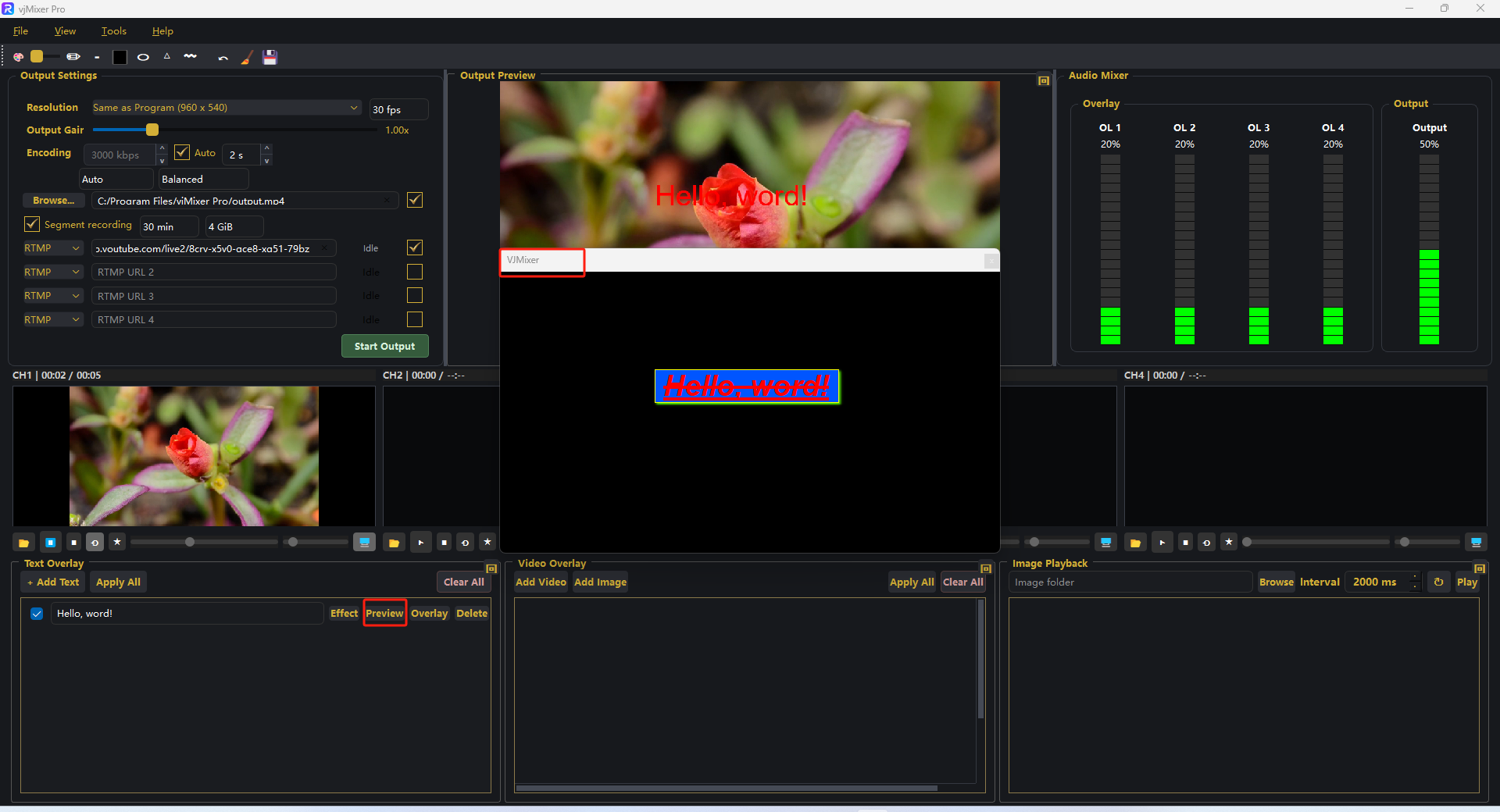
Step 3. Click Preview to check the styled title in a floating window. And you can drag the bounding box to position it.
Step 4. Click Overlay to place the title on the program.
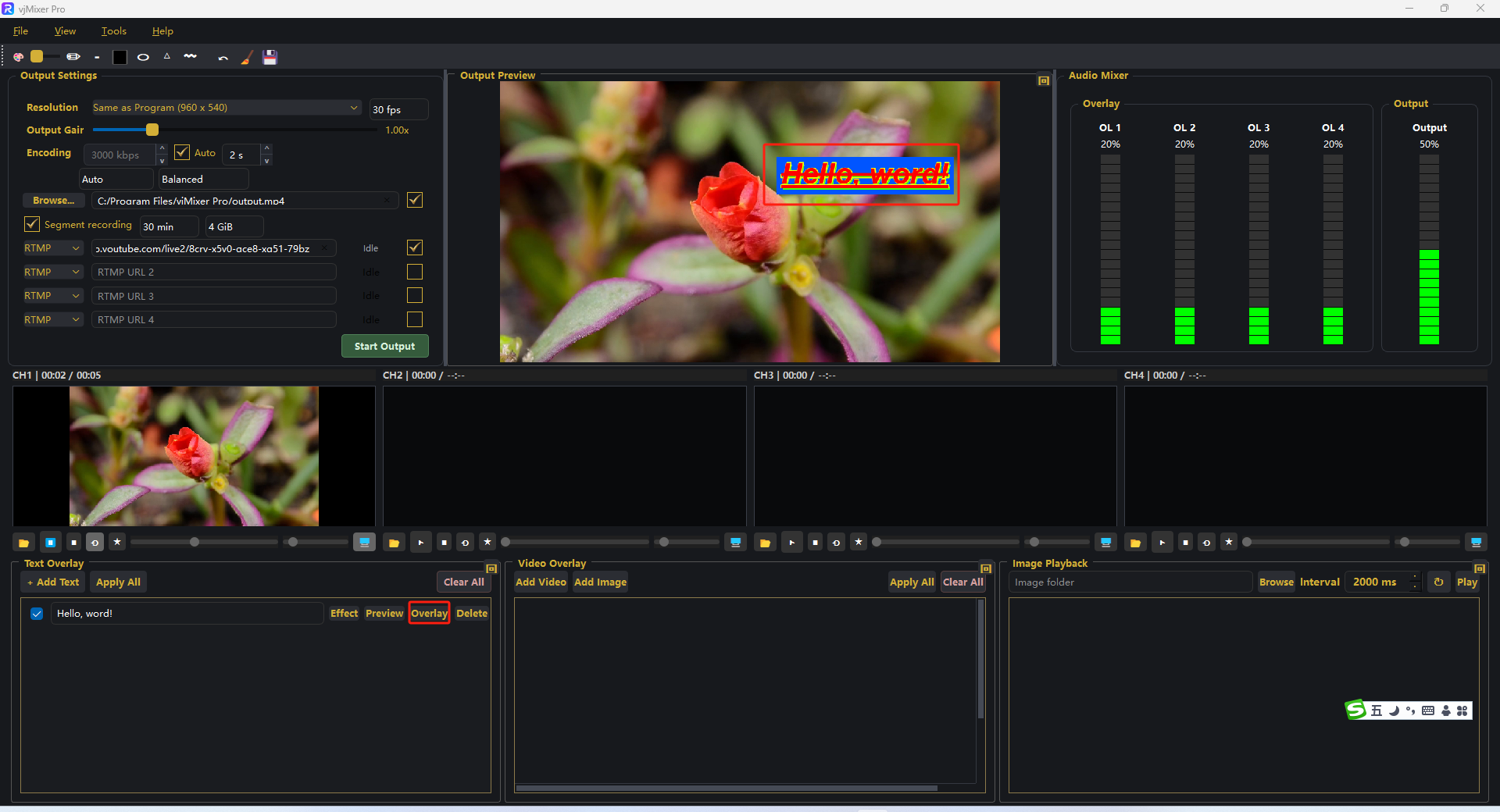
That's it 鈥?the title renders over your program and is included in the recording and stream.