The Video Overlay panel (bottom center) layers extra video clips and still images on top of the program 鈥?perfect for picture-in-picture boxes, logos, and graphics. Up to 8 layers, including 4 video layers, 4 picture layers.
Step 1. Click Add Video and pick a clip. A layer card appears with play, loop, opacity, and overlay controls.
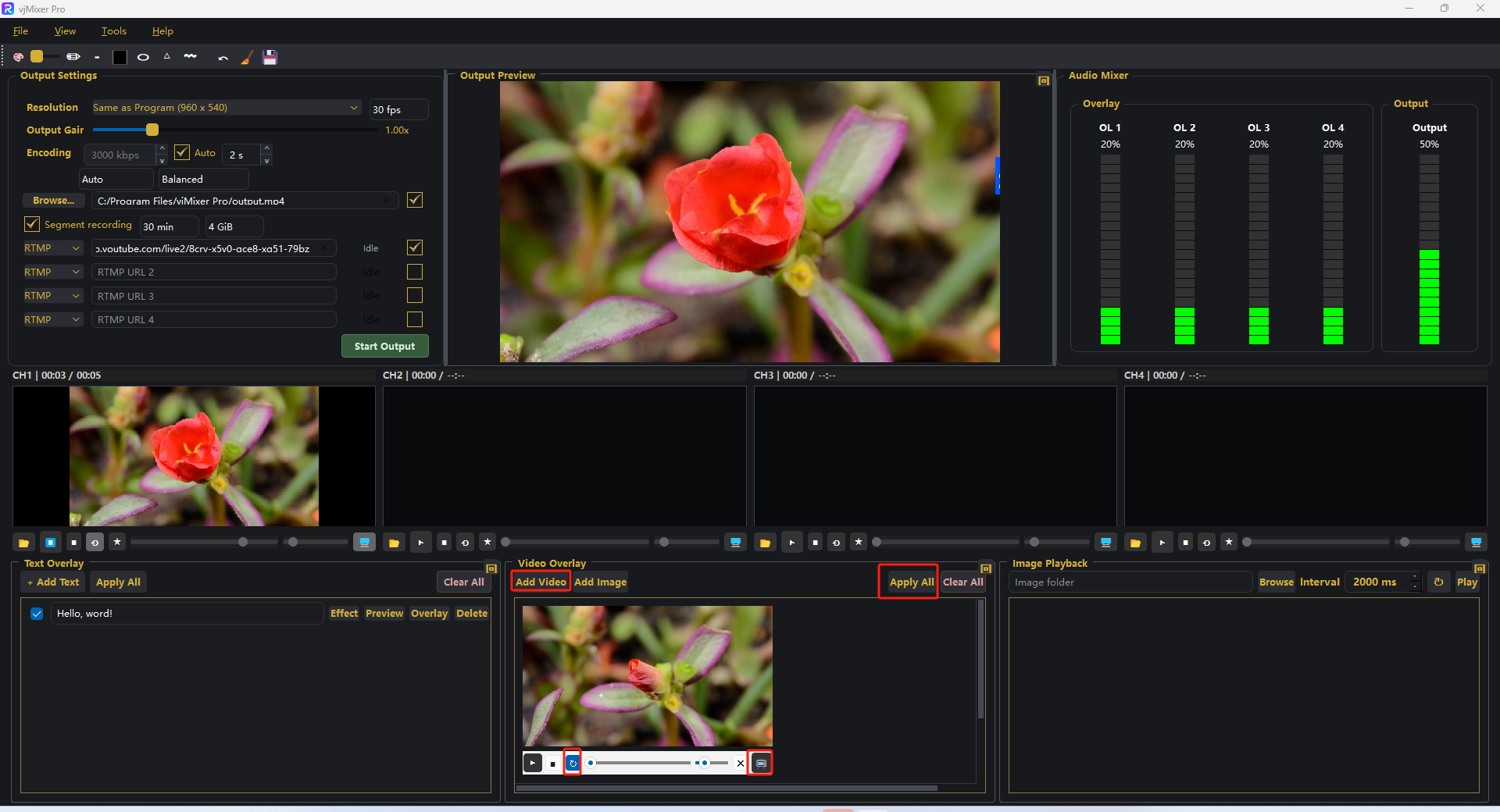
Step 2. Click the overlay button on the layer card (or Apply All) to show it on the program.
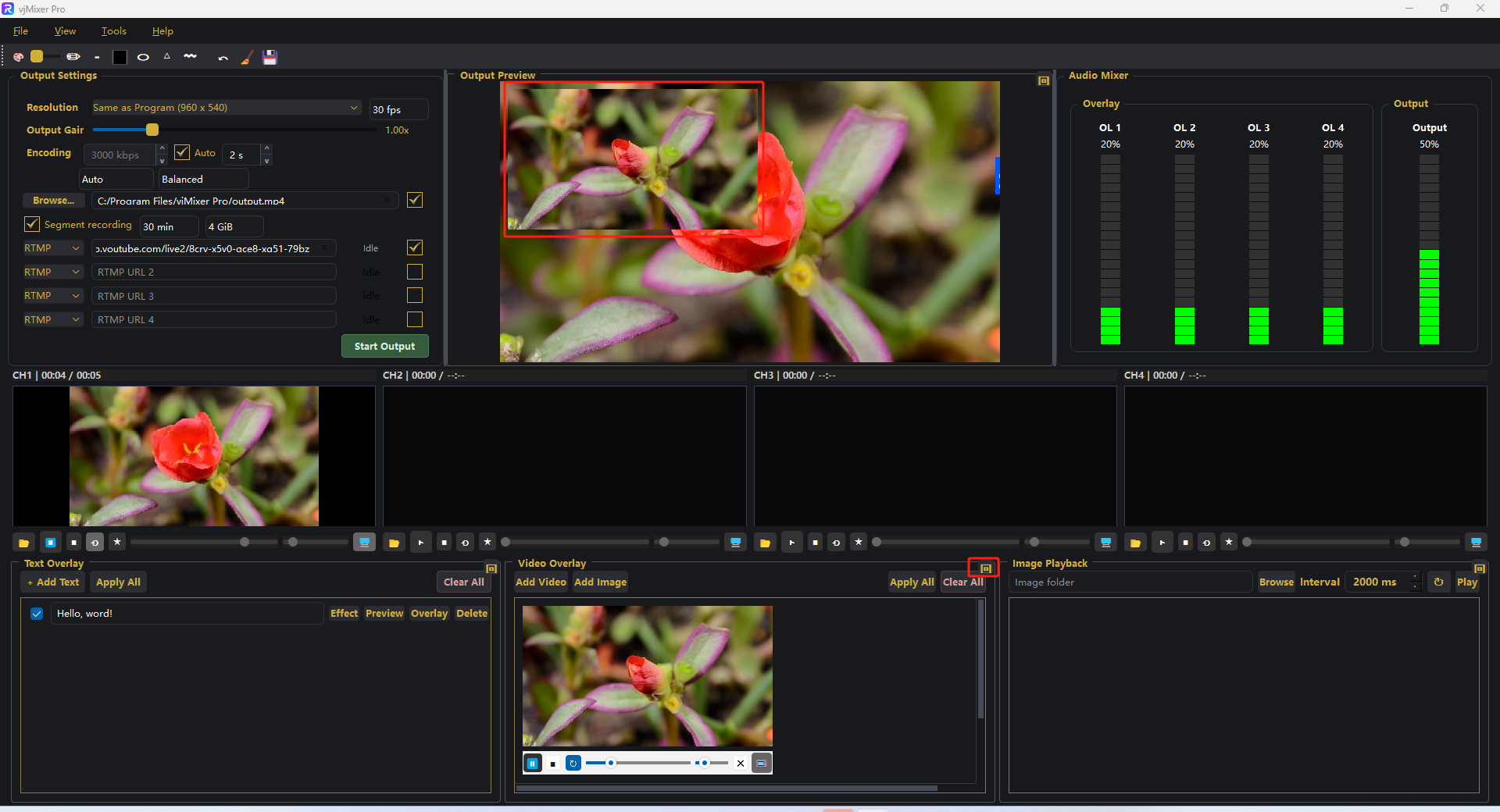
Step 3. Drag the layer to move it. Drag red handles to resize. Use the opacity slider for transparency.
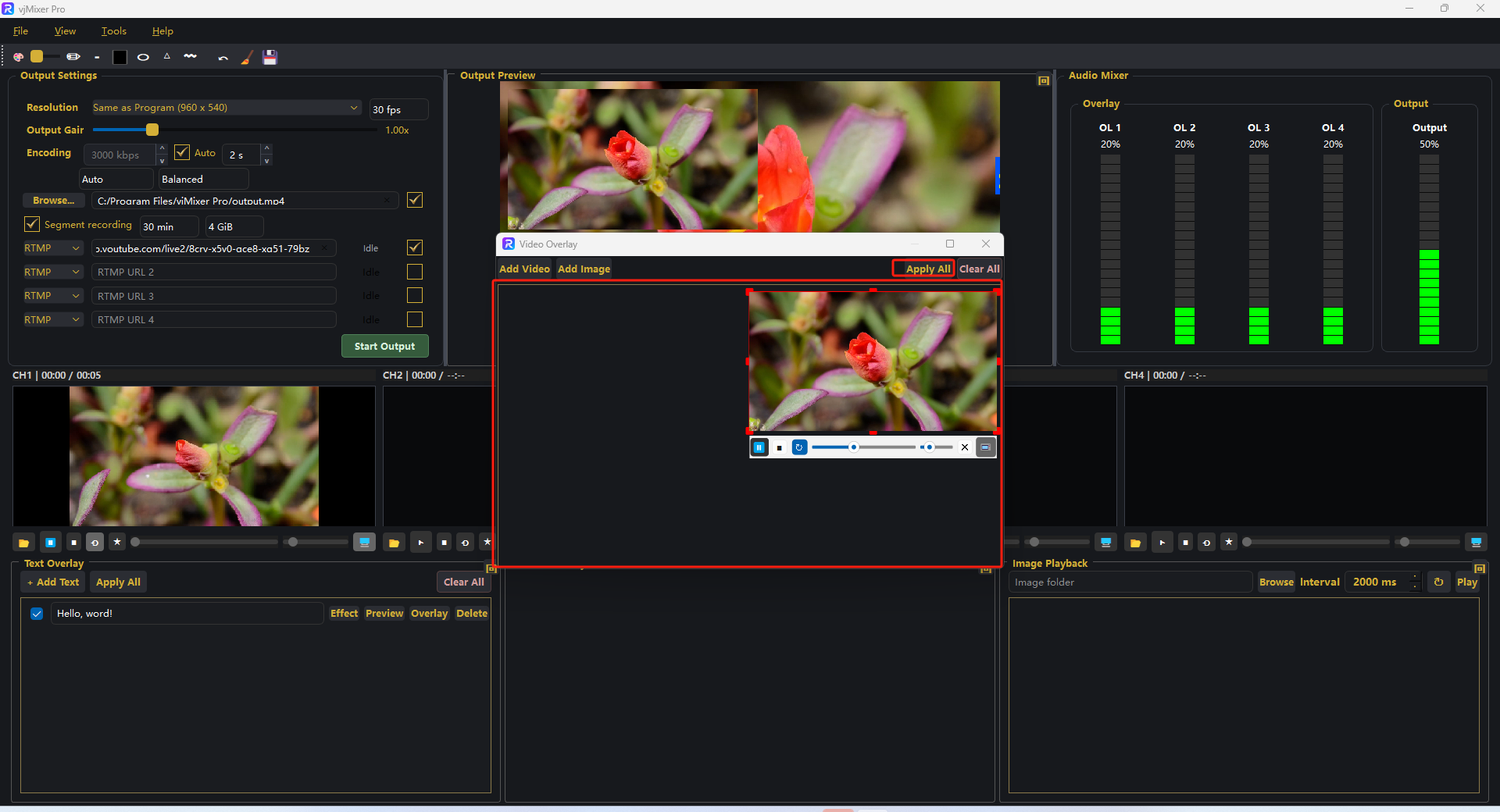
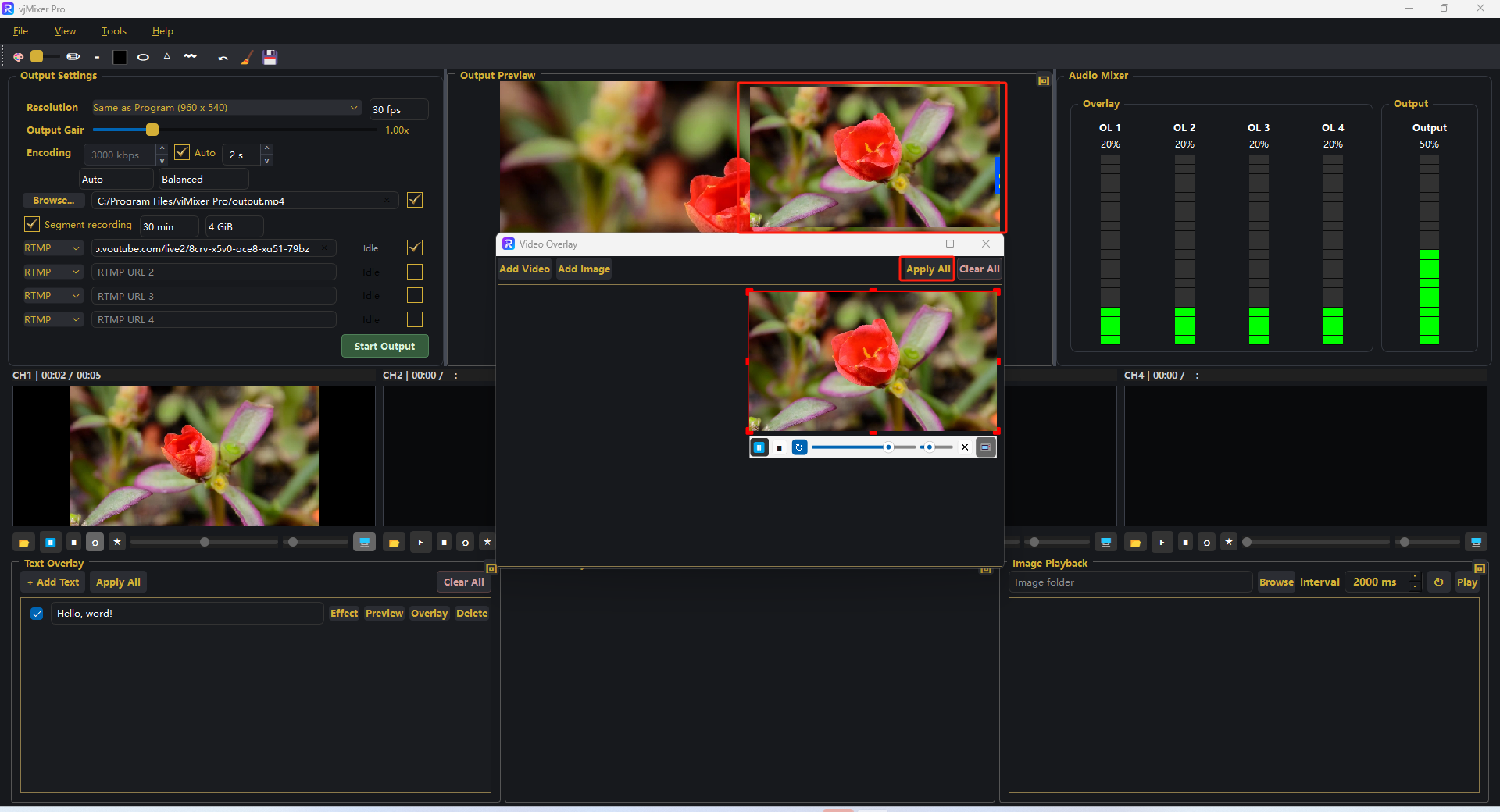
Step 4. Click Apply All to confirm the layout.
Step 5. Click Add Image and pick a PNG/JPG. It becomes a layer card just like a video.
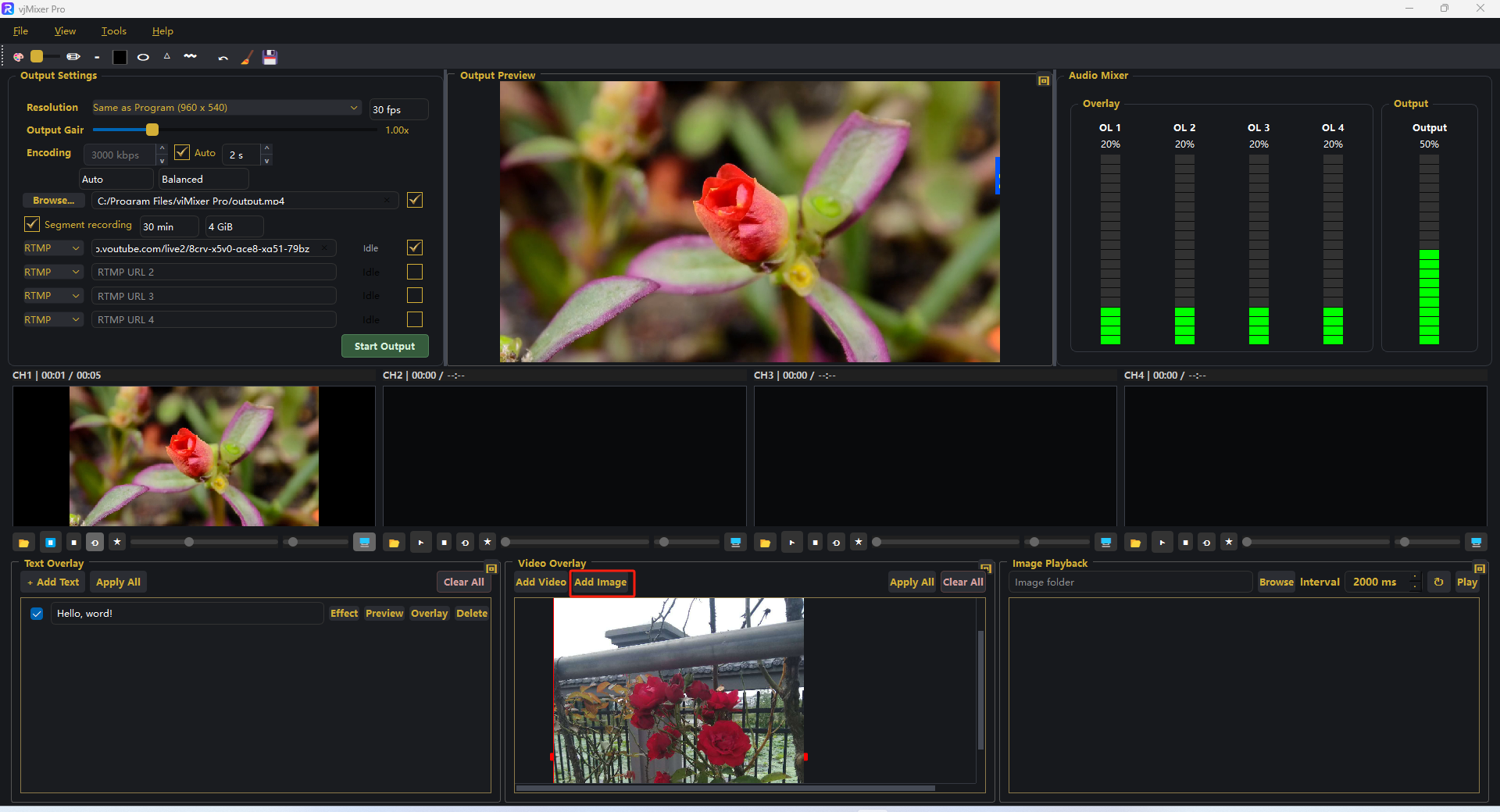
Step 6. Select the image layer, click its Overlay button (or Apply All) to place it on the program.
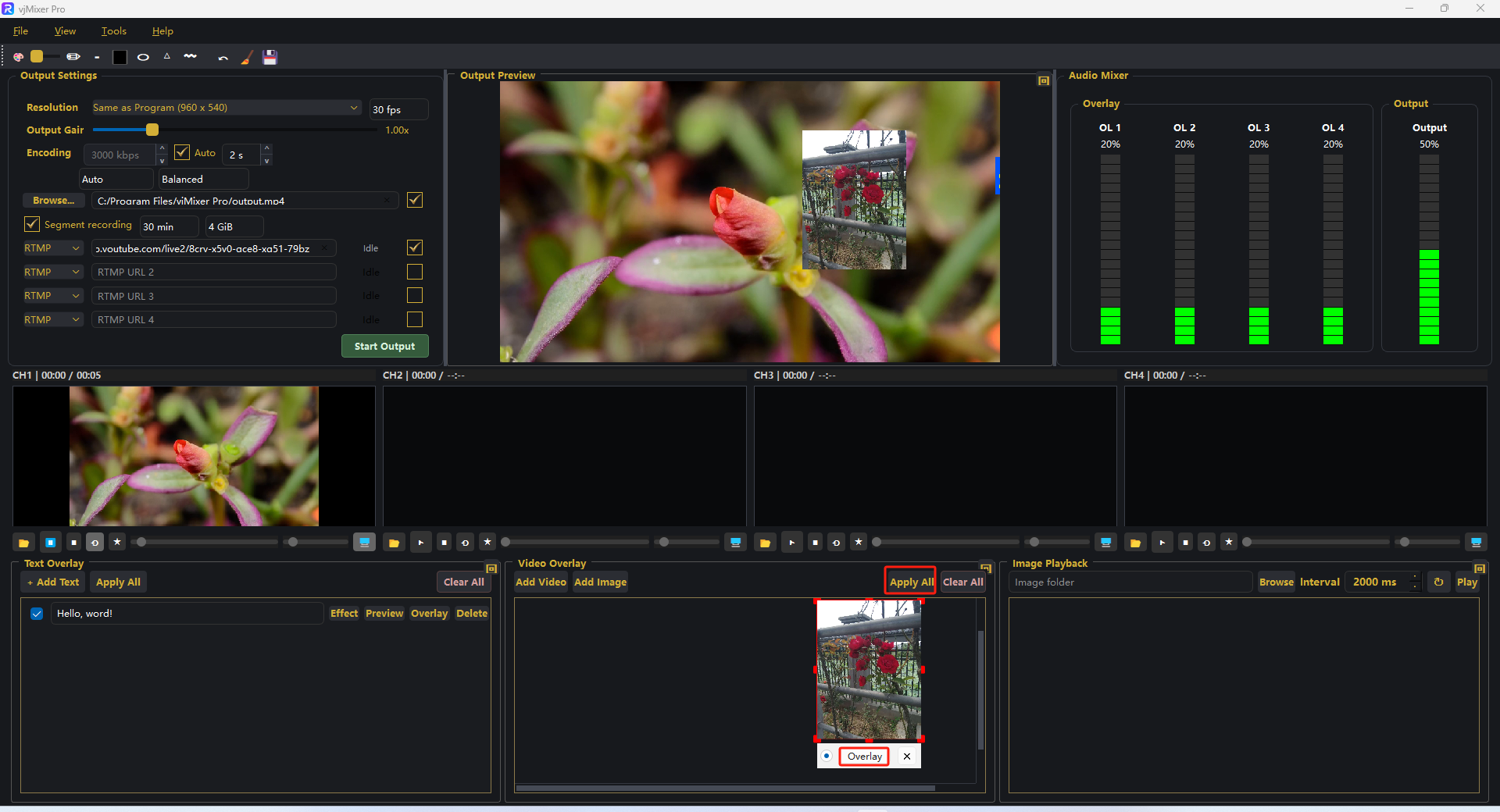
Step 7. Drag the image to position it. Resize with red handles. Lower opacity for a watermark effect. Use Clear All to remove all layers.
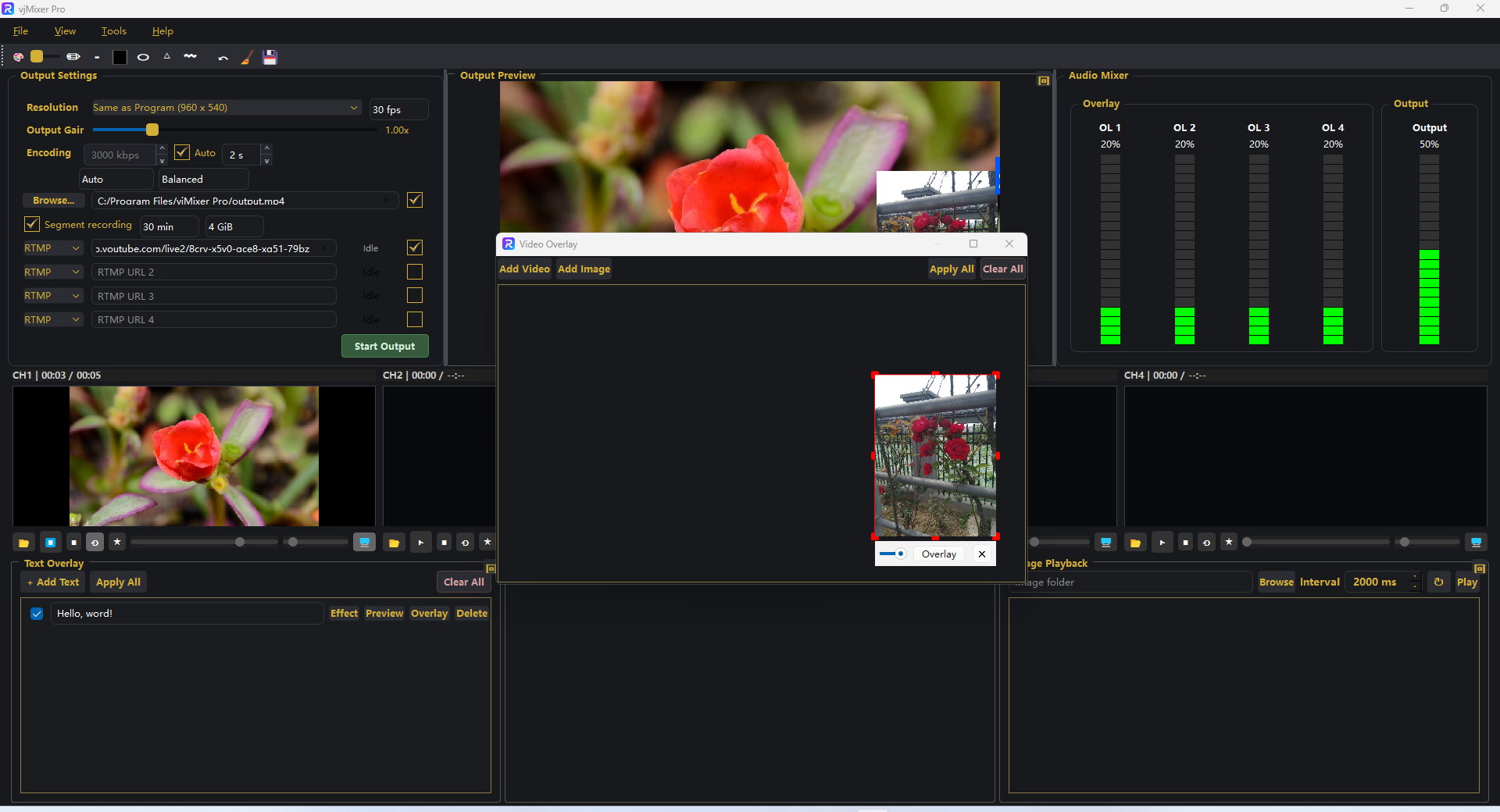
That's it 鈥?video and image layers composite over your program in real time.