Need a video that plays on a phone, browser, or TV without surprise failures? Start by inspecting what is inside the file, pick a container and codec the destination can decode, then convert only what must change.
Renaming an extension does not change the encoding. Two files with the same .mp4 extension can use completely different codecs inside.
The steps below walk through choosing an output, converting or remuxing it, and fixing common playback problems. Background on containers, codecs, resolution, and bitrate follows after the workflow.
Choose an output format for the destination
Different situations call for different formats. The table below summarizes practical starting points; actual compatibility still depends on profiles, levels, and the target device.
| Scenario | Recommended format | Reason |
|---|---|---|
| General video playback | MP4 (H.264 + AAC) | Broad device and app support |
| Online video distribution | MP4 or WebM | Suitable for web delivery |
| Professional editing | MOV or editor-friendly formats | Flexible production workflows |
| Multiple audio / subtitle tracks | MKV | Flexible track support |
| Legacy Flash / SWF content | MP4 after suitable conversion | Modern playback without Flash |
| High-efficiency compression | MP4/MKV with H.265 (when supported) | Smaller files at comparable quality |
When compatibility is the priority, MP4 with H.264 video and AAC audio is usually a practical first choice. H.265 and AV1 can reduce file size for high-resolution content, but support varies across devices, operating systems, applications, and licensing environments.
Follow a conversion workflow
There are two common approaches. Remuxing changes the container without re-encoding streams. It is fast and avoids extra quality loss, but cannot fix an unsupported codec. Transcoding decodes and re-encodes streams so you can change codec, resolution, or bitrate. It improves compatibility and can shrink files, but takes more CPU time and may reduce quality if settings are too aggressive. Whenever possible, keep the original source and avoid unnecessary repeated conversions.
- Inspect the source. Identify the container, codecs, resolution, frame rate, and bitrate. Do not rely only on the filename extension.
- Define the destination. Decide where the output will be played or published — a phone, browser, editor, TV, or archive.
- Select a supported container and codec. Use the table above as a starting point, then match any profile or level limits the target documents.
- Configure quality settings. Set resolution, frame rate, bitrate, and encoding quality. Matching the source frame rate usually avoids stutter or unnecessary re-timing.
- Verify the result. Check playback, audio/video sync, visual quality, and compatibility on the same class of device you care about.
Balance compatibility, quality, file size, and processing time rather than optimizing only one dimension. Older formats such as SWF, FLV, and certain AVI files may need extra care. SWF files are not always ordinary video — they can include interactive elements, vector graphics, and scripts. For Flash-era content, see A Practical Guide to Converting SWF Files to MP4 and the step-by-step how-to How to convert SWF to MP4 on Windows.
Fix common conversion problems
Video plays without sound. The audio codec may be unsupported. Convert audio to AAC, choose a compatible container, and confirm the source actually contains a valid audio track.
Audio and video are out of sync. Variable frame rates, damaged timestamps, or conversion errors are common causes. Prefer tools that handle timestamps carefully, preserve the original frame rate when possible, and verify the result in more than one player.
Poor output quality. Excessive compression, a low bitrate, or repeated transcoding can degrade the picture. Raise the target bitrate, choose a suitable codec, avoid unnecessary resolution reduction, and keep a high-quality encoding preset for masters.
File is too large. High bitrates, high resolutions, or inefficient settings inflate size. Consider H.265 or AV1 when the target supports them, adjust bitrate, reduce resolution when appropriate, and pick a sensible compression preset.
Unsupported format. Some devices accept only specific container/codec combinations. Converting to MP4 with H.264 video and AAC audio is a reliable fallback. Always inspect the actual codecs rather than relying only on the filename extension.
Video containers vs. codecs
A video format generally refers to the way digital video information is stored in a file. A typical video file may contain video streams, audio streams, subtitle tracks, metadata, and chapter information. A video container combines these components into a single file. For example, an MP4 file can contain H.264 video, AAC audio, and subtitle information. The container organizes these streams, while the codecs determine how the video and audio data are encoded and decoded.
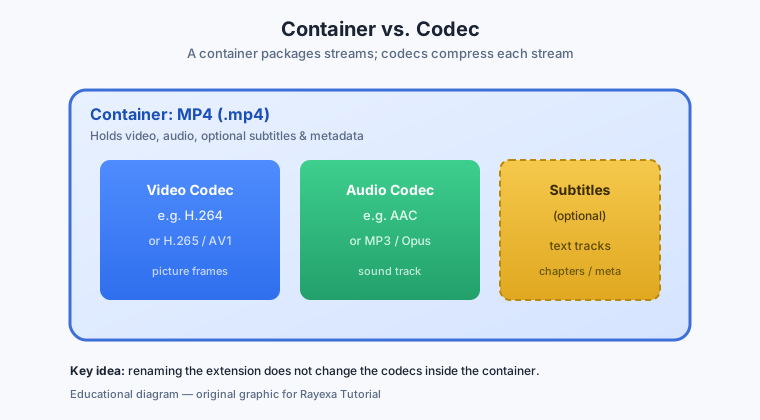
Common containers include MPEG-4 (.mp4) for general playback and sharing, AVI for legacy applications, MOV for Apple production workflows, Matroska (.mkv) for multi-track media, and WebM for web delivery.
Common video codecs include H.264 (AVC) for broad support, H.265 (HEVC) for stronger compression, AV1 as an open efficient codec, VP9 for web video, and older MPEG-2 for DVD and broadcast archives.
A container does not force a single codec. Different containers can hold different codec combinations, within the limits of what each format specification allows.
MP4, AVI, MOV, MKV and WebM
MP4 is one of the most widely used video container formats. It commonly contains H.264 or H.265 video and AAC audio. Its advantages include broad compatibility with computers, smartphones, and media players; suitability for online sharing; efficient compression; and strong support for general-purpose distribution.
AVI is an older Microsoft multimedia container. It can store video and audio encoded with various codecs and remains useful for certain legacy workflows. Limitations include potentially larger files depending on the codec, less flexibility than some modern containers, and compatibility that depends heavily on the codecs used inside the file.
MOV is Apple’s QuickTime multimedia container. It is common in video editing and professional media workflows, supports many codecs, and can preserve high-quality video information. Some MOV files may have limited playback compatibility on older devices, and file size depends heavily on the encoding settings.
MKV (Matroska Video) is a flexible multimedia container that supports multiple audio tracks, subtitle tracks, chapters, and other metadata. It is useful for multilingual media and complex multimedia files. The main limitation is that not every device or application supports every MKV codec combination.
WebM is an open multimedia container designed primarily for web use. It commonly uses VP8, VP9, or AV1 video with supported audio codecs. It is well suited to online streaming and web applications, though compatibility with older devices and software may vary.
FLV (Flash Video) was widely used for early web video. Modern web technologies have largely replaced Flash-based playback. FLV files may still appear in archives and older collections; converting them to MP4 often makes them easier to play on modern devices.
H.264, H.265, AV1 and VP9
Video compression reduces the amount of data required to store or transmit video. Without compression, digital video files become extremely large. Compression algorithms remove redundant or less noticeable information. Lossy codecs such as H.264, H.265, VP9, and AV1 permanently remove some information to shrink files. Lossless compression preserves all original information but produces much larger files and is usually reserved for archival or professional workflows. For everyday sharing, lossy compression is generally more practical.
| Codec | Strengths | Typical use |
|---|---|---|
| H.264 (AVC) | Broad hardware and software support; good efficiency | General playback, phones, browsers |
| H.265 (HEVC) | Smaller files at comparable quality in many cases | 4K, storage-sensitive delivery |
| AV1 | Open, efficient modern compression | Web and modern streaming platforms |
| VP9 | Open web-oriented codec | Browser and online video |
| MPEG-2 | Mature legacy support | DVD and older broadcast archives |
Video resolution and bitrate
Video quality depends on several technical parameters working together. Resolution describes the number of pixels in each frame. Common targets include 480p for basic playback, 720p (HD), 1080p (Full HD), 1440p (QHD), and 2160p (4K UHD). Higher resolution generally requires more storage and processing resources.
Frame rate measures how many frames are displayed per second. Common rates include 24 FPS for cinematic material, 25 FPS in some television systems, 30 FPS for general video, 50/60 FPS for smoother motion in sports and gaming, and 120 FPS for high-frame-rate or slow-motion workflows.
Bitrate is the amount of data used to encode video per second, typically measured in Kbps or Mbps. Higher bitrates generally preserve more visual detail but increase file size. For a given resolution and codec, selecting an appropriate bitrate balances quality and storage. Excessive compression produces visible artifacts; unnecessarily high bitrates waste space without proportional gains.
Audio codec compatibility
Audio is as important as video for real-world playback. A file that looks fine can still fail if the audio codec is unsupported. AAC is widely used inside MP4 files and on mobile devices. MP3 remains broadly recognized for compressed music. FLAC offers lossless audio for libraries and archives. WAV/PCM is common in production. Opus performs well across many bitrates for internet audio. When a video plays without sound, converting the audio stream to AAC inside an MP4 container often restores compatibility. For a deeper look at player, editor, and device constraints, see the Audio and Video Format Compatibility Guide.
When a converter helps
Once you know the target container and codec, a desktop converter can apply those settings consistently across files. Ray Video Converter is one Windows option for everyday formats such as MP4, MKV, and MOV. It does not open Flash SWF files; for that content, use a dedicated SWF tool such as SWF to Video. Prefer MP4 (H.264) when broad compatibility matters, avoid unnecessarily harsh compression, double-check audio when the output is silent, and keep a copy of the original before converting.
Related reading
- Audio and Video Format Compatibility Guide
- A Practical Guide to Converting SWF Files to MP4
- How to convert MKV to MP4 on Windows
- How to reduce video file size
- Tutorial hub
About this guide: This article is an educational introduction to digital video formats, codecs, compression, and conversion workflows. Product links are optional tools for applying the concepts on Windows; the technical content stands on its own.