Large camera or screen-capture files can be hard to email, upload, or store. Ray Video Converter reduces file size by re-encoding to MP4 (H.264), lowering Resolution, and easing the Quality slider — without needing a separate compressor.
Note: Video Converter does not open SWF files. Use SWF to Video for Flash.
Steps
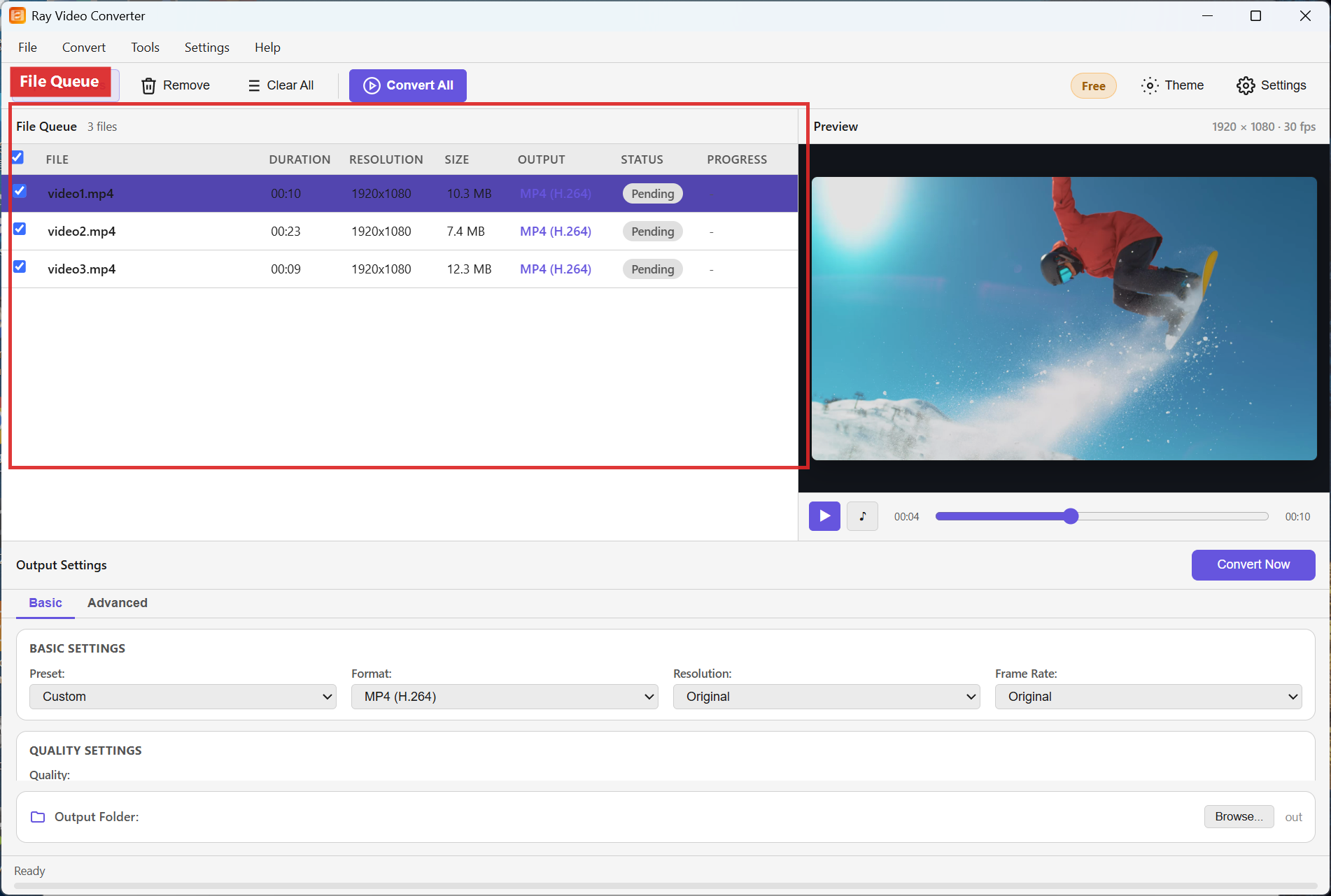
Step 1. Add the oversized videos with + Add Files.
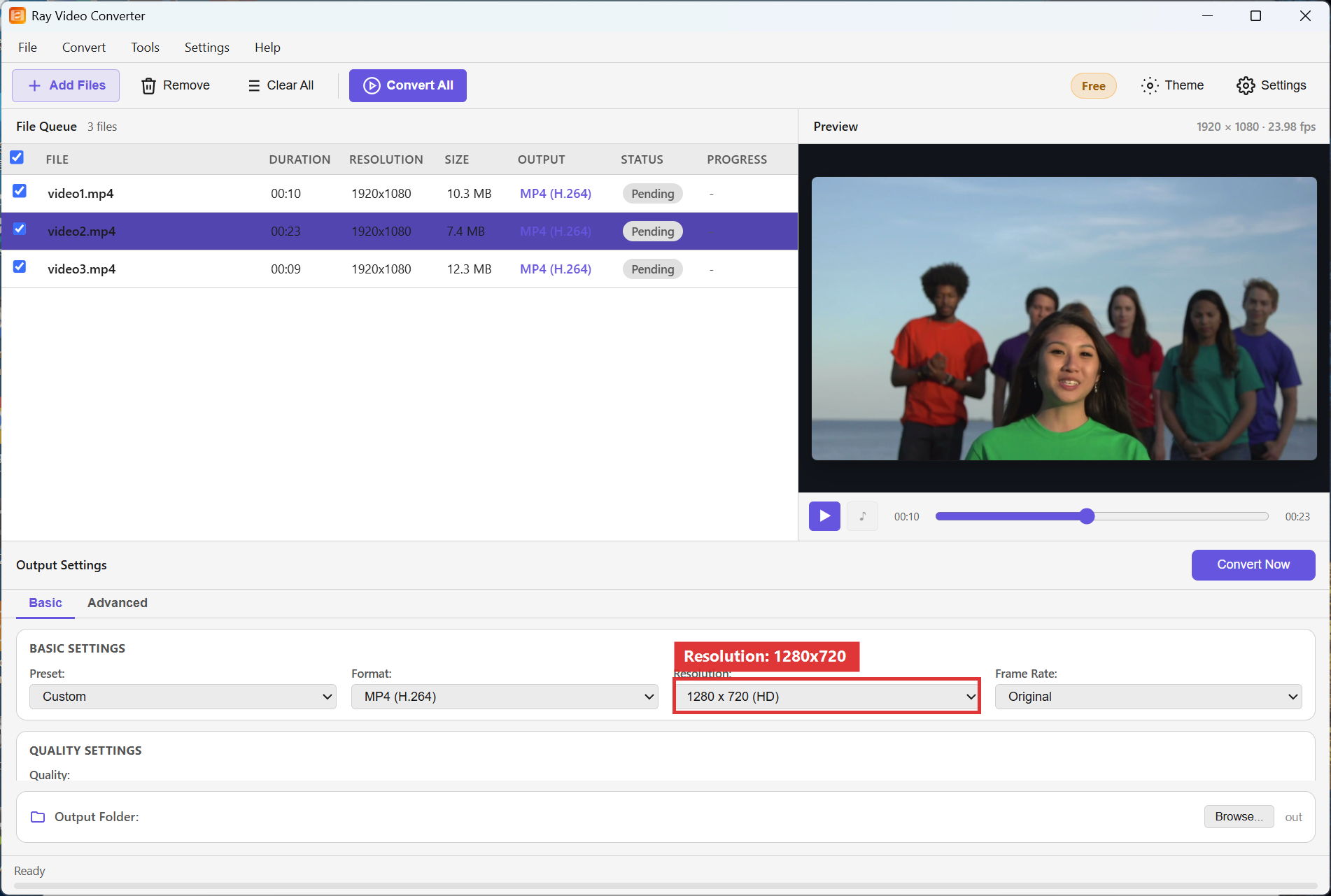
Step 2. In Output Settings, choose MP4 (H.264). Set Resolution to 1280x720 (or 1920x1080 if you still need HD). Move the Quality slider down from the top end.
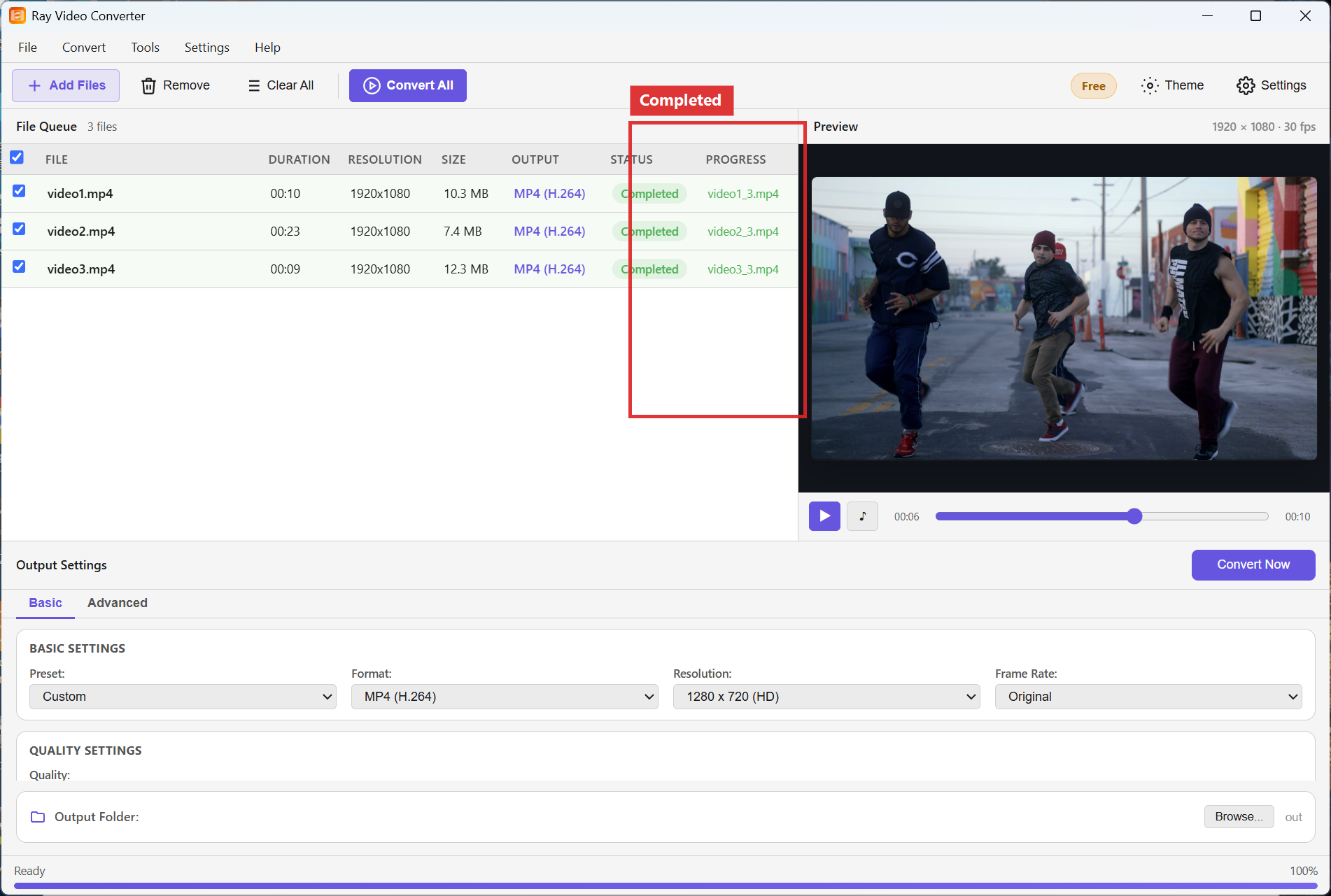
Step 3. Click Convert All. When rows show Completed, compare the new MP4 size to the original.
Recommended settings
- Web / chat share: MP4 (H.264), 1280x720, moderate Quality.
- Still looks sharp on laptops: 1920x1080 with Quality slightly below maximum.
- Avoid jumping straight to very low Quality; make one test clip first.
FAQ
Why is the new file still large?
Long duration and high motion need more bits. Shorten the clip, drop to 720p, or lower Quality further.
Will audio stay clear?
Yes for typical speech and music at default MP4 settings. Extreme Quality cuts mainly affect the picture.
Is H.264 better than keeping MKV?
For sharing on Windows and phones, MP4 (H.264) is usually smaller and more compatible than an untouched high-bitrate MKV.
Try Ray Video Converter
Download the free Windows trial, then follow the steps above on your own files.
Free download Product page All tutorials