Flash Player end-of-life left countless SWF banners, intros, and courseware stranded on disk. Ray SWF to Video Converter preserves that content as modern video — MP4, AVI, MOV (ProRes), FLV, WMV, MKV, Animated GIF, or PNG/BMP/JPG/TIFF sequences.
Note: Ray SWF to Video Converter is for Flash .swf files only.
Ray Video Converter does not open SWF — use this product for Flash content.
Steps
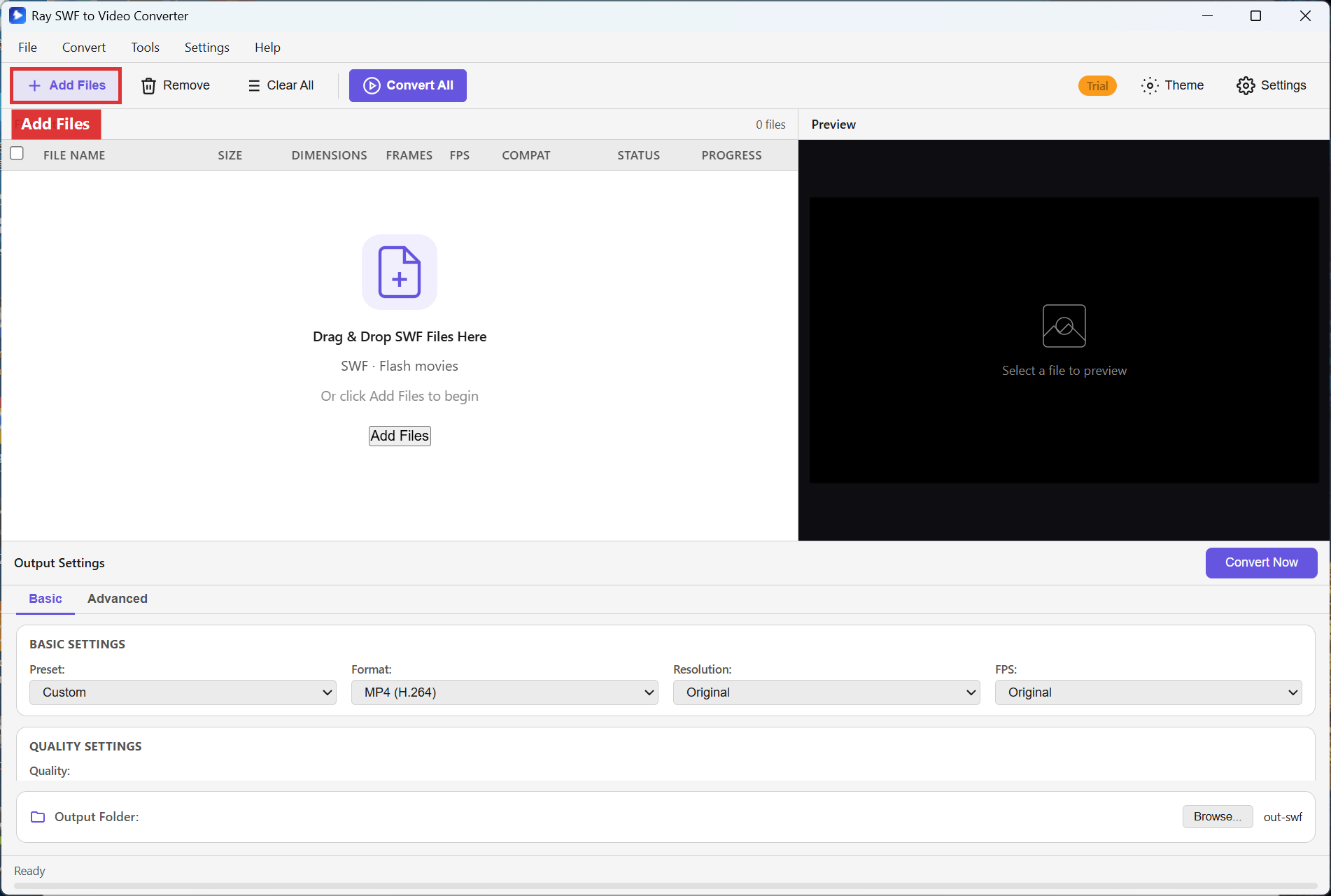
Step 1. Launch the app. Use Add Files or drag SWF movies onto Drag & Drop SWF Files Here.
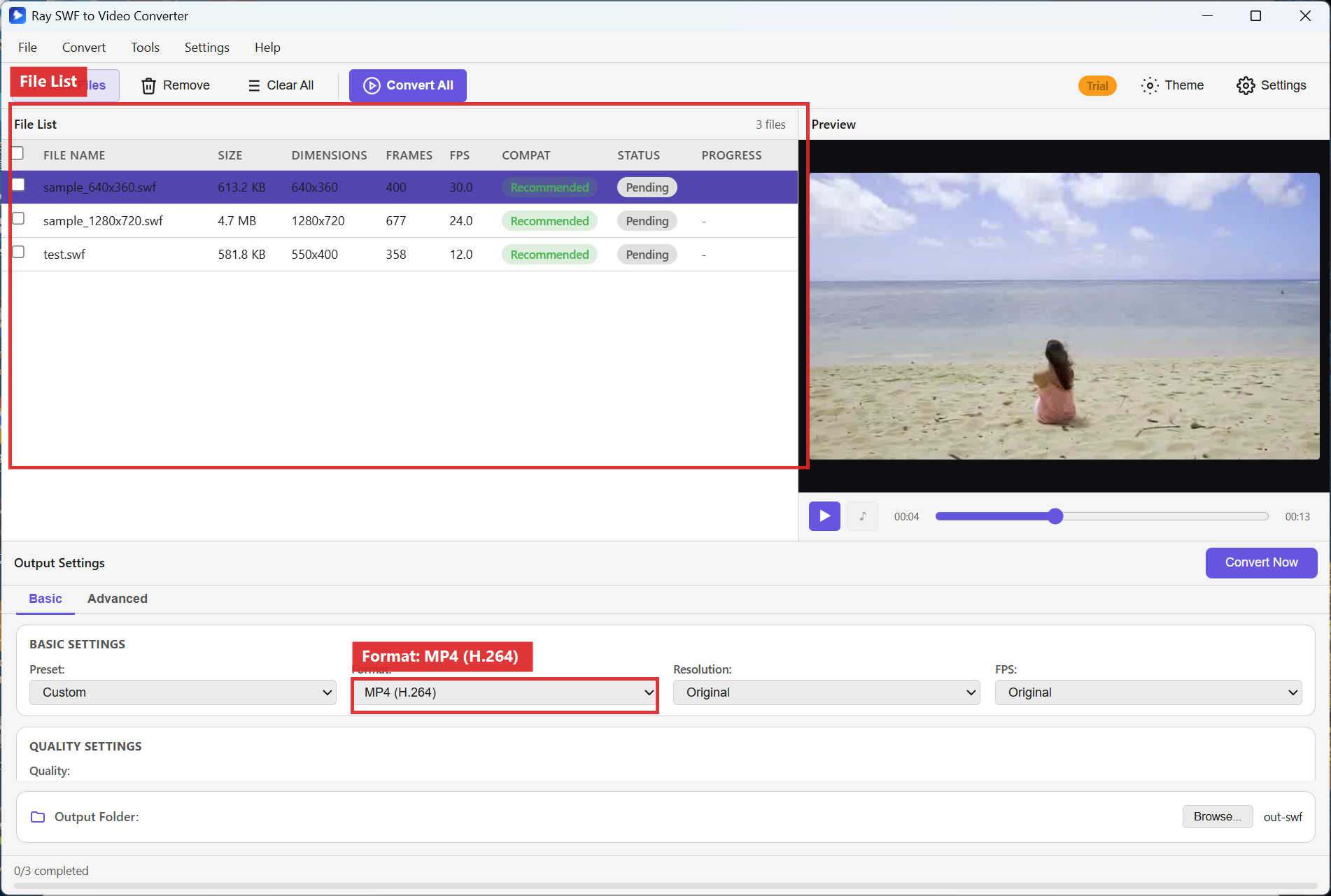
Step 2. Review the File List. In Output Settings → Basic, choose the delivery format you need: MP4 (H.264) for everyday playback, MOV (ProRes) for editing, Animated GIF for short loops, or an image sequence for frame-by-frame work.
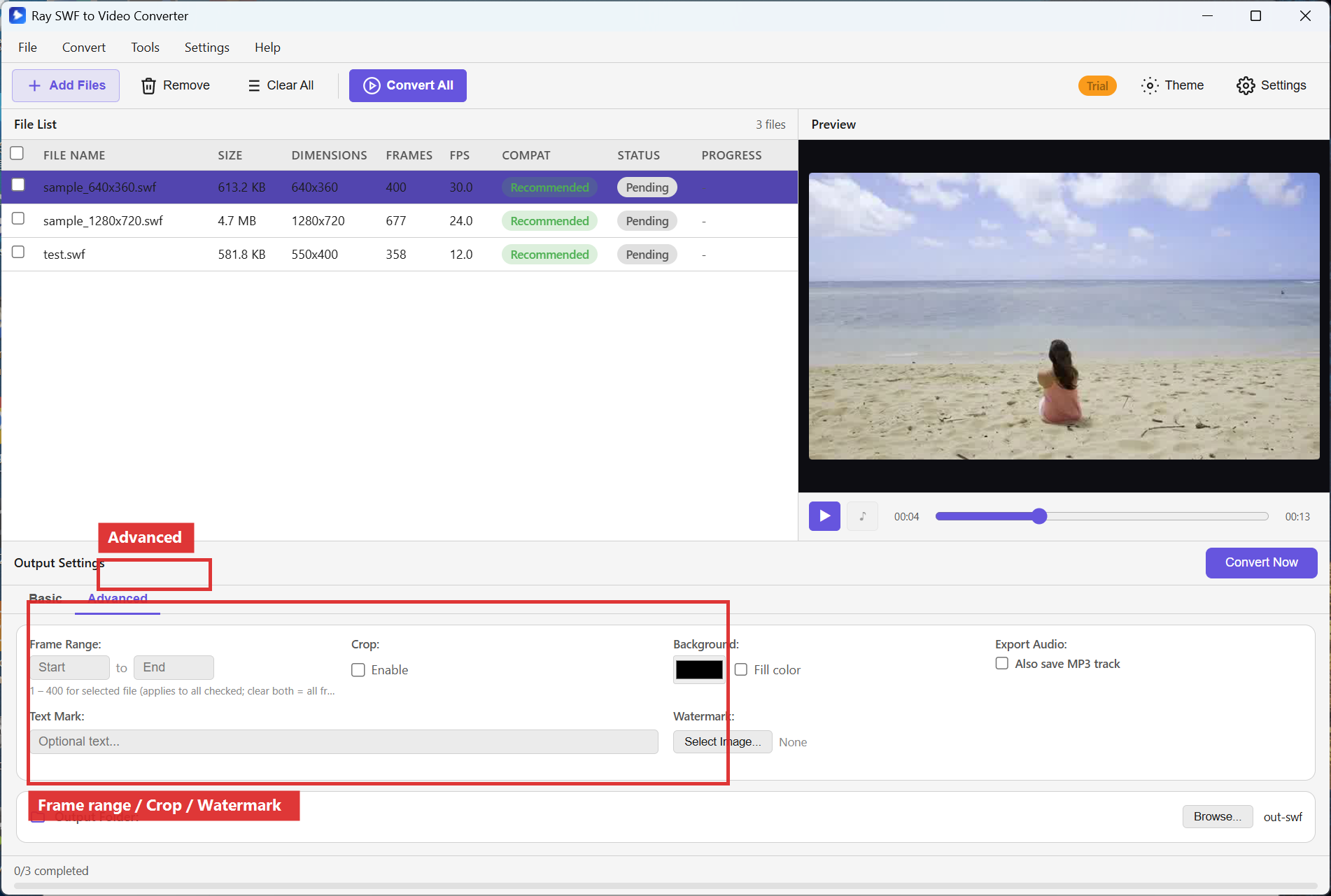
Step 3. Open the Advanced tab when you need a frame range, Crop Enable, background fill color, Also save MP3 track, Text Mark, or Watermark. Set Output Folder, then return to Basic if you only needed those extras.
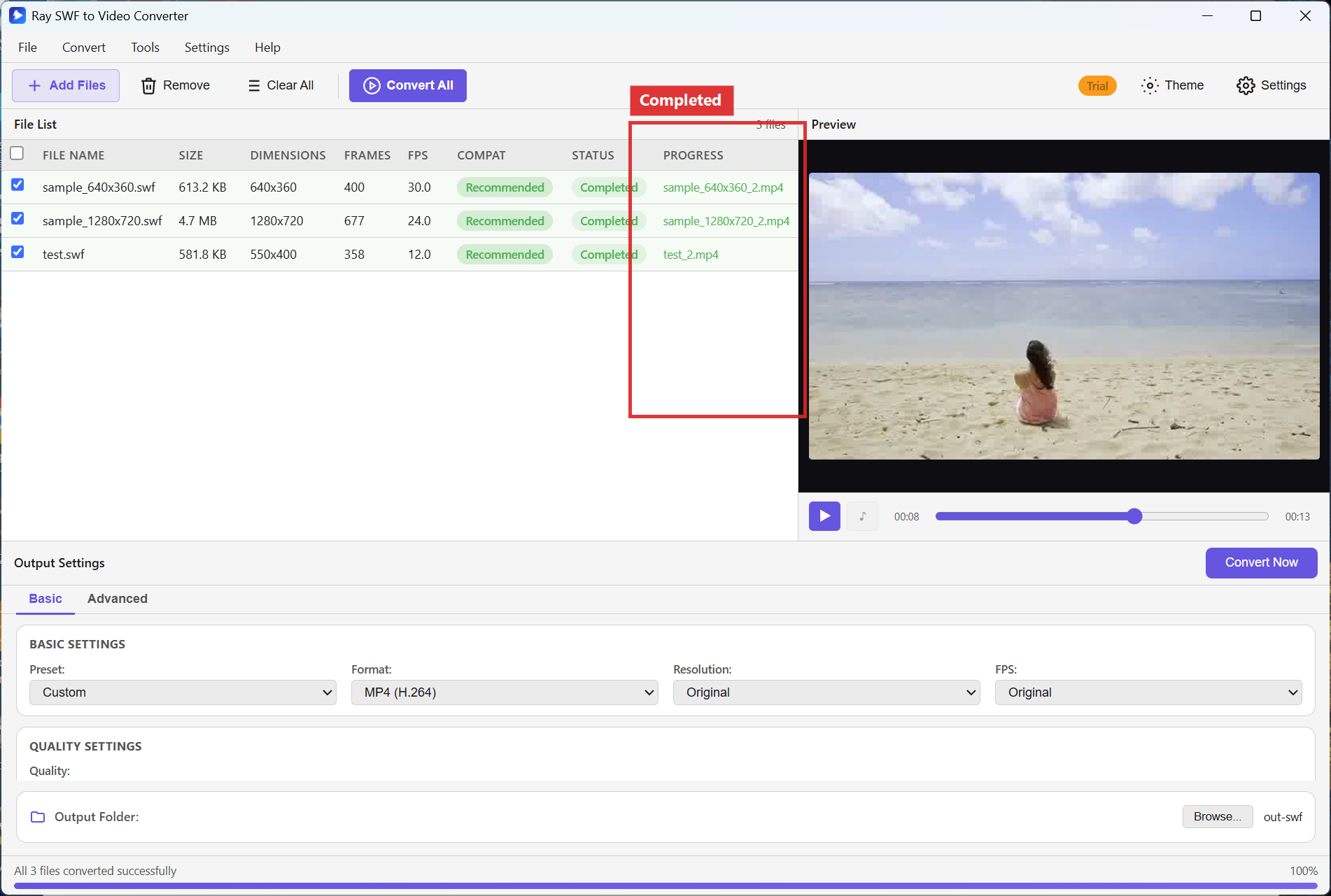
Step 4. Click Convert All. When STATUS shows Completed, open the output folder.
Recommended settings
- Everyday archive: MP4 (H.264), Resolution Original, FPS Original.
- Editor-friendly master: MOV (ProRes) or a PNG sequence.
- Short web loop: Animated GIF at 640x360 or 854x480 with a modest Quality setting.
- Audio sidecar: enable Also save MP3 track on Advanced when you need the soundtrack separately.
FAQ
Why convert Flash instead of installing Flash Player?
Adobe ended Flash Player support. Converting to MP4 or GIF is the safer modern way to view and share the same content.
Which formats can I export?
MP4 (H.264), AVI, MOV (ProRes), FLV, WMV, MKV, Animated GIF, and PNG/BMP/JPG/TIFF sequences.
Is this the same as Ray Video Converter?
No. Video Converter does not open SWF. This product is SWF-only — see
SWF to Video vs
Video Converter.
Try Ray SWF to Video Converter
Download the free Windows trial, then follow the steps above on your own Flash archives.
Free download Product page All tutorials SWF tutorial hub