Opening an SWF without Adobe Flash Player means converting it first, then viewing the result in a modern app. Ray SWF to Video Converter is a safe substitute for the old double-click-to-play workflow: add the SWF, export MP4 (or GIF), and open the output.
Note: Ray SWF to Video Converter is for Flash .swf files only.
Ray Video Converter does not open SWF — use this product for Flash content.
Steps
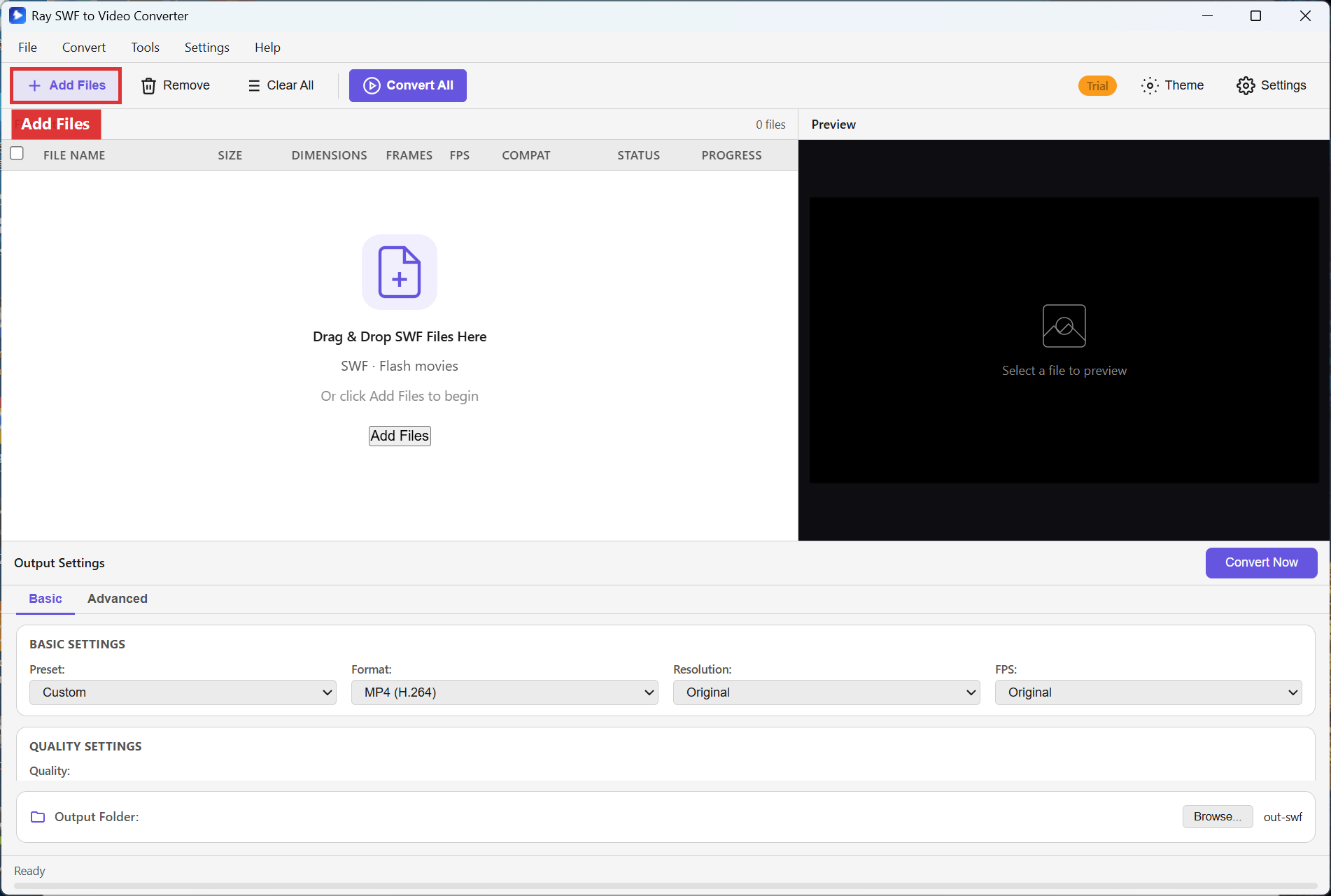
Step 1. Start Ray SWF to Video Converter. Click Add Files instead of hunting for a Flash Player executable.
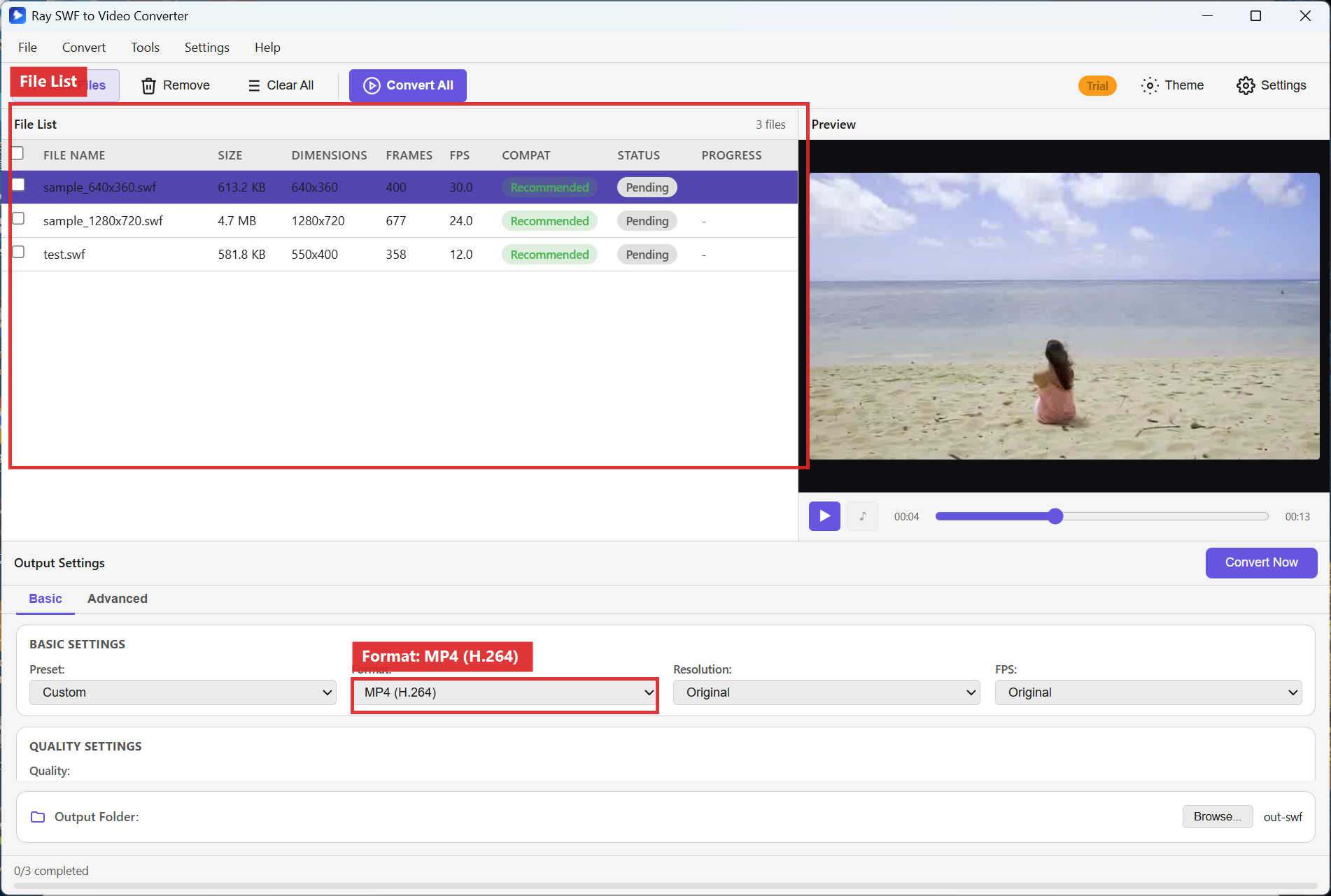
Step 2. Select the SWF. Use Preview to inspect the stage, then set Format to MP4 (H.264) (or Animated GIF for a short loop).
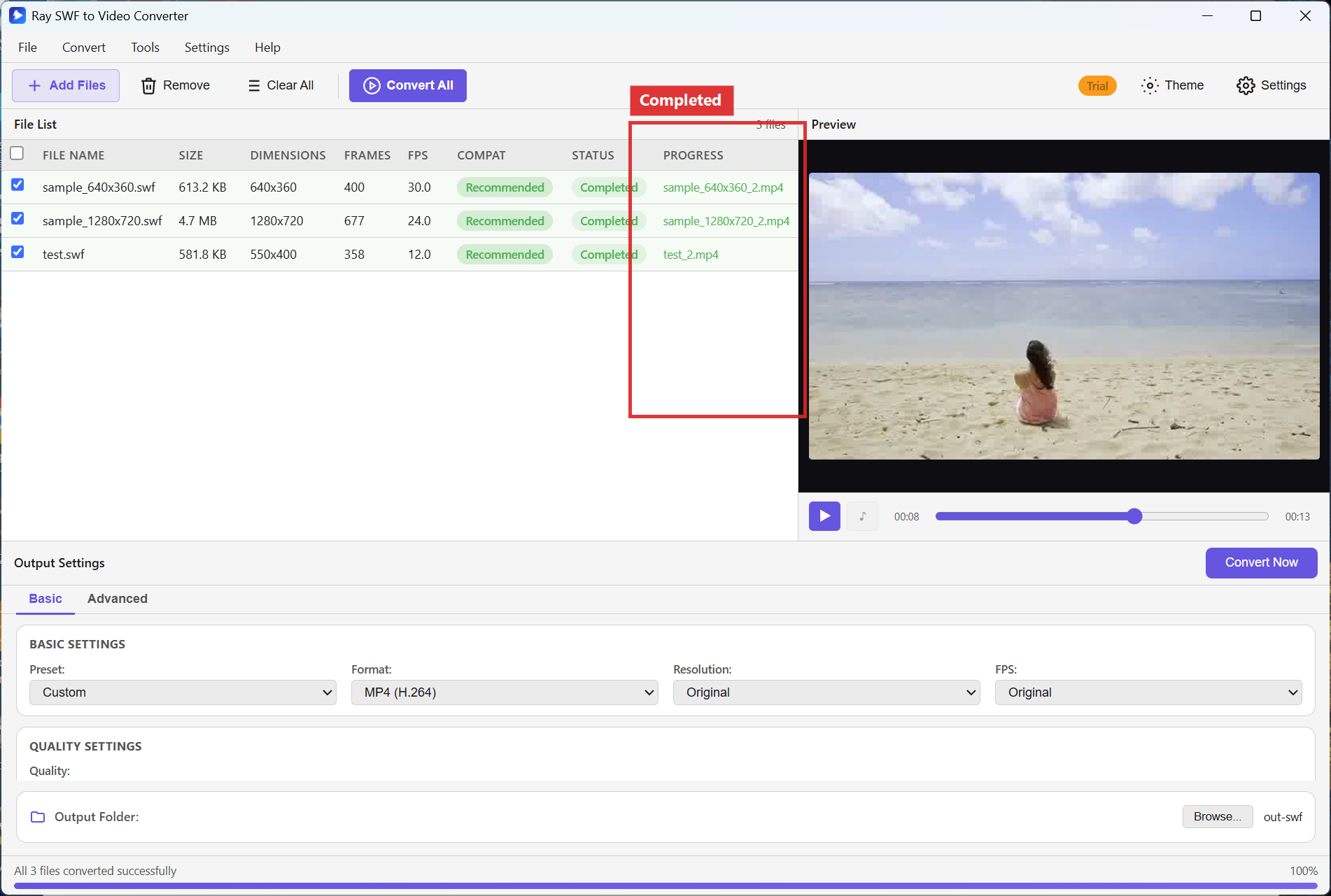
Step 3. Click Convert All. After Completed, open the output file in Movies & TV, a browser, or an image viewer for GIF/frames.
Recommended settings
- Viewing: MP4 (H.264), Resolution Original, FPS Original.
- Short loops: Animated GIF at 640x360 or 854x480.
- Still inspection: PNG sequence when you need individual frames.
FAQ
Is this a Flash Player replacement with ActionScript support?
No. It converts visual/audio content to modern media. Interactive AS3 apps will not behave like they did in Flash Player.
Why not just reinstall Flash?
Flash Player is discontinued and unpatched. Converting archives is the practical approach on current Windows 10/11 systems.
Can Ray Video Converter open the SWF instead?
No — use this SWF product. Video Converter is documented separately at
video-converter.html.
What if the file still fails to load?
See fix SWF files that won’t open.
Try Ray SWF to Video Converter
Download the free Windows trial, then follow the steps above on your own Flash archives.
Free download Product page All tutorials SWF tutorial hub