Course packs and banner folders often contain dozens of SWF files. Ray SWF to Video Converter keeps every movie in one File List so you can set Format once and run Convert All.
Note: Ray SWF to Video Converter is for Flash .swf files only.
Ray Video Converter does not open SWF — use this product for Flash content.
Steps
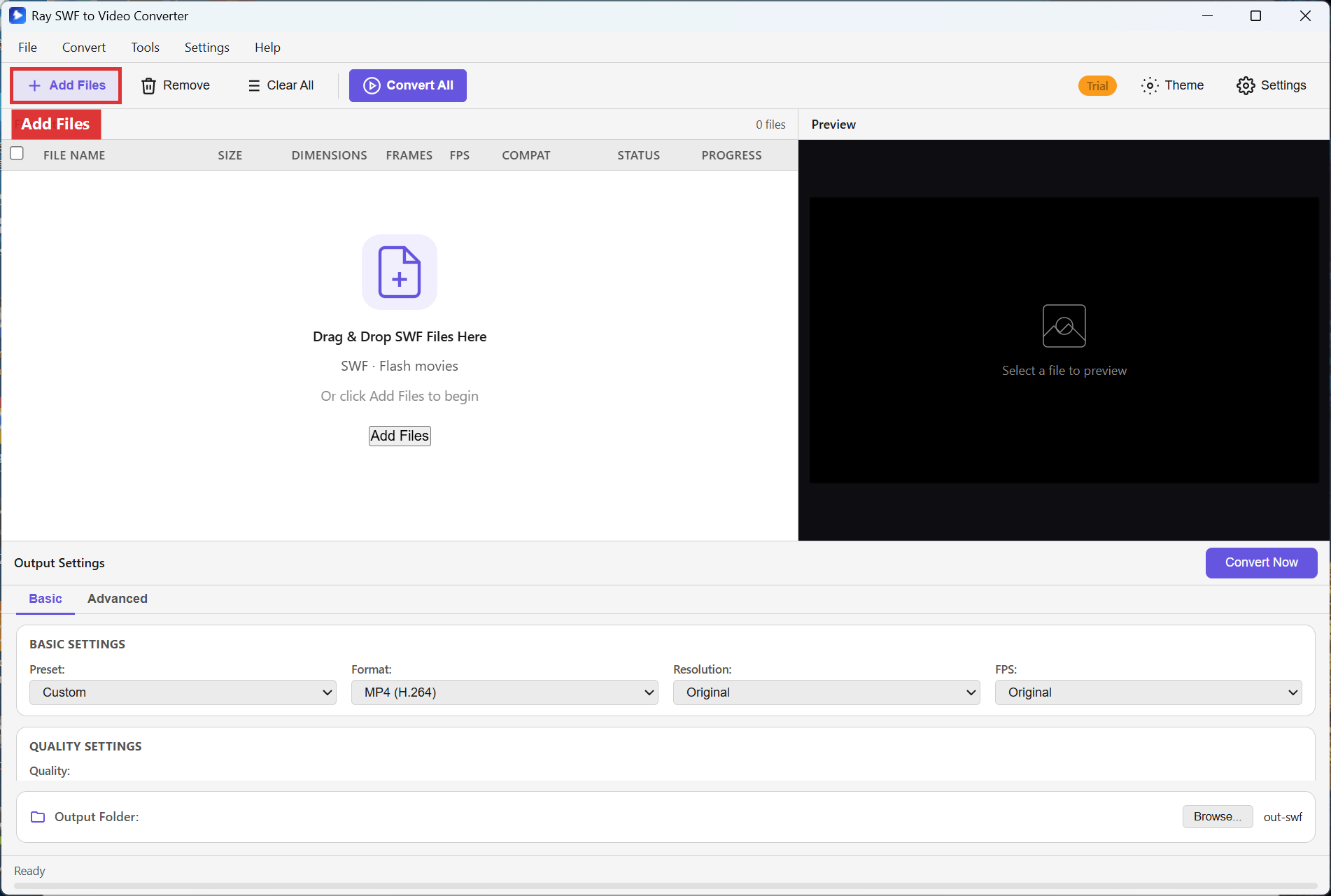
Step 1. Open the converter. Click Add Files and multi-select your SWF library, or drag a whole selection onto Drag & Drop SWF Files Here.
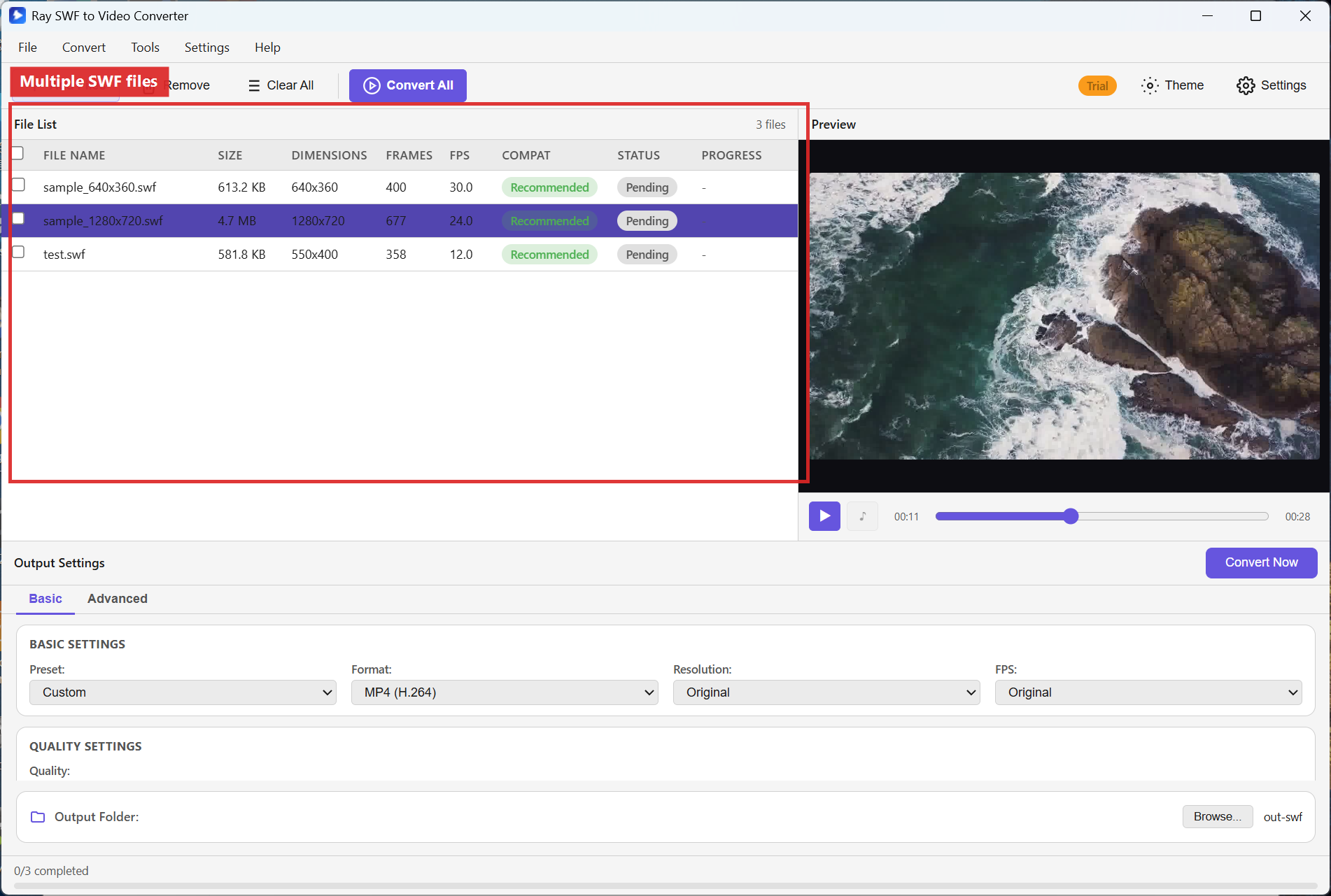
Step 2. Confirm every SWF appears as its own row. Use Remove for unwanted items or Clear All to start over. Set Format to MP4 (H.264) once for the batch.
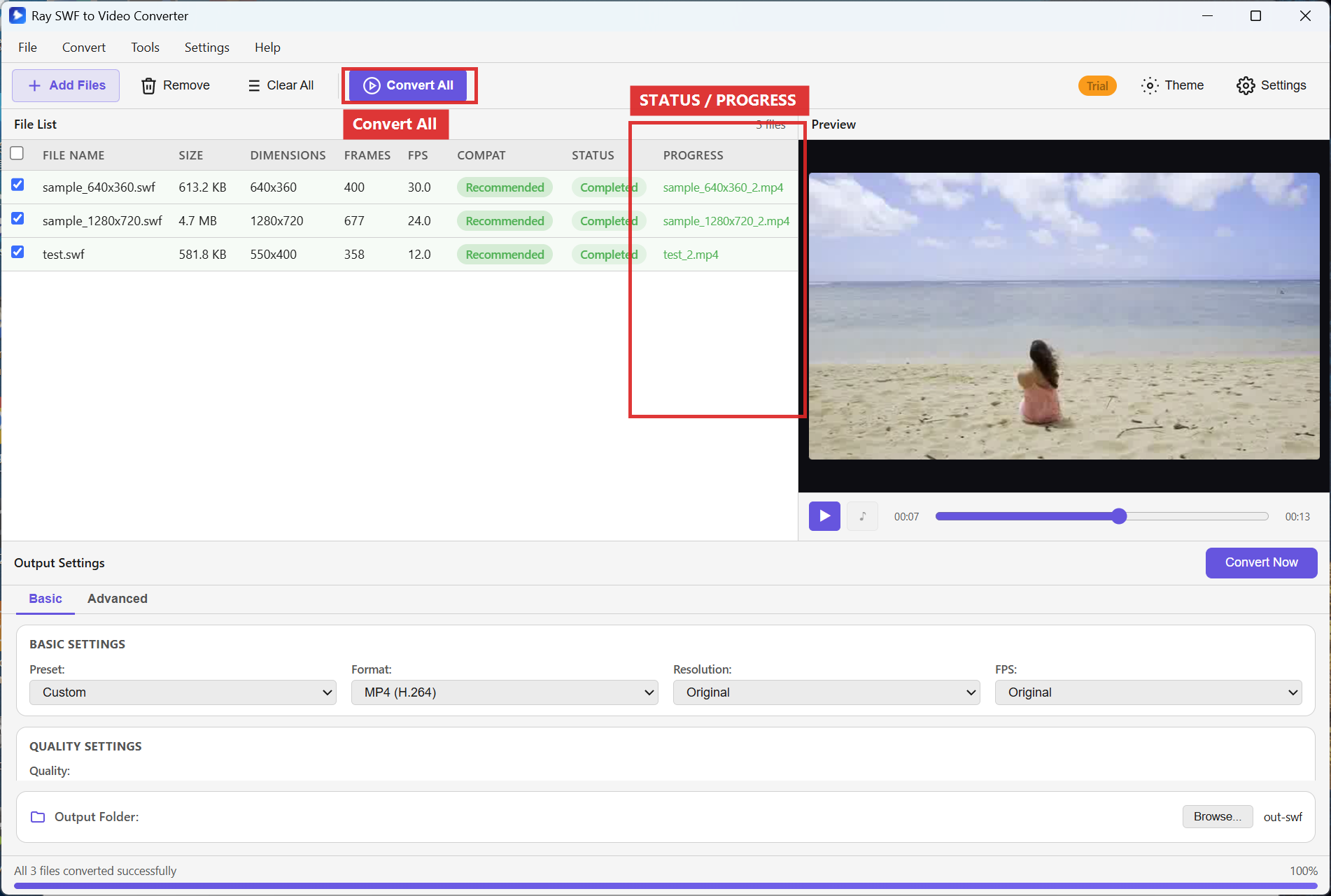
Step 3. Click Convert All. Each row updates STATUS and PROGRESS as the queue advances. Use Convert Now only when you want to force a single selected row.
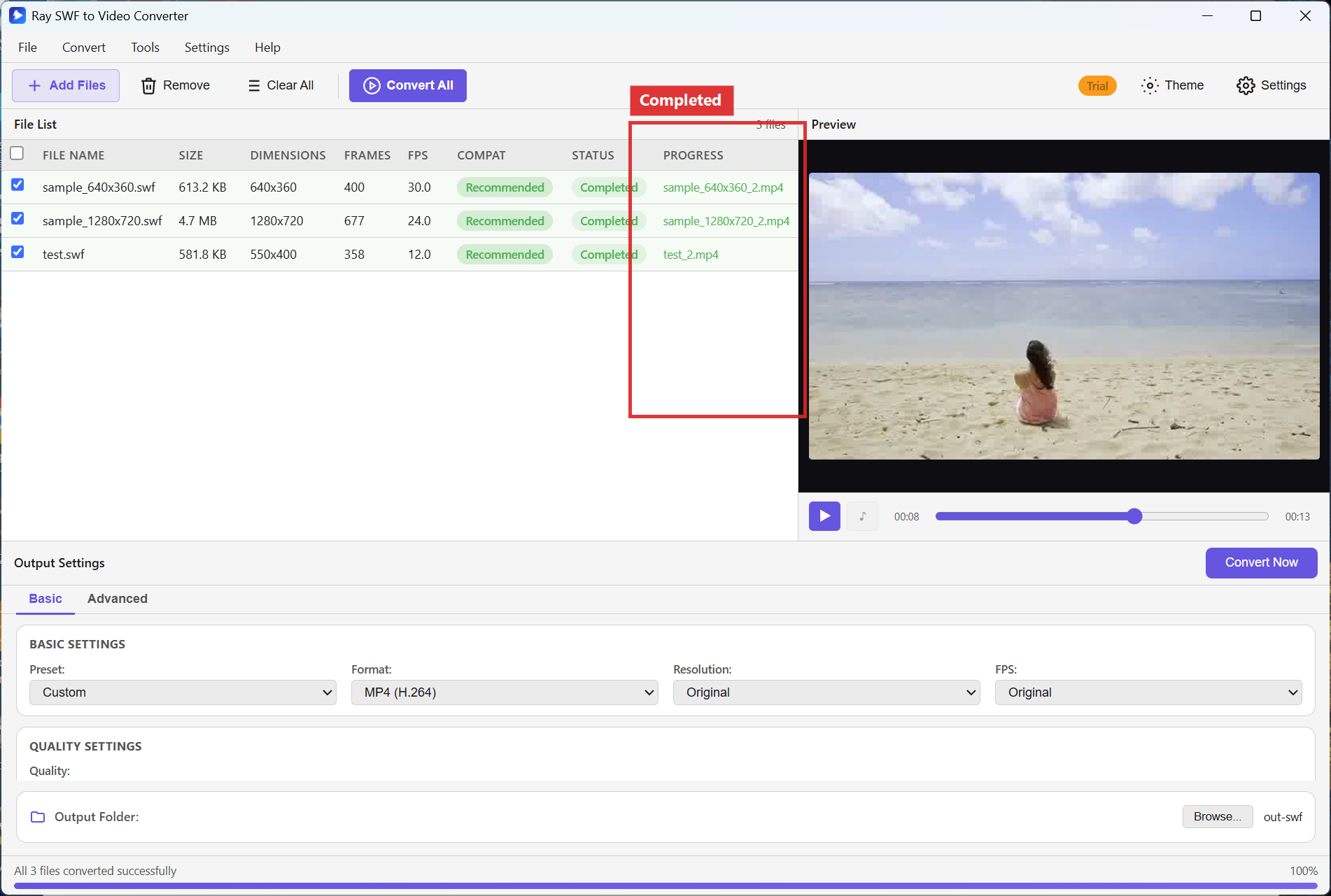
Step 4. Wait until every row shows Completed, then open the shared Output Folder.
Recommended settings
- Format: MP4 (H.264) for a uniform, portable batch.
- Resolution / FPS: Original so each SWF keeps its own dimensions and timing.
- Output Folder: Point all jobs to one empty folder so you can zip or upload the results together.
- Queue hygiene: Clear failed rows with Remove, re-add the file, then Convert Now.
FAQ
Can each file use a different format?
Output Settings apply to the conversion run. For mixed formats, convert one group, change Format, then convert the next group.
What do STATUS and PROGRESS show?
They report per-file state while Convert All works through the File List.
How do I remove one SWF without clearing the queue?
Select the row and click Remove. Use Clear All only when you want an empty list.
Try Ray SWF to Video Converter
Download the free Windows trial, then follow the steps above on your own Flash archives.
Free download Product page All tutorials SWF tutorial hub