When an SWF will not open, the cause is often the wrong app, a locked or corrupt file, or a Flash feature the converter cannot fully render. Work through the checklist below with Ray SWF to Video Converter — and remember that Ray Video Converter will not open SWF at all.
Steps
Step 1. Confirm you are in Ray SWF to Video Converter (rayswf2video.exe), not Video Converter.
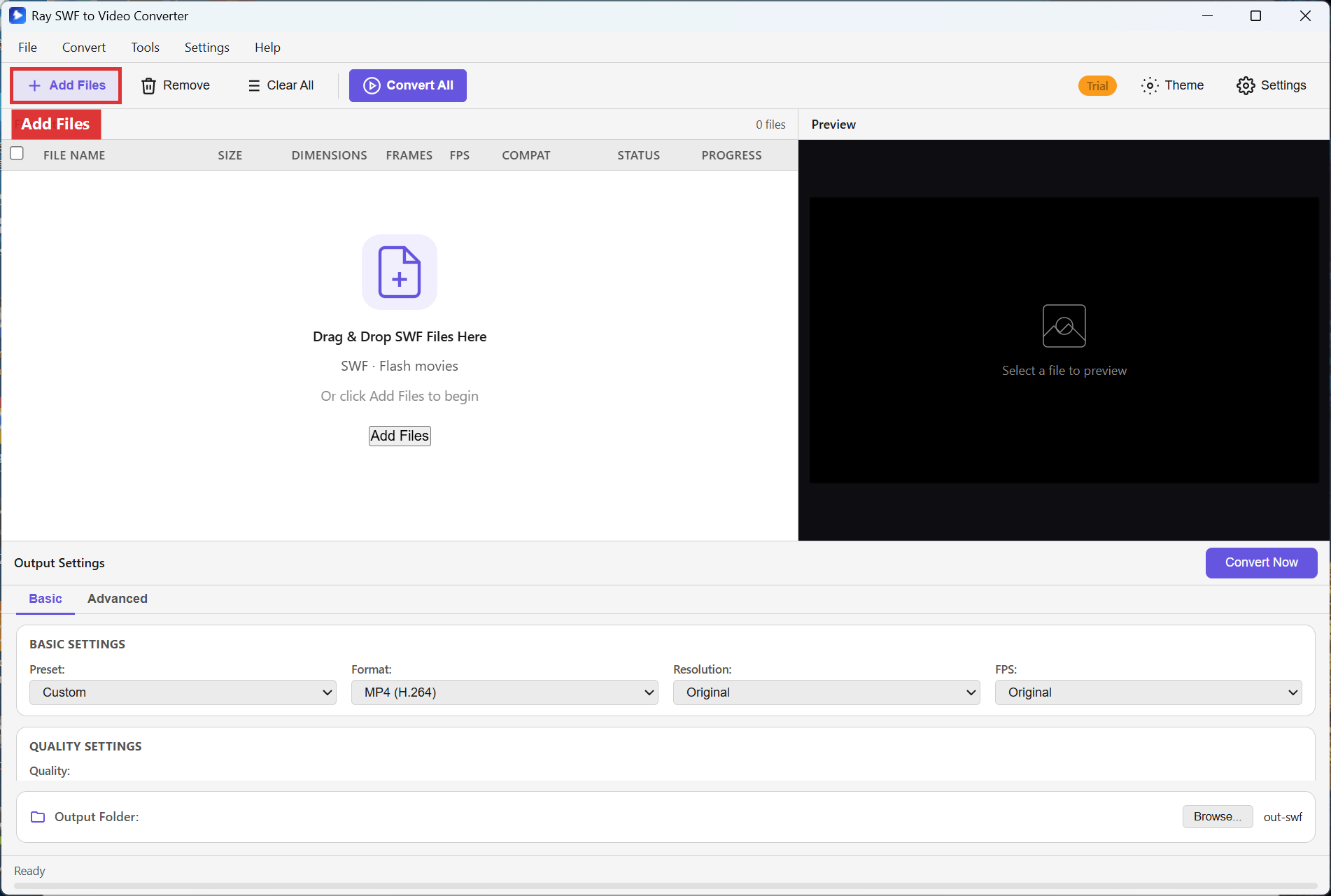
Use Add Files or drag the SWF onto Drag & Drop SWF Files Here.
Step 2. If the file appears, check COMPAT and STATUS in the File List. Preview the stage. If antivirus or another program has the file locked, close that program, copy the SWF to a simple local folder, and add it again.
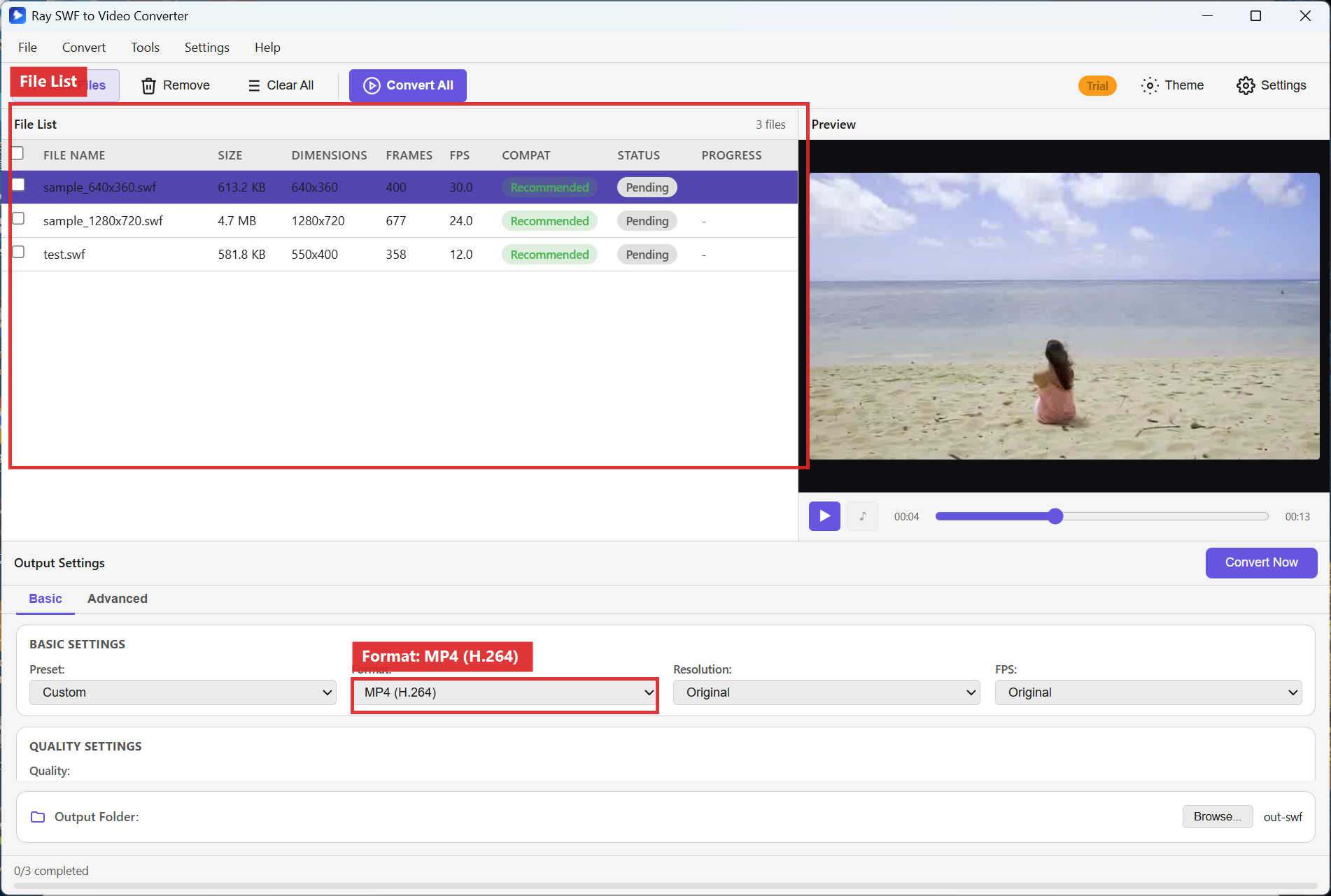
Step 3. Set Format to MP4 (H.264), click Convert All or Convert Now, and watch PROGRESS. A successful run is often the quickest proof the archive is readable.
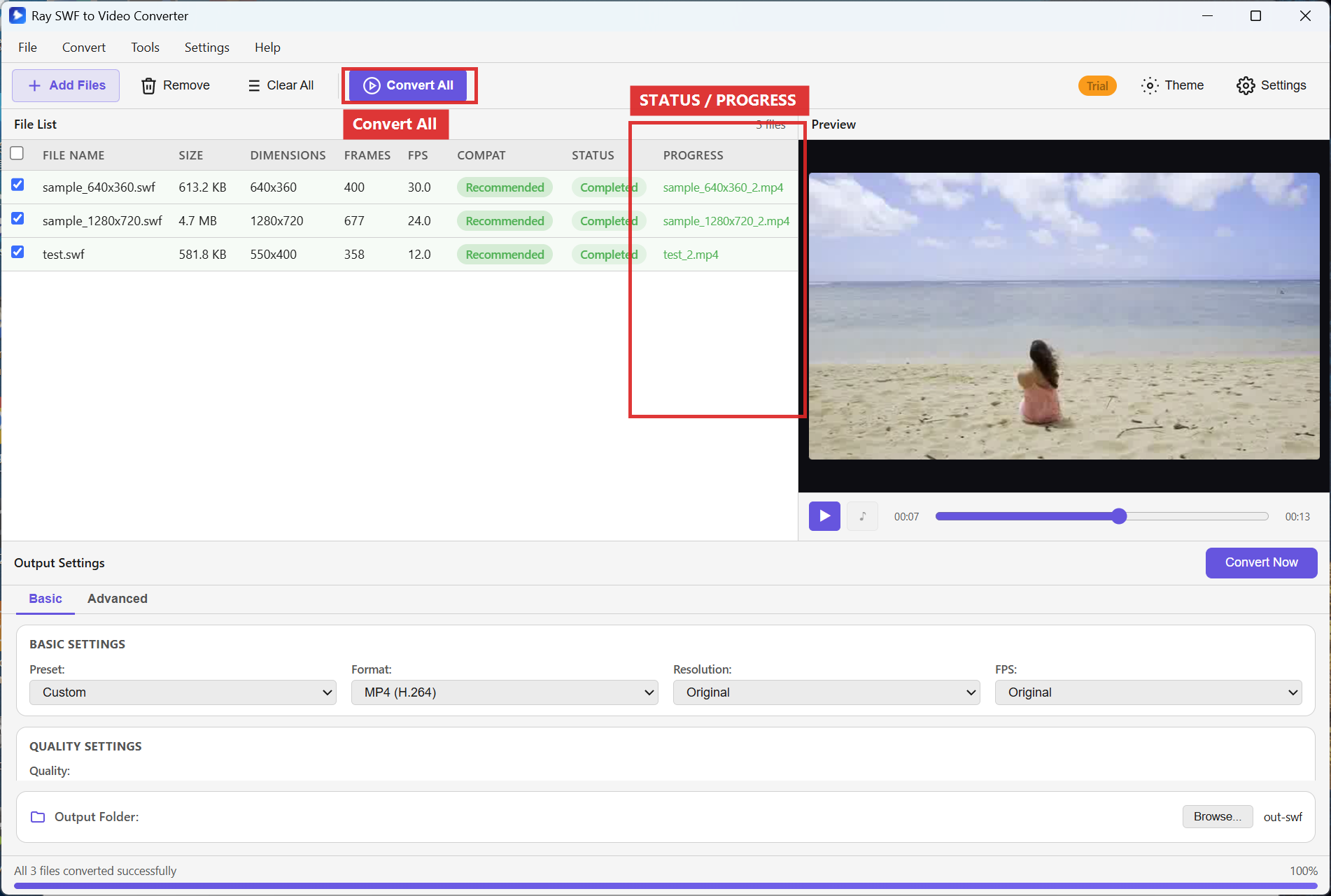
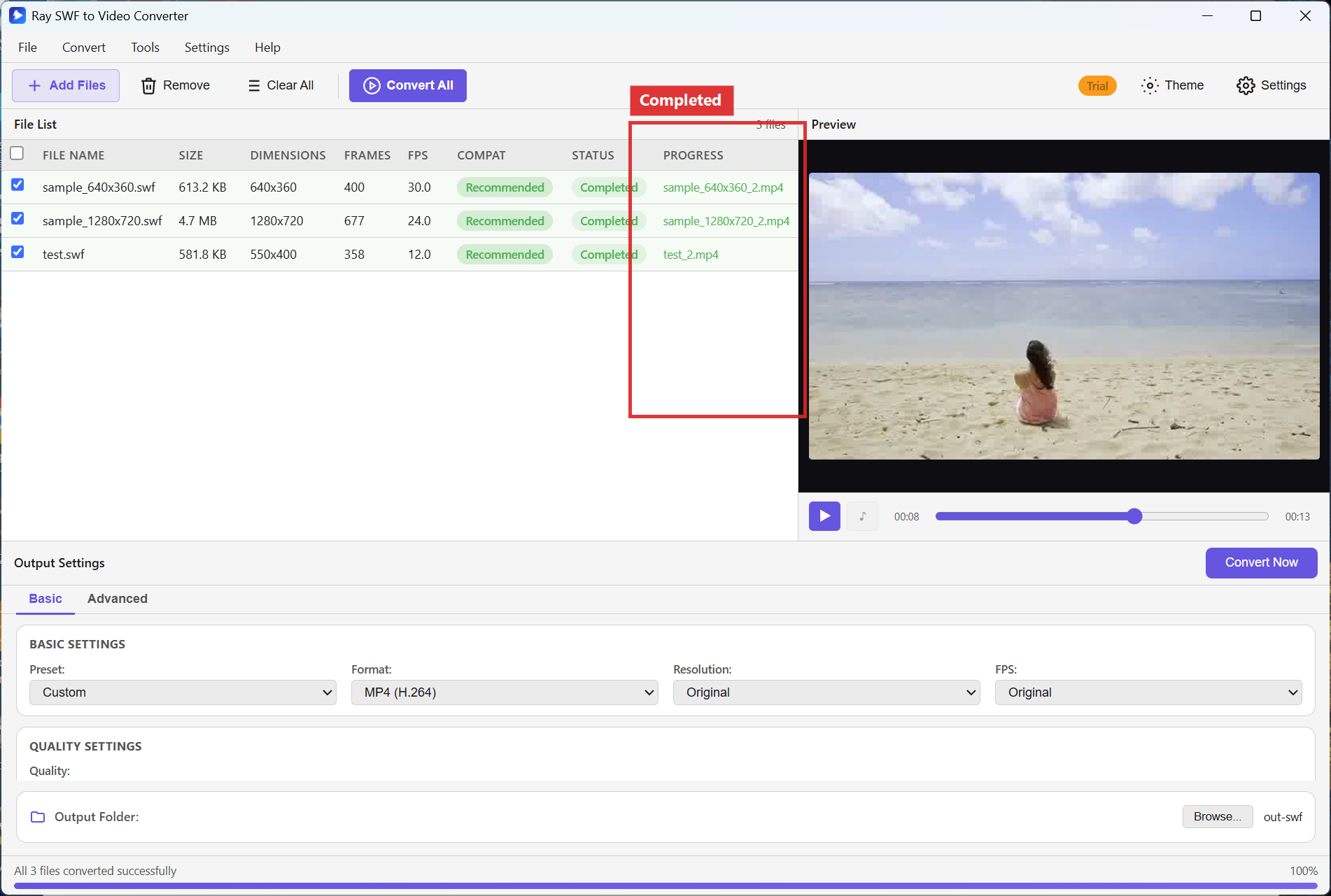
Step 4. If conversion finishes with Completed, open the MP4. If it fails, try another copy of the SWF, remove the row with Remove, free disk space, and retry. Complex ActionScript 3 projects may not convert perfectly — treat conversion as a best-effort archive path, not a guarantee for every interactive feature.
Recommended troubleshooting checklist
- Wrong product: Video Converter does not open SWF — switch to SWF to Video.
- Add Files: Prefer the in-app button over double-click associations.
- Locks: Exclude the folder from active scans temporarily, or copy the SWF to Desktop and re-add.
- Corrupt download: Re-download or restore from backup; a truncated SWF will not parse.
- AS3 / Compat: Check COMPAT/STATUS; if unknown features are involved, try convert anyway and review the Preview/output honestly.
FAQ
Why does Video Converter reject my SWF?
That product is for common video formats only. Use
Ray SWF to Video Converter for Flash.
What does a bad COMPAT or STATUS value mean?
It signals the file may be unsupported, damaged, or still loading. Remove the row, re-add with Add Files, and try Convert Now on a fresh copy.
Will every AS3 game convert?
Not necessarily. Highly interactive or network-bound Flash apps may not produce a useful linear video. Try conversion and inspect Preview/output rather than assuming full fidelity.
Conversion stuck at 0%?
Free disk space, close other heavy apps, Remove the row, re-add the SWF, then Convert Now.
Try Ray SWF to Video Converter
Download the free Windows trial, then follow the steps above on your own Flash archives.
Free download Product page All tutorials SWF tutorial hub