Windows 10 and Windows 11 no longer ship Adobe Flash Player, and major browsers blocked SWF playback years ago. Ray SWF to Video Converter does not claim to be a built-in SWF player — instead you convert the Flash movie to MP4, then play the MP4 in Movies & TV, your browser, or VLC.
Note: Ray SWF to Video Converter is for Flash .swf files only.
Ray Video Converter does not open SWF — use this product for Flash content.
Steps
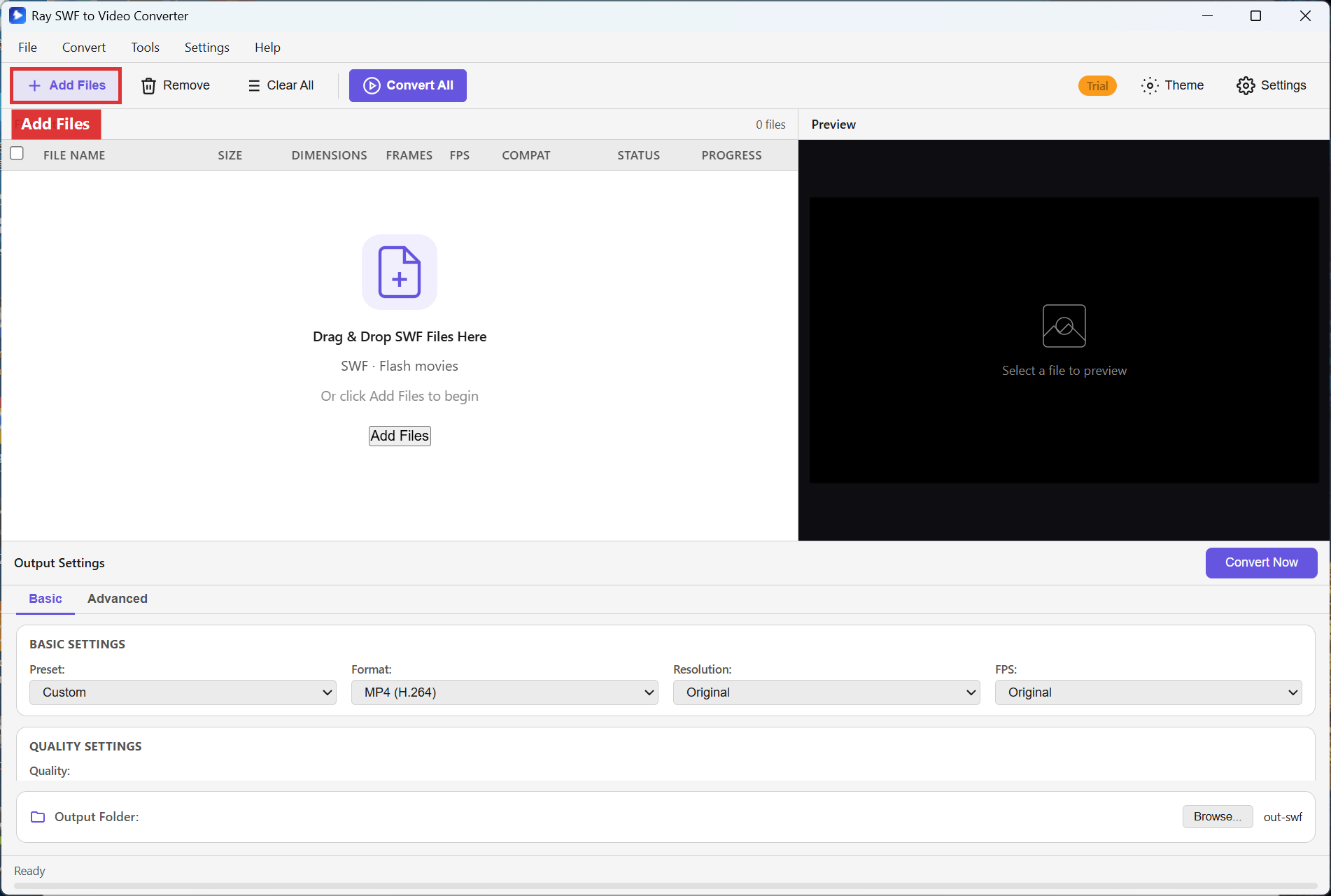
Step 1. Install and open Ray SWF to Video Converter. Click Add Files and choose the SWF you want to watch.
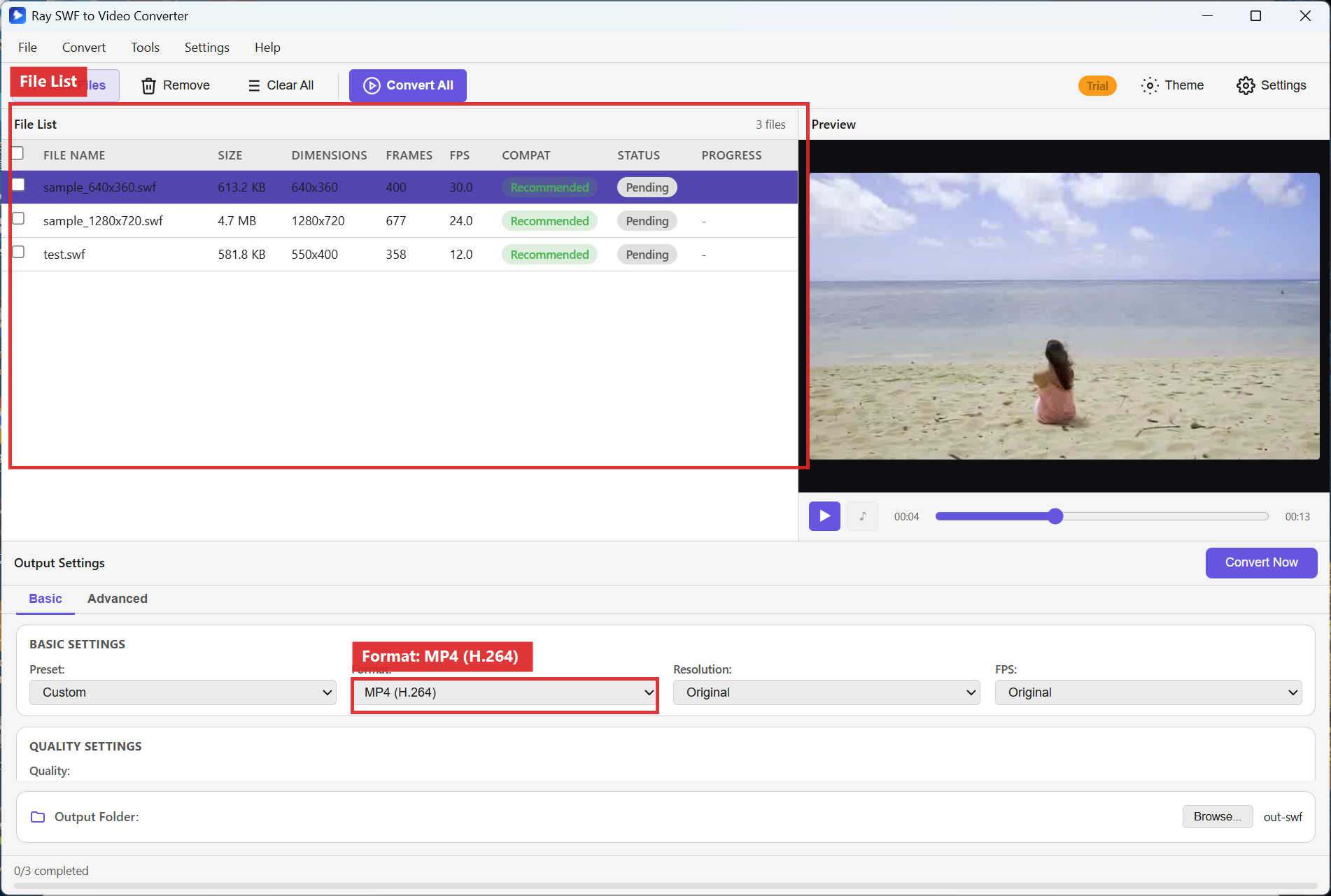
Step 2. In Output Settings, set Format to MP4 (H.264), Resolution to Original, and FPS to Original so timing matches the Flash movie.
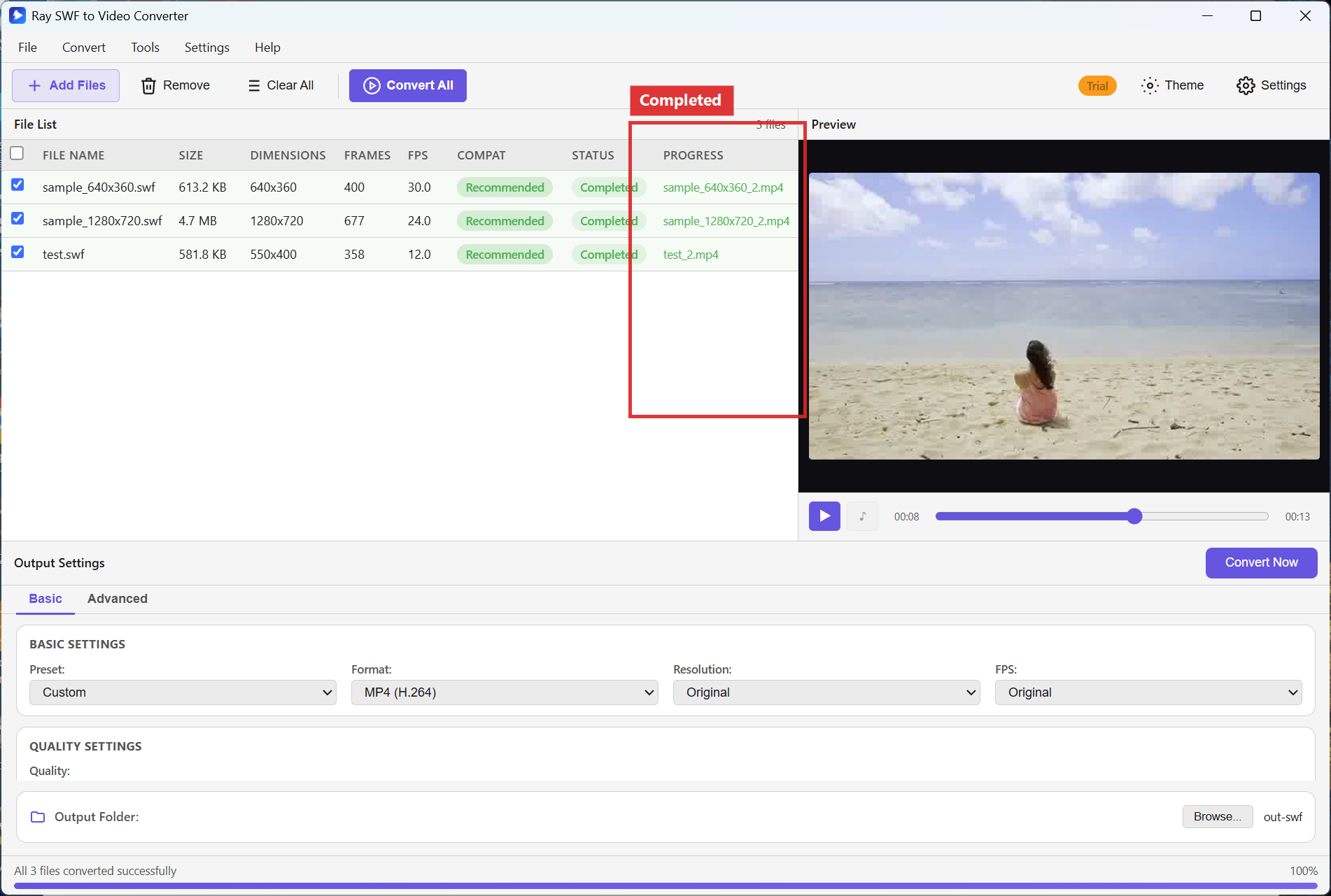
Step 3. Click Convert All. When STATUS shows Completed, open the MP4 from the Output Folder in Movies & TV, Edge/Chrome, or VLC.
Recommended settings
- Format: MP4 (H.264) — the most reliable choice for built-in Windows players.
- Resolution / FPS: Original for a faithful view of the Flash stage.
- Player tips: Movies & TV or Edge for simple clips; VLC if a file still refuses to open.
FAQ
Can I play SWF directly inside this app like Flash Player?
The product focuses on conversion with Preview for inspection. For everyday viewing on Windows 10/11, convert to MP4 and use a modern media player.
Is installing old Flash Player safe?
Adobe ended support. Prefer converting archives to MP4 or GIF instead of seeking unsupported Flash runtimes.
What if conversion finishes but the MP4 will not play?
Try VLC, confirm the file size is non-zero, and re-run with MP4 (H.264) and Original resolution.
Try Ray SWF to Video Converter
Download the free Windows trial, then follow the steps above on your own Flash archives.
Free download Product page All tutorials SWF tutorial hub