When you have a folder of clips — event footage, screen recordings, or camera dumps — converting one file at a time wastes effort. Ray Video Converter keeps every clip in a shared File Queue so you can set Format once and run Convert All.
Note: This product converts regular video formats. It does not open SWF — see SWF to Video for Flash.
Steps
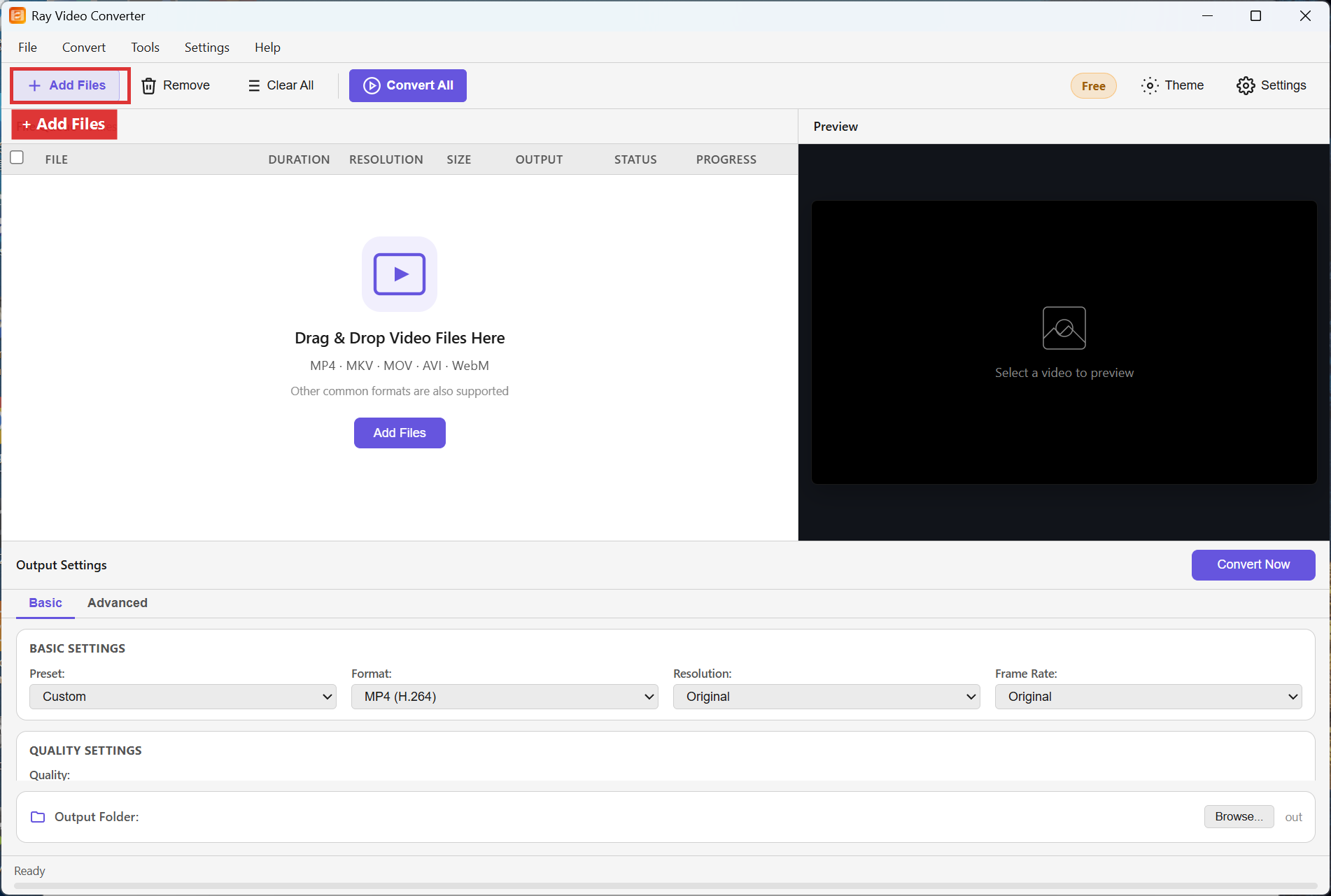
Step 1. Start from an empty queue. Use + Add Files repeatedly, or drag multiple files and folders into the window.
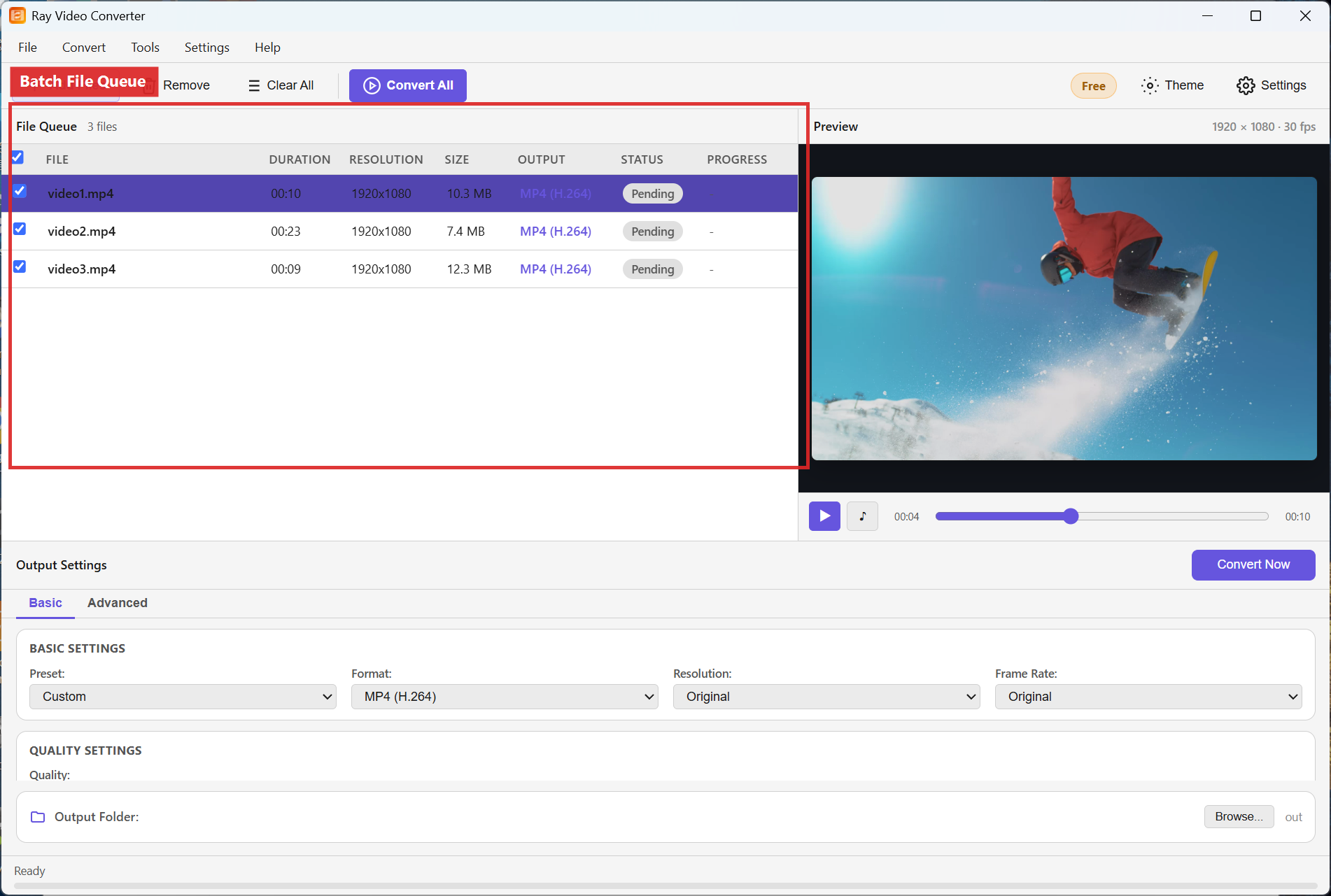
Step 2. Review the batch list. Remove mistakes with Remove, or wipe the list with Clear All and re-add. Set one shared Format (for example MP4 (H.264)) and an Output Folder in Output Settings.
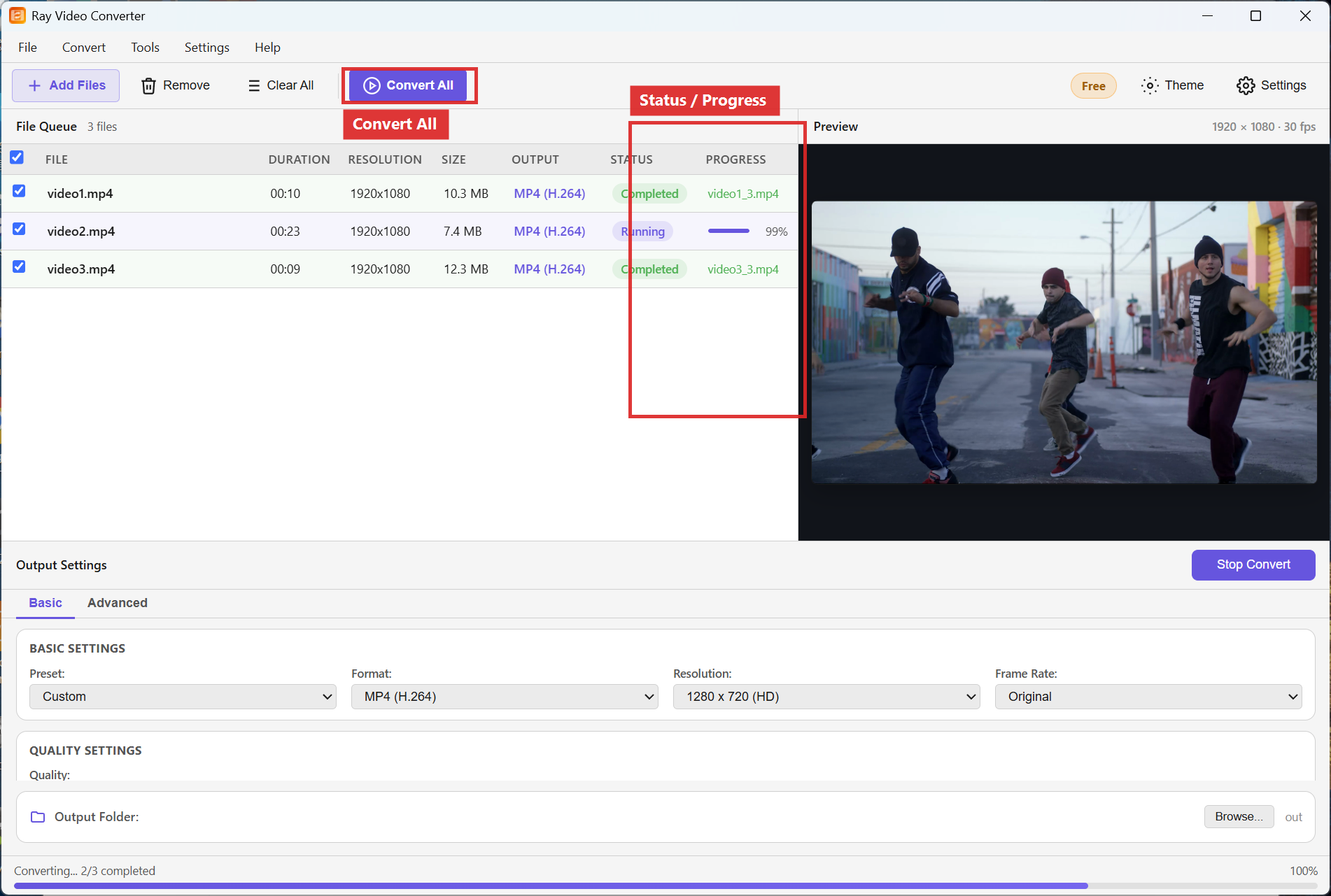
Step 3. Click Convert All. Each row updates while encoding. You can watch progress in the queue.
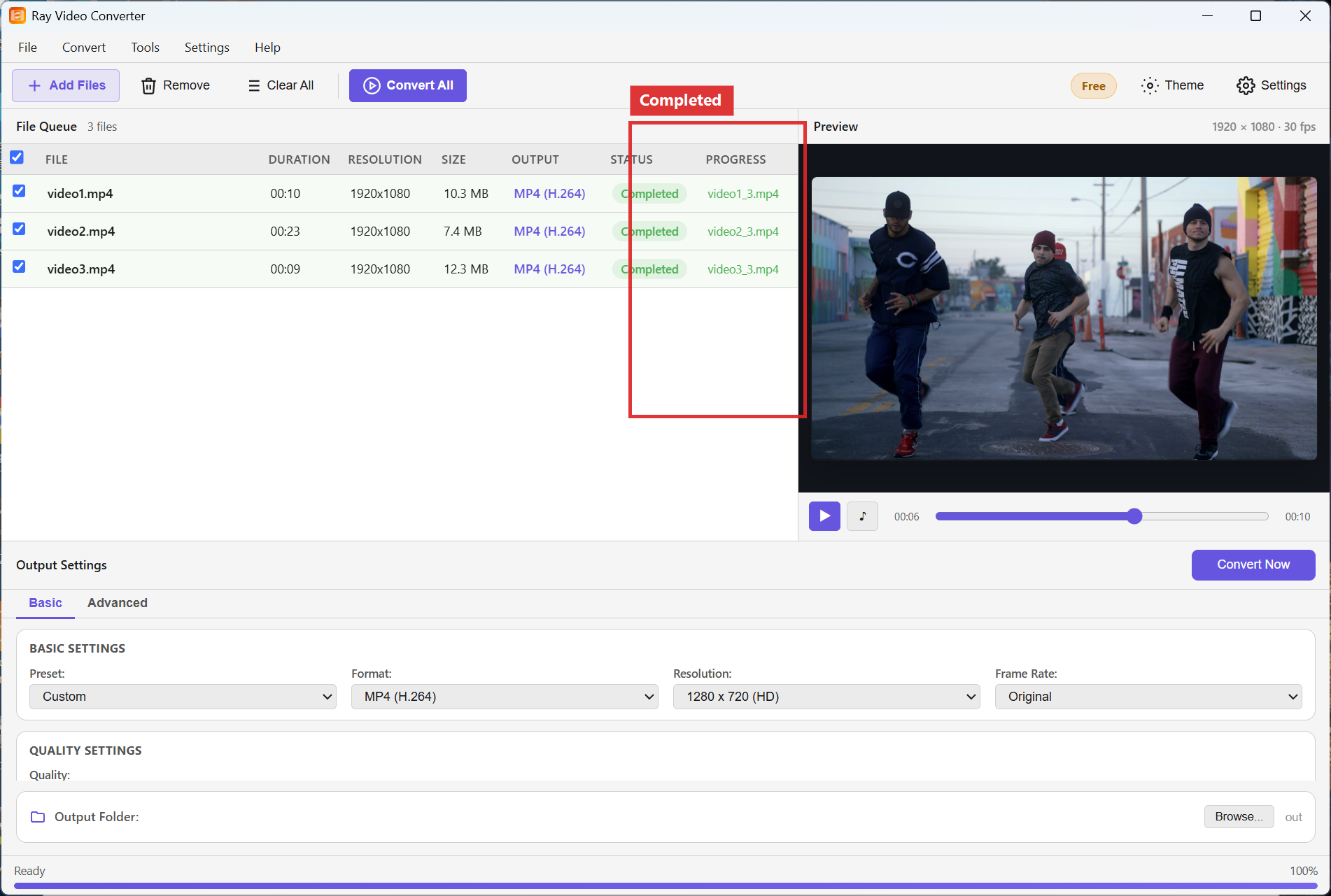
Step 4. Confirm every row shows Completed, then open the Output Folder.
Recommended settings
- Apply the same Format and Resolution to the whole queue unless a few clips need special treatment.
- For mixed sources going to one destination, use MP4 (H.264) and Original or 1920x1080.
- Leave enough free disk space for the full batch before you start Convert All.
FAQ
Can I convert only one file in a long queue?
Yes. Select that row and use Convert Now instead of Convert All.
What if one file fails?
Other rows can still finish. Remove or re-add the failed clip, adjust Format if needed, then convert that row again.
Does batch mode change quality?
No. Quality and Resolution apply the same way as single-file jobs; batch only queues the work.
Try Ray Video Converter
Download the free Windows trial, then follow the steps above on your own files.
Free download Product page All tutorials