Need the soundtrack without the picture — for podcasts, practice tracks, or a lighter archive? Ray Video Converter can export MP3 (Audio) from almost any common video in the File Queue. You can also keep a video export and tick Also save MP3 track when you want both outputs.
Note: Video Converter does not open SWF. Use SWF to Video for Flash audio/video.
Steps
Step 1. Click + Add Files and load the videos that hold the audio you need.
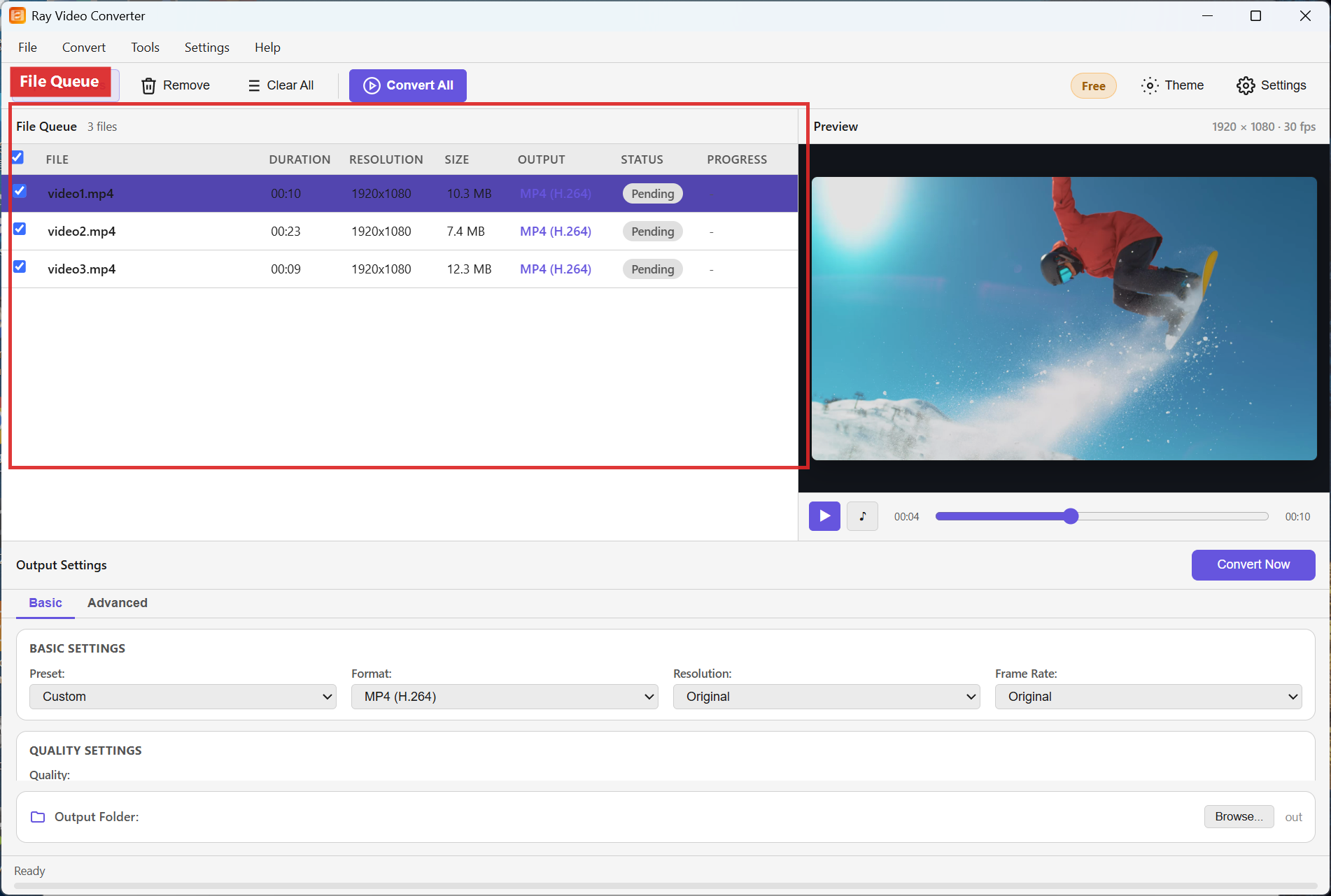
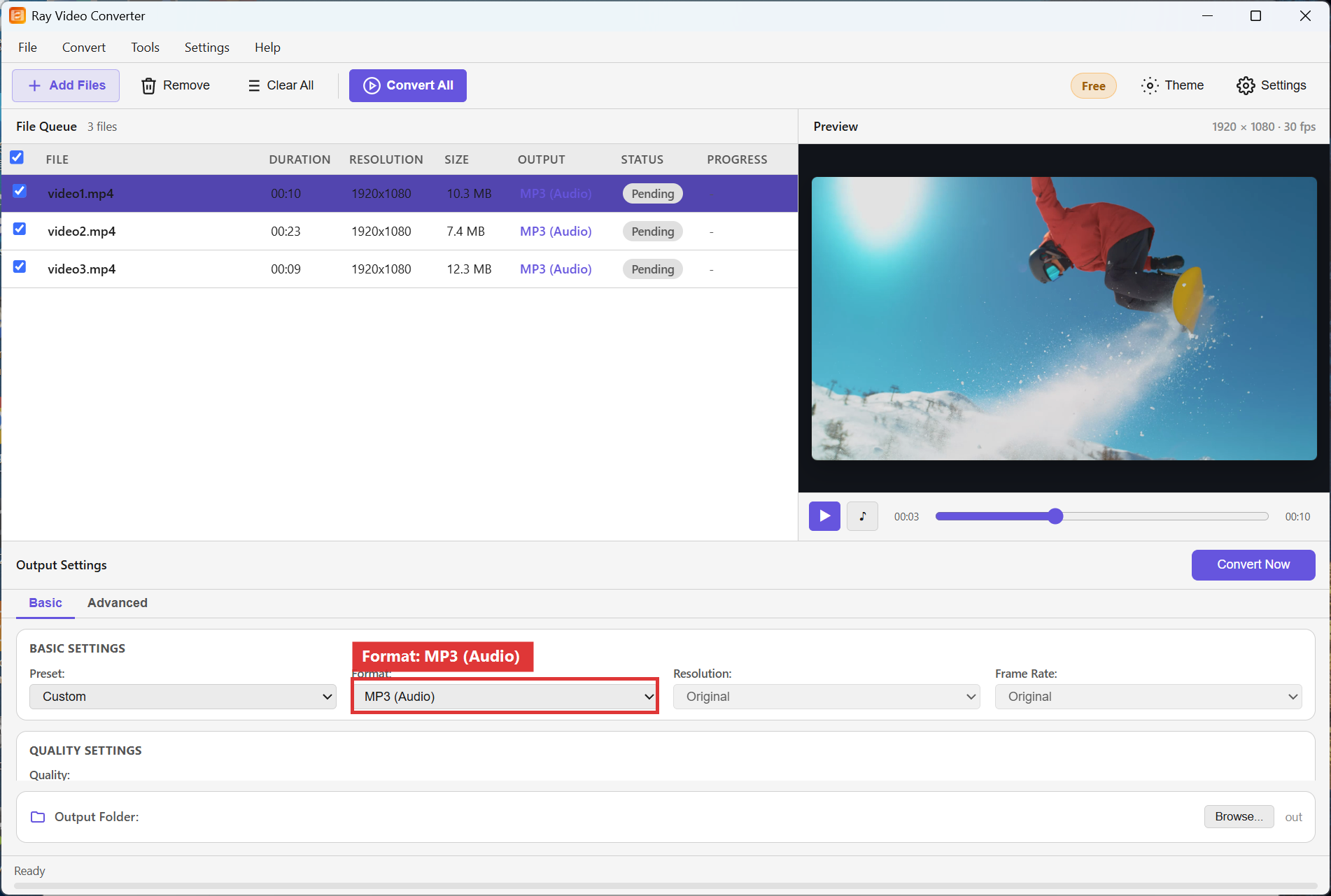
Step 2. In Output Settings, set Format to MP3 (Audio). The Output column in the queue updates to show an MP3 (Audio) target. Pick your Output Folder.
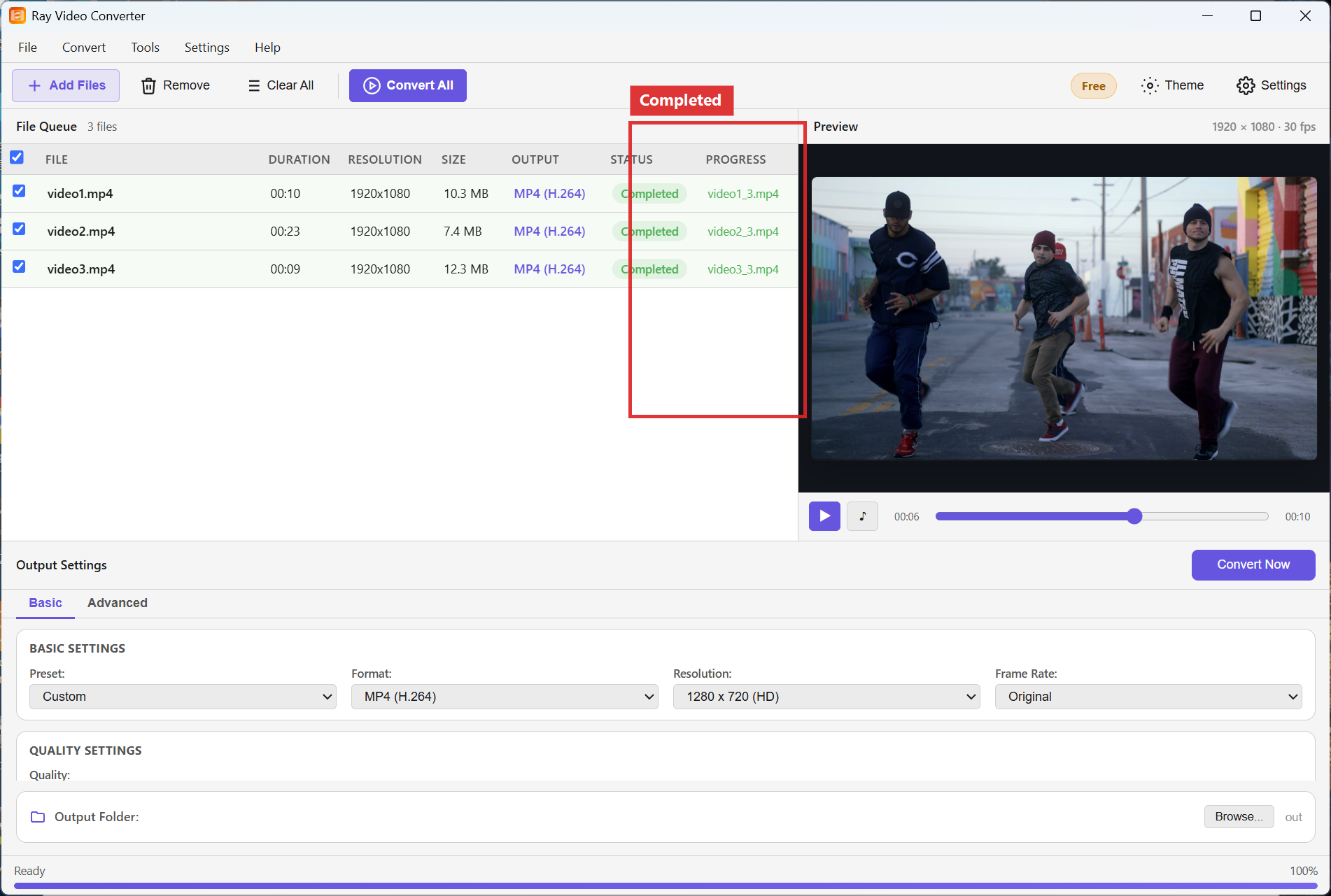
Step 3. Click Convert All. When status shows Completed, open the folder for your MP3 files.
Recommended settings
- Audio only: Format = MP3 (Audio).
- Video plus separate MP3: keep a video Format such as MP4 (H.264) and enable Also save MP3 track.
- Resolution and Crop do not apply to audio-only exports.
FAQ
Is the video deleted when I extract MP3?
No. The source file stays untouched. Only a new MP3 is written to the Output Folder.
Why is my MP3 silent?
The source may have no audio stream, or a rare codec. Play the original in VLC to confirm sound exists, then retry.
Can I extract many tracks in one go?
Yes. Queue every video, set Format to MP3 (Audio), and click Convert All.
Try Ray Video Converter
Download the free Windows trial, then follow the steps above on your own files.
Free download Product page All tutorials