Camera and iPhone clips often arrive as MOV. On Windows those files can open in some apps and fail in others, especially when they use Apple ProRes or less common audio layouts. Converting MOV to MP4 (H.264) gives you a delivery file that shares cleanly on Windows PCs, Android devices, and the web.
Use MOV (ProRes) in Output Settings only when you need an edit master for timelines that prefer ProRes. For everyday playback and upload, choose MP4 (H.264) instead.
Note: Video Converter does not open SWF Flash files. For SWF, use SWF to Video.
Steps
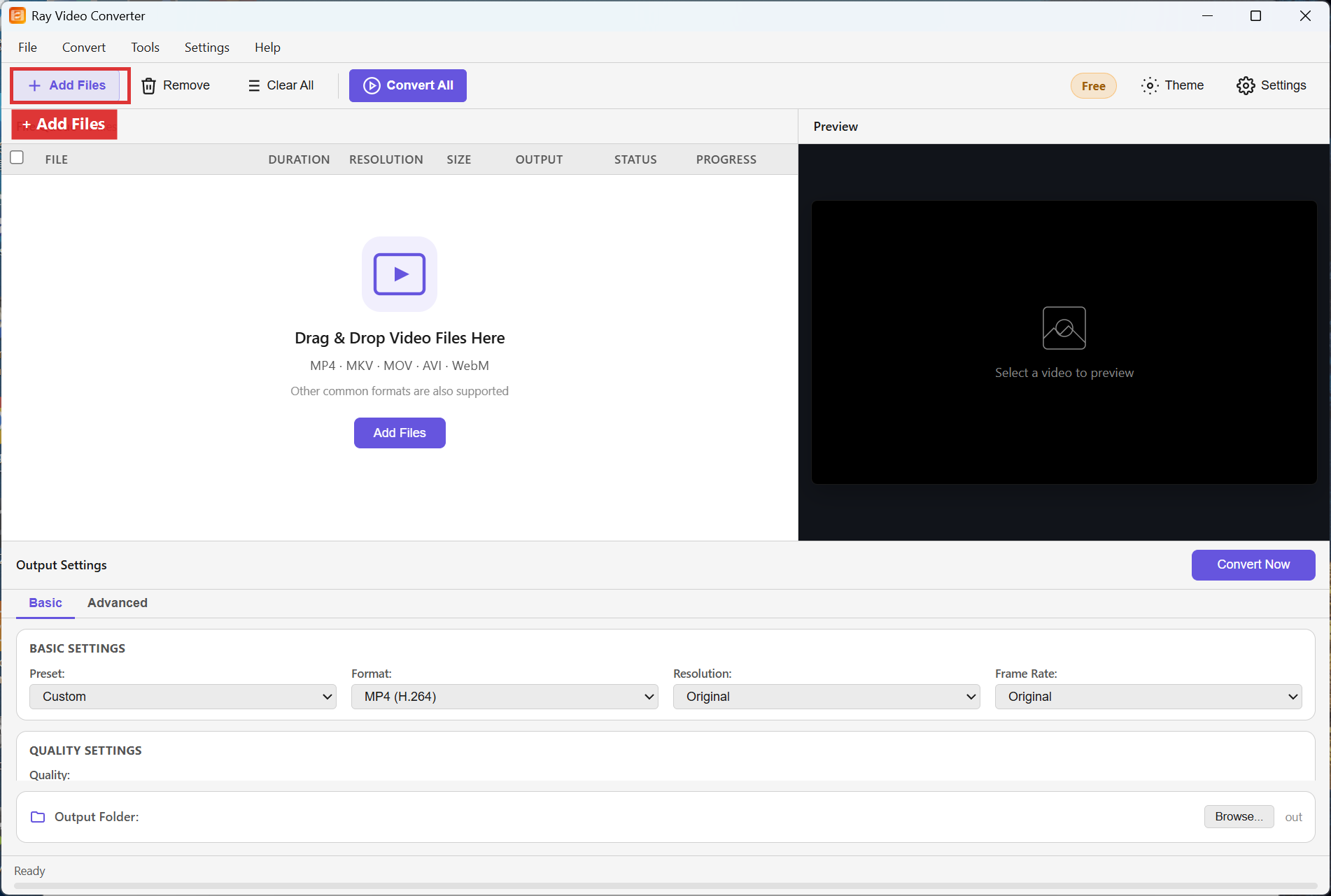
Step 1. Click + Add Files and select your MOV clips, or drop them onto the File Queue.
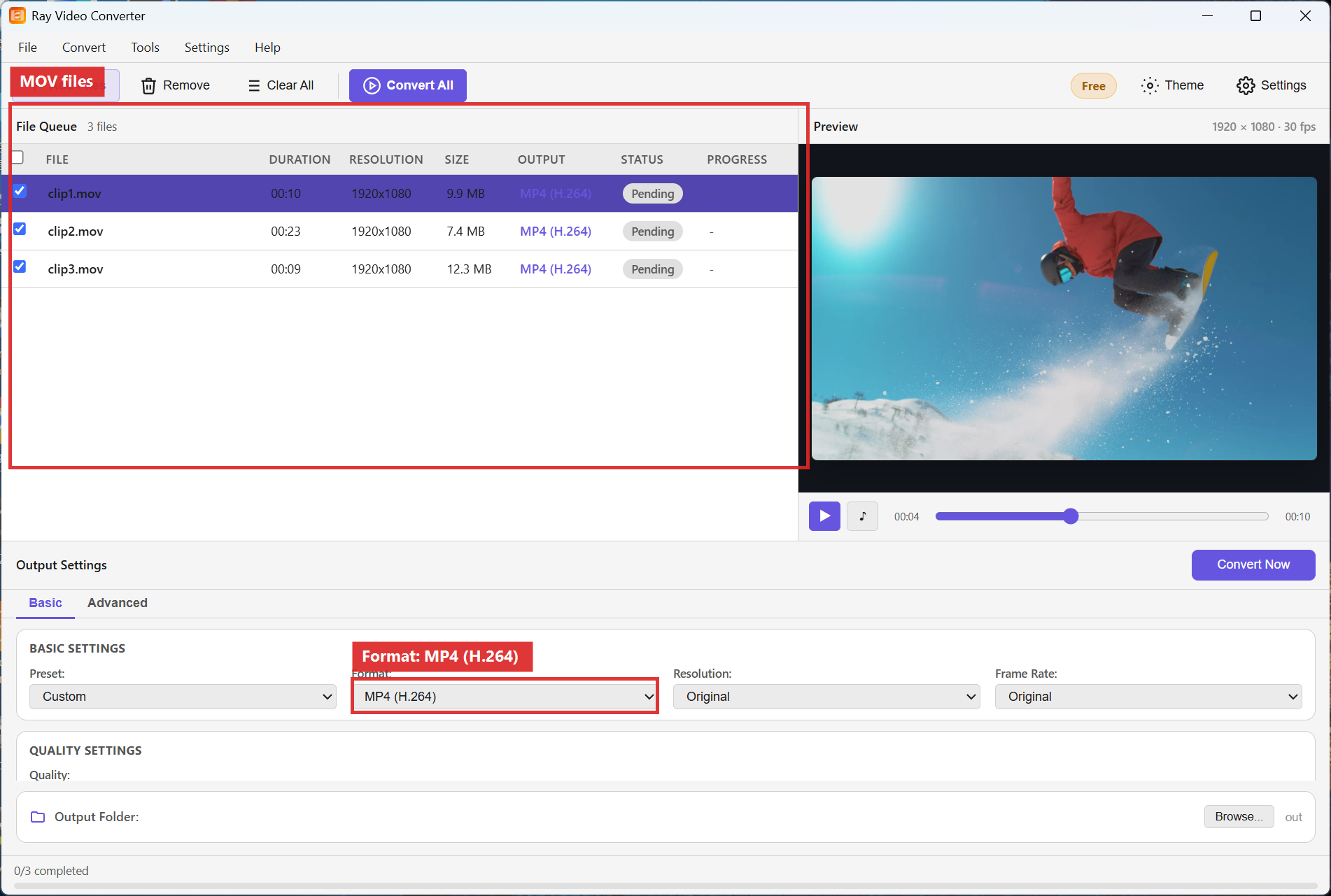
Step 2. In Output Settings, set Format to MP4 (H.264). Keep Resolution on Original for same-size delivery, or pick 1920x1080 for HD web uploads.
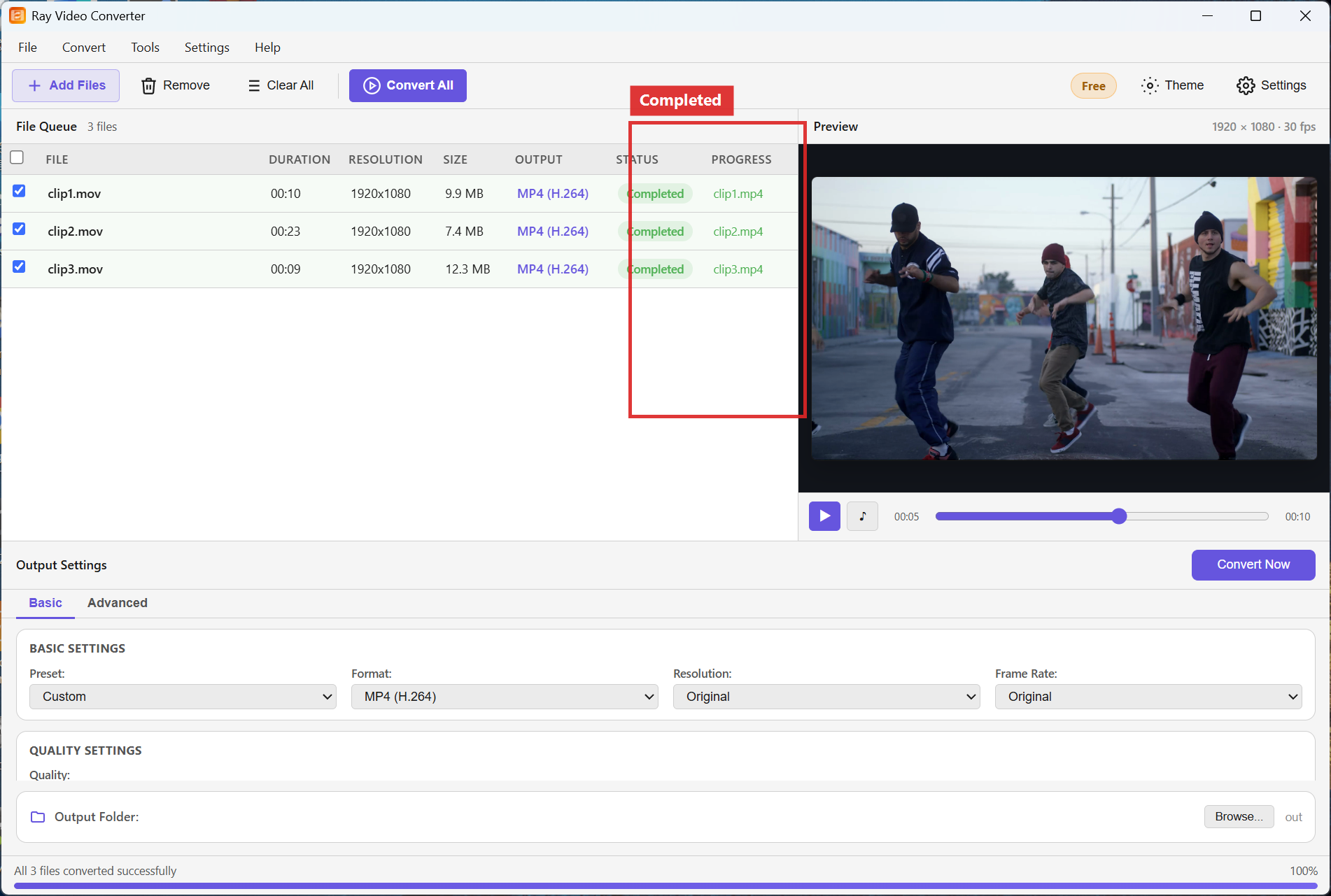
Step 3. Set the Output Folder, then click Convert All. Wait until each row shows Completed.
Recommended settings
- Everyday share / upload: MP4 (H.264), Resolution Original or 1920x1080.
- Edit master (when needed): MOV (ProRes) — larger files, softer on quality loss in NLE timelines.
- Also save MP3 track: enable only if you need a separate audio file alongside the video.
FAQ
Why does my iPhone MOV look fine on Mac but awkward on Windows?
Some MOV variants rely on codecs Windows does not ship by default. Re-encoding to MP4 (H.264) avoids that mismatch.
Should I keep ProRes?
Keep ProRes (or export MOV ProRes) for heavy color work. Deliver MP4 for clients, social, and most Windows players.
Can I convert HEVC MOV from newer phones?
Add the file, choose MP4 (H.264), and convert. If a rare clip fails to open, update Video Converter and retry.
Try Ray Video Converter
Download the free Windows trial, then follow the steps above on your own files.
Free download Product page All tutorials