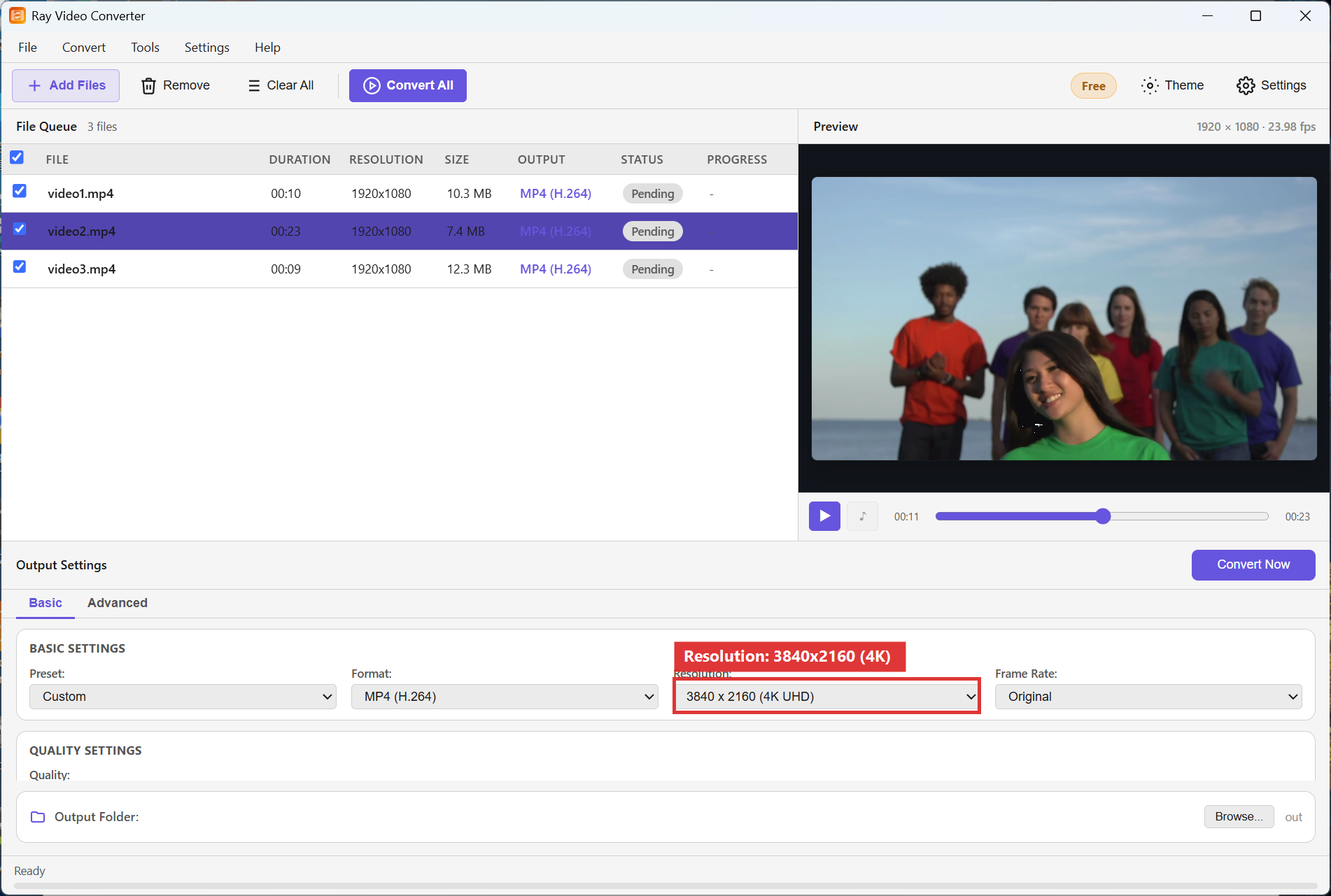
Need a 4K delivery file for a large display, timeline, or archive? In Ray Video Converter set Resolution to 3840x2160 (4K UHD) before you convert. An 7680x4320 (8K) option is also available when the format allows.
Upscaling cannot invent true camera detail. If the source is 1080p, a 4K export mainly matches a 4K timeline or screen size; start from native 4K footage whenever quality matters.
Note: Video Converter does not open SWF. Use SWF to Video for Flash.
Steps
Step 1. Click + Add Files and add the source video(s).
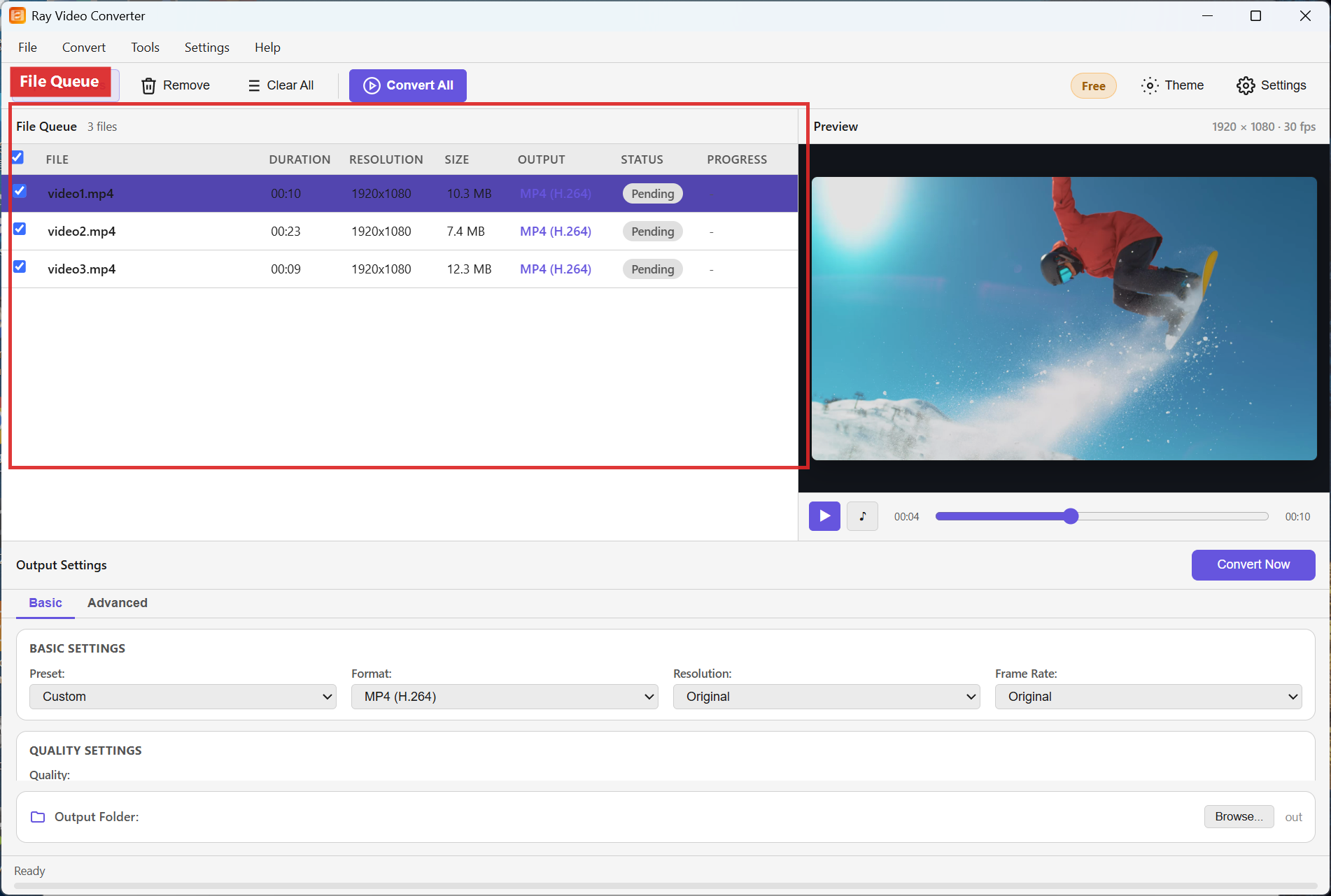
Step 2. In Output Settings, choose a suitable Format such as MP4 (H.264) or MKV (VP9). Set Resolution to 3840x2160 (4K UHD). Raise Quality when the 4K file is a master rather than a quick share.
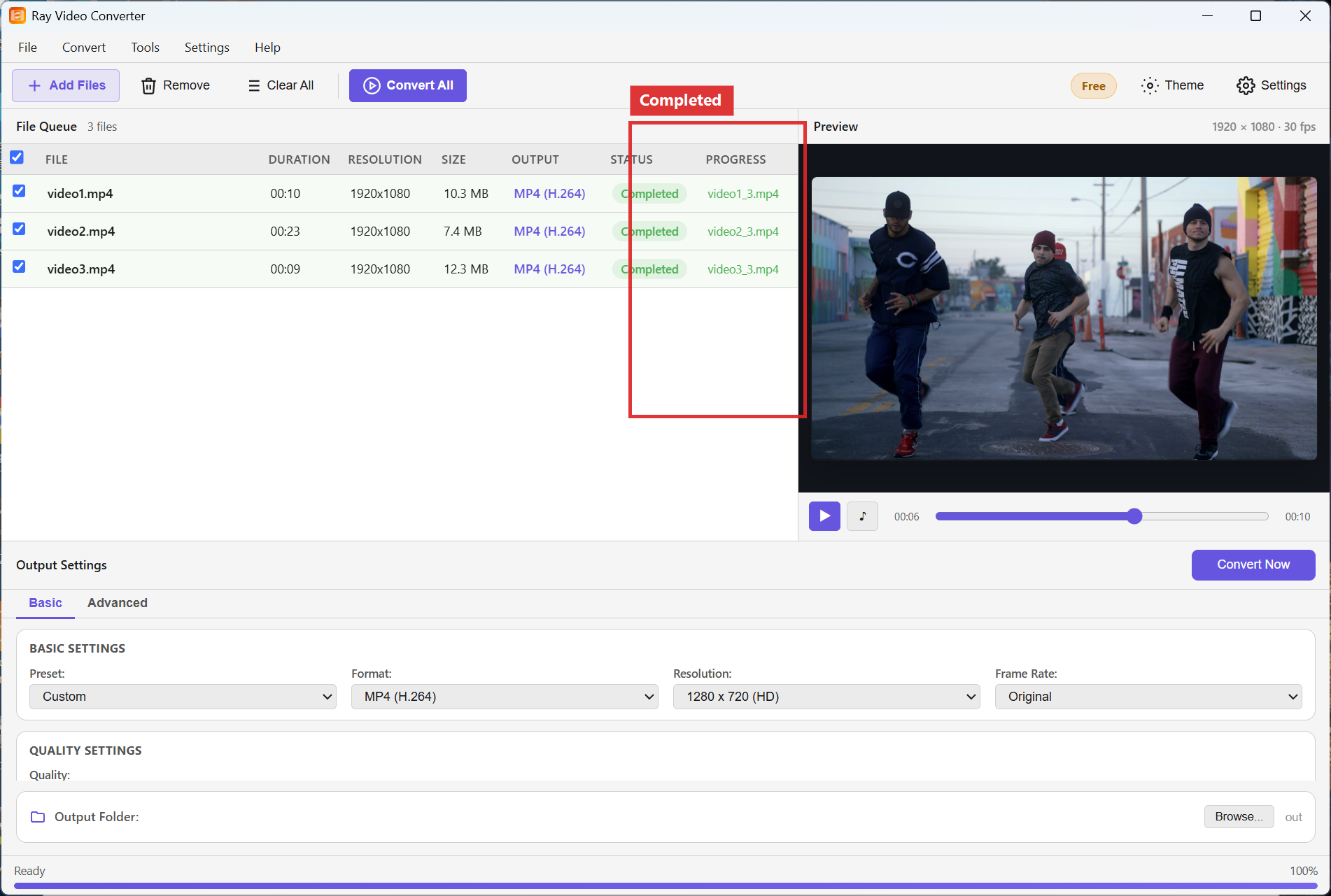
Step 3. Pick the Output Folder, click Convert All, and wait for Completed.
Recommended settings
- Native 4K source: Resolution 3840x2160, high Quality, MP4 (H.264) for compatibility.
- 1080p source for a 4K timeline: expect soft upscaling; consider leaving Original if the NLE can scale.
- 8K: choose 7680x4320 only when you truly need it — files and encode time grow quickly.
FAQ
Does converting to 4K improve a blurry clip?
No. Upscaling enlarges pixels; it does not restore lost detail.
MP4 or MKV for 4K?
MP4 (H.264) is the safer everyday choice. MKV (VP9) can help when you prefer that codec family and players that support it.
Why is 4K conversion slow?
Four times the pixels of 1080p means more work. Close other heavy apps and convert overnight for long batches.
Try Ray Video Converter
Download the free Windows trial, then follow the steps above on your own files.
Free download Product page All tutorials