Animated GIFs are ideal for short demos, UI previews, and chat reactions. Ray Video Converter can export Animated GIF from clips in the File Queue. Keep the source short and the frame size modest so the GIF stays usable.
Note: For Flash SWF to GIF workflows, use SWF to Video instead — Video Converter does not open SWF.
Steps
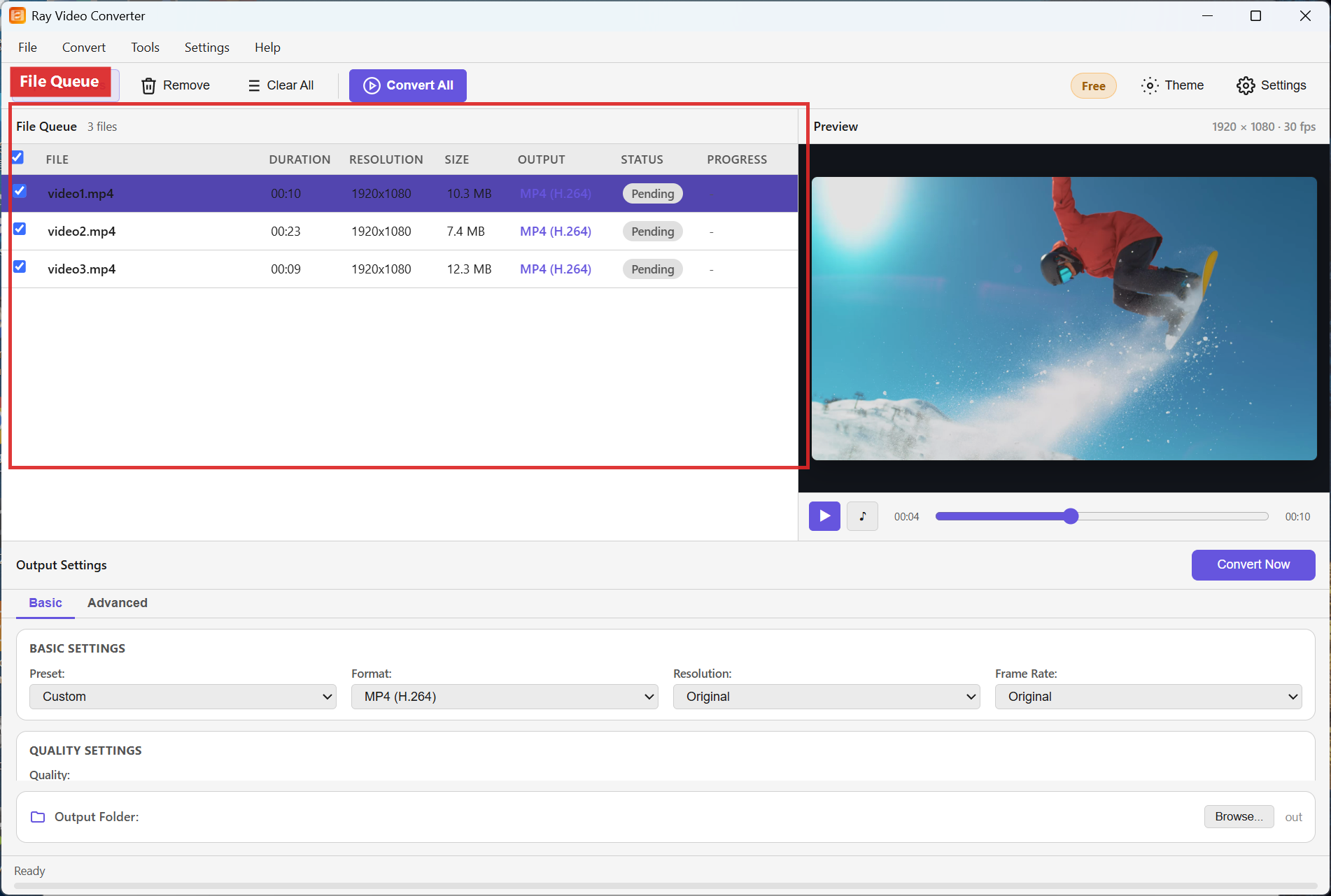
Step 1. Click + Add Files and add a short clip (a few seconds works best).
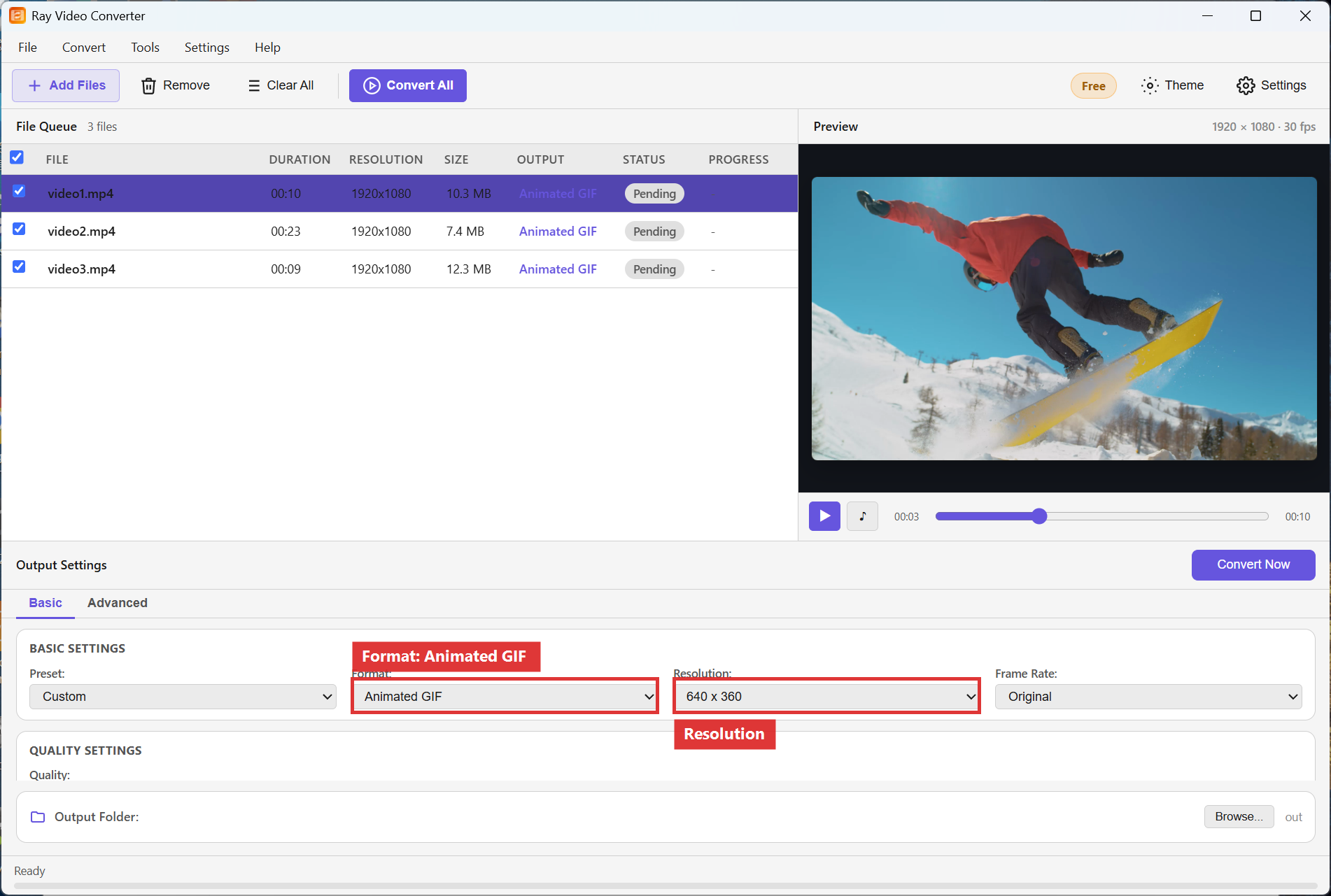
Step 2. In Output Settings, set Format to Animated GIF. Lower Resolution (for example around 640x360) and avoid maximum Quality if you need a smaller file. Optionally enable Crop in Advanced to focus on the interesting region.
Step 3. Click Convert All and wait for Completed. Open the Output Folder to preview the GIF.
Recommended settings
- Prefer clips under ~10–15 seconds.
- Start near 640x360 (or similar) rather than 1080p or 4K.
- Crop letterboxing before export so the GIF is not mostly black bars.
FAQ
Why is my GIF huge?
Long duration and high resolution inflate GIF size quickly. Shorten the clip and drop Resolution.
Do GIFs include sound?
No. GIF is picture-only. Export MP3 separately if you need audio.
Can I make a looping product demo?
Yes. Export Animated GIF from a clean loop-friendly take; most viewers and chat apps loop GIFs automatically.
Try Ray Video Converter
Download the free Windows trial, then follow the steps above on your own files.
Free download Product page All tutorials