Use Physical Disk when you want RayRecovery to scan deleted items across the partitions on a disk (not only one drive letter). Deep Scan mode works with this source type; disk access is handled by RayRecovery Service after install. Follow the steps below.
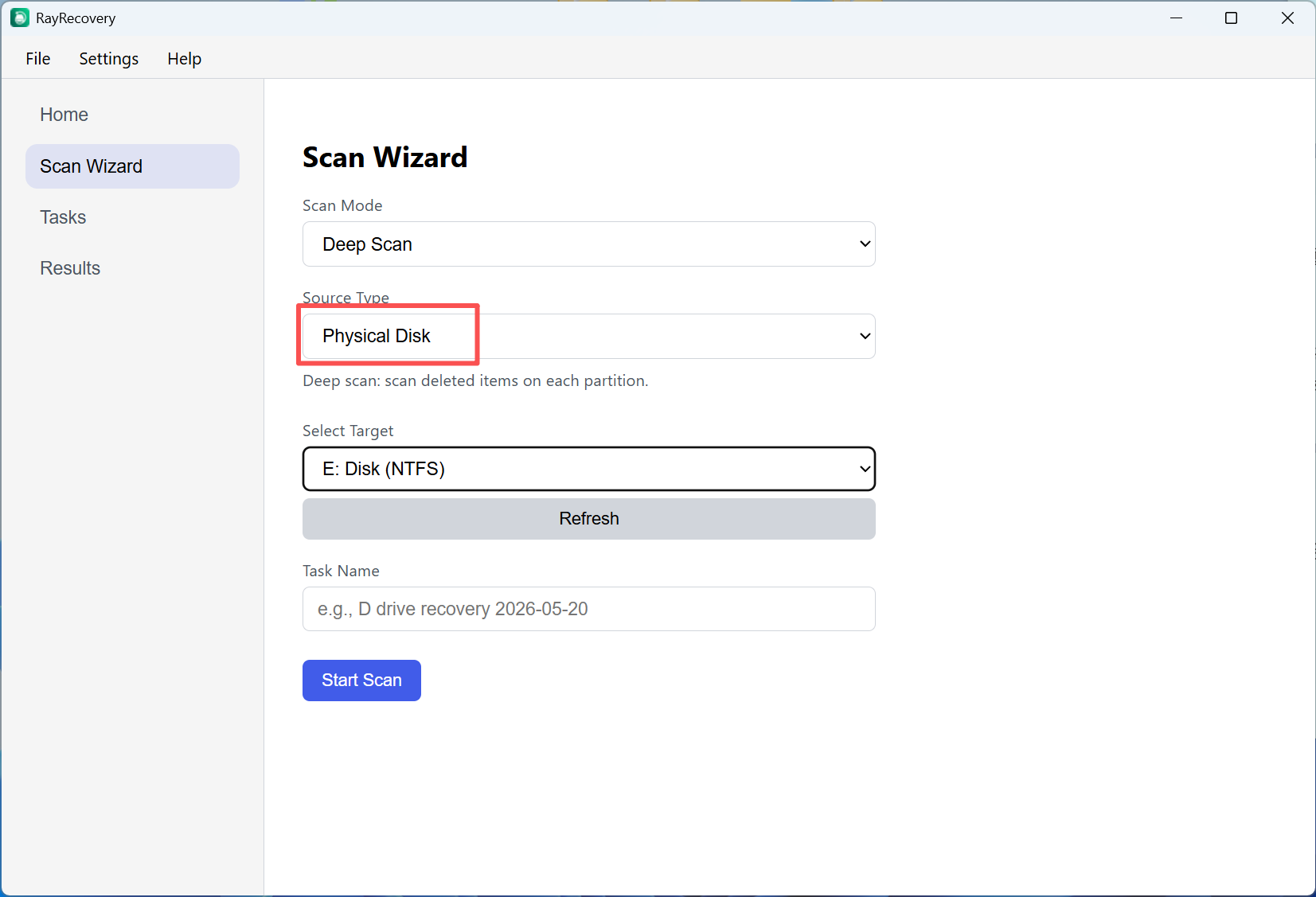
Step 1: Open Scan Wizard. Set Scan Mode to Deep Scan, then set Source Type to Physical Disk. Under Select Target, choose the disk or partition to scan (for example E: Disk (NTFS)). Click Refresh if the list is empty, then click Start Scan.
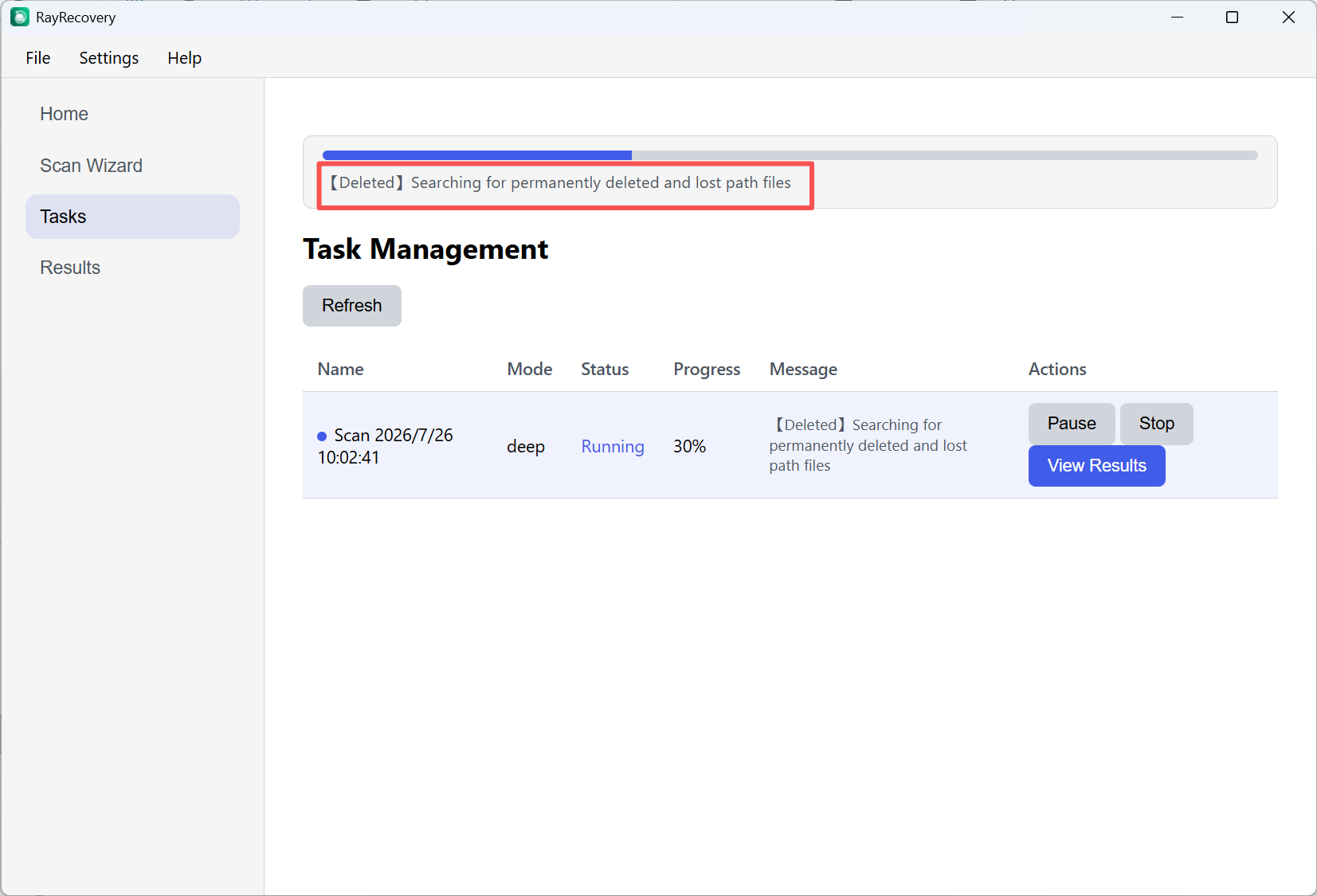
Step 2: Open Tasks to watch progress. Status shows Running while RayRecovery searches for permanently deleted and lost-path files (for example “【Deleted】Searching for permanently deleted and lost path files”). You can Pause or Stop if needed. When results are available, click View Results.
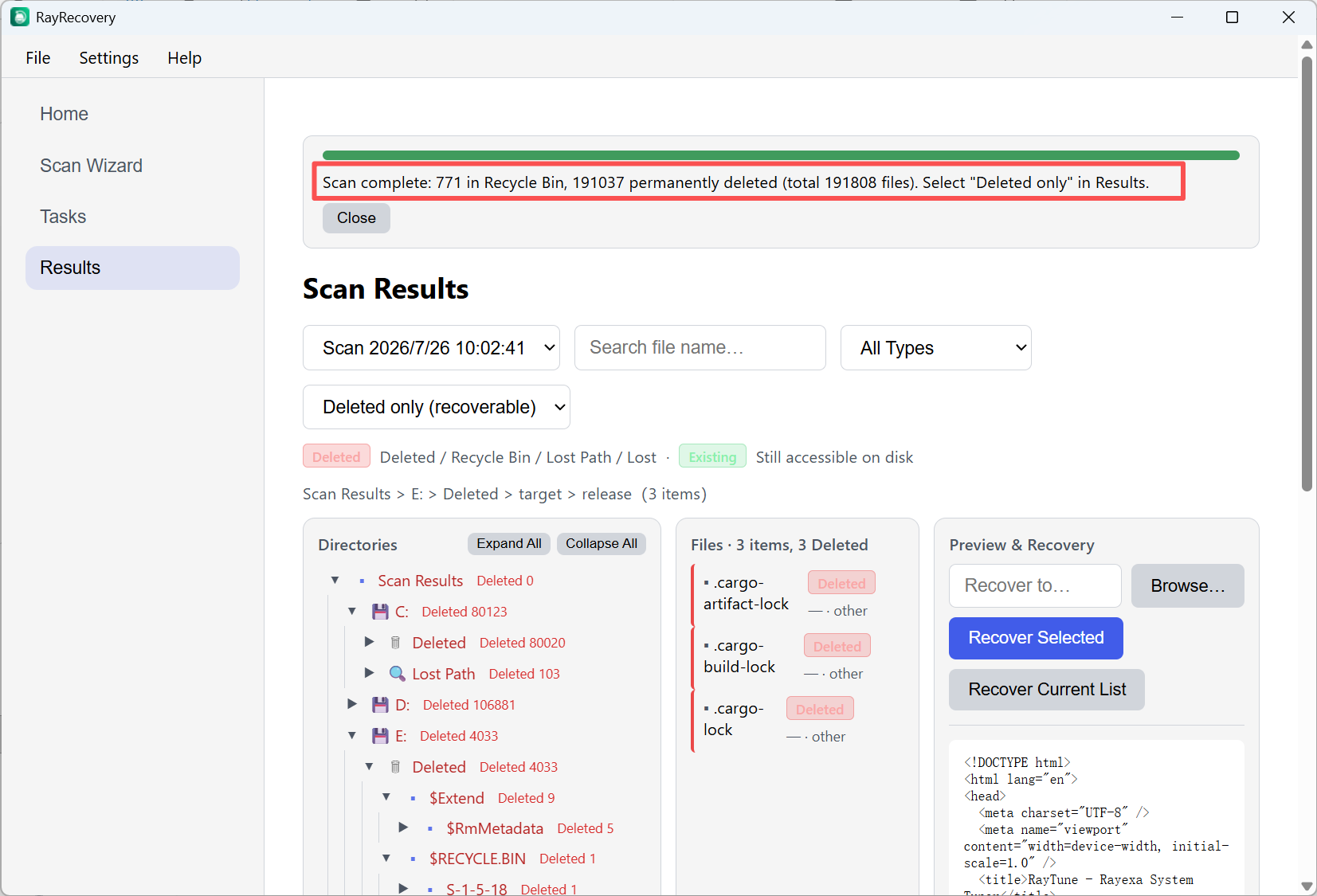
Step 3: In Results, set the filter to Deleted only (recoverable). Browse the directory tree by drive (for example C:, D:, E:), open folders marked Deleted, select the files you need, choose a recovery path with Browse… (use a different disk when possible), then click Recover Selected or Recover Current List.
Tip: Do not recover files back onto the same disk you are scanning — that can overwrite data the scan is still trying to find.