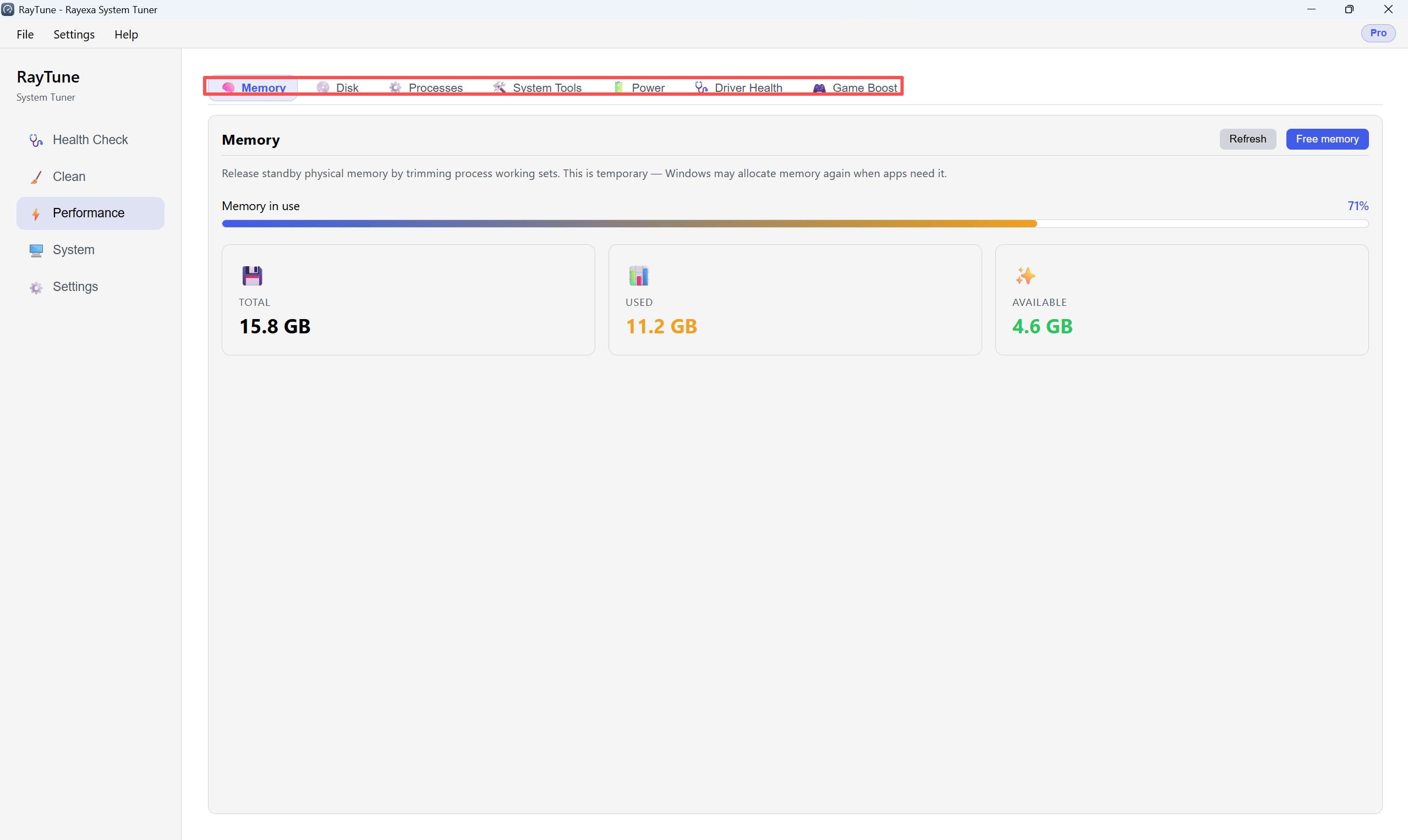
Under Performance you can free RAM, optimize disks, run maintenance tools, and change the Windows power mode. Open Performance from the left sidebar, then use the tabs at the top.
Step1 — Free memory: Open the Memory tab. Check Memory in use, Total / Used / Available, then click Free memory to release standby physical memory. This is temporary — Windows may use memory again when apps need it.
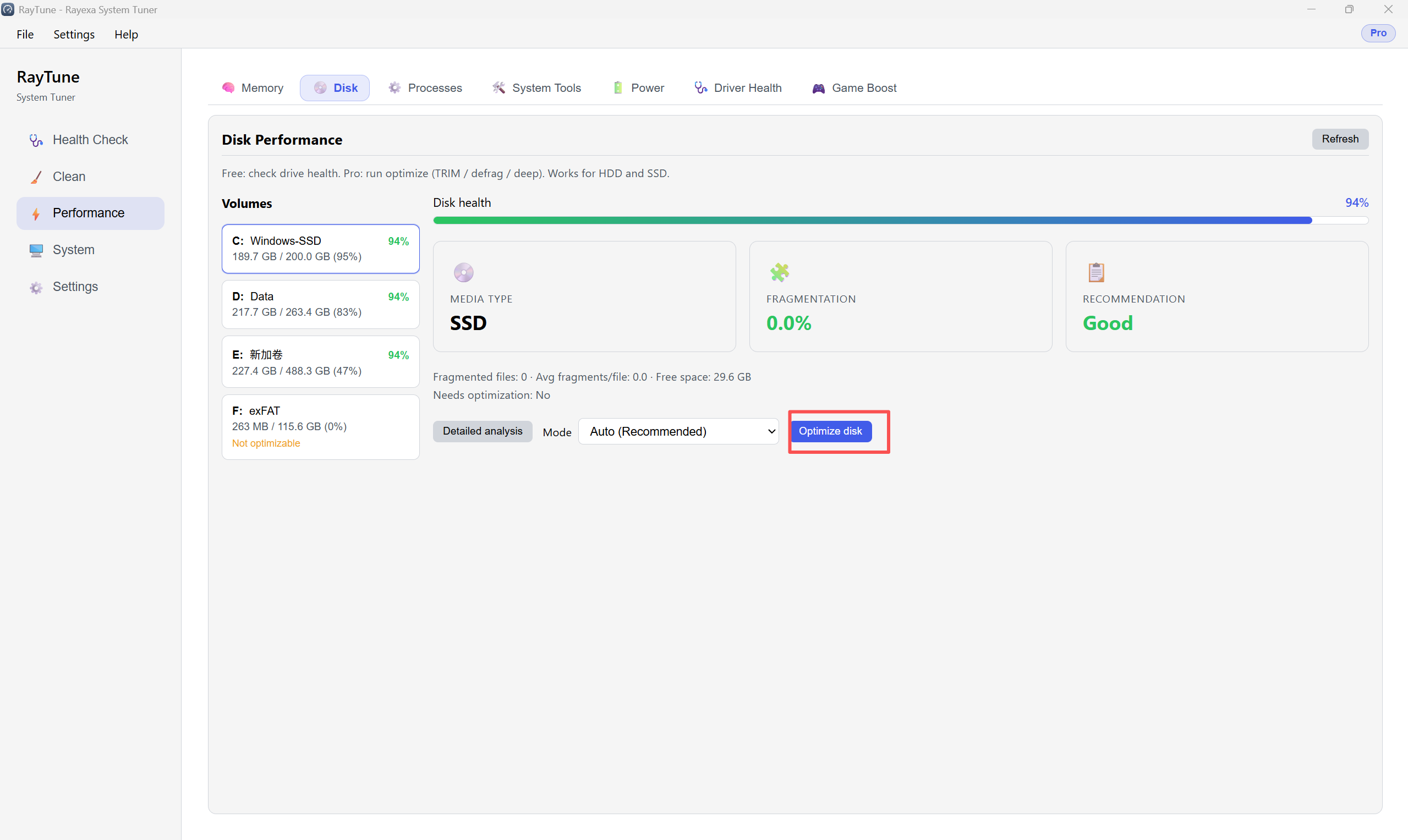
Step2 — Optimize disk: Open the Disk tab. Select a volume on the left (for example C:), review health and fragmentation, choose a mode such as Auto (Recommended), then click Optimize disk (TRIM / defrag / deep — Pro for running optimize; free edition can check drive health).
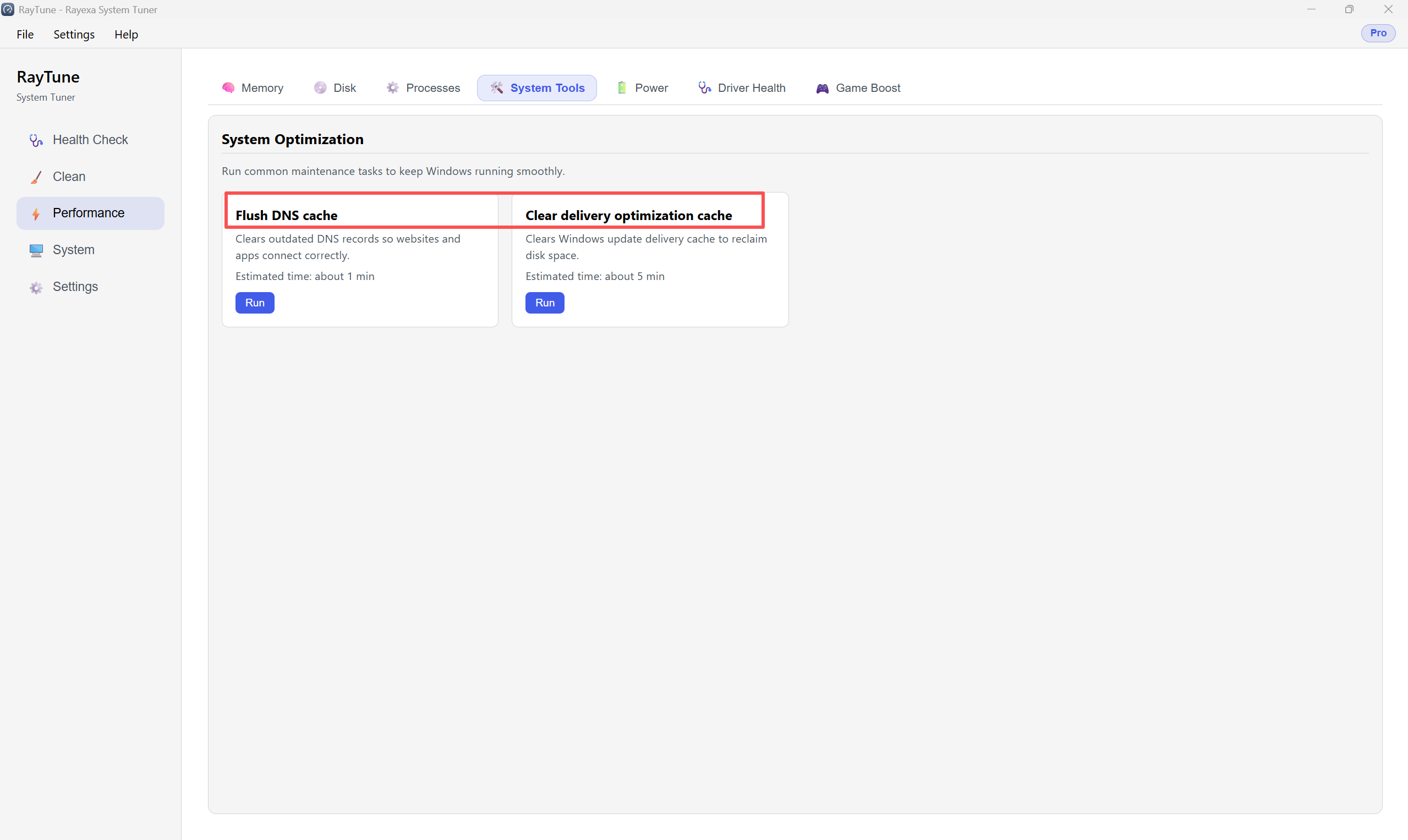
Step3 — System Tools: Open the System Tools tab. Under System Optimization, run common maintenance tasks: click Run next to Flush DNS cache to clear outdated DNS records, or next to Clear delivery optimization cache to reclaim Windows Update cache space.
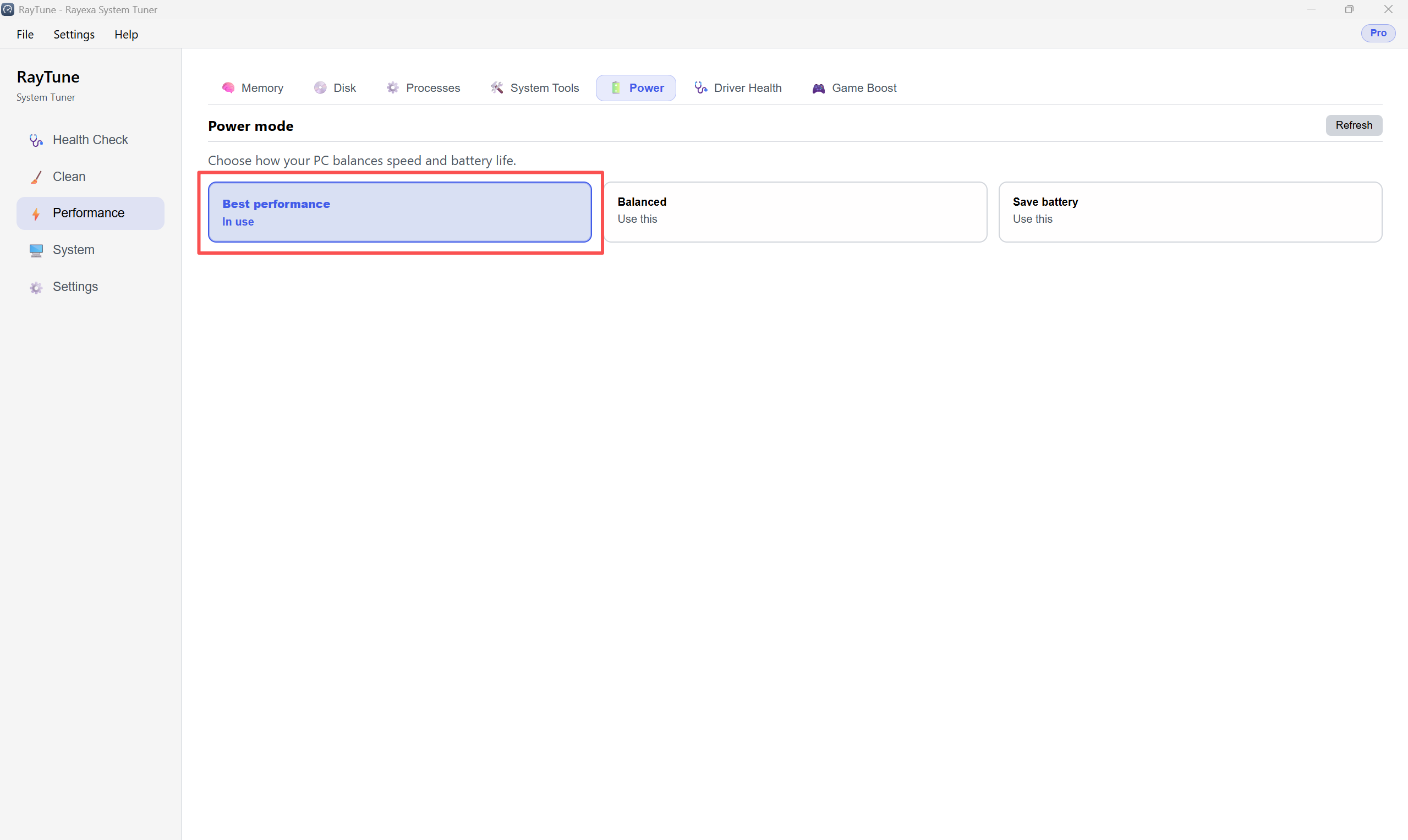
Step4 — Power mode: Open the Power tab. Choose how your PC balances speed and battery life: Best performance, Balanced, or Save battery. Click Use this on the mode you want (the current mode shows In use).