Deep Scan finds readable files, Recycle Bin items, and permanently deleted files (NTFS metadata recovery). It goes deeper than Quick Scan. Follow the steps below.
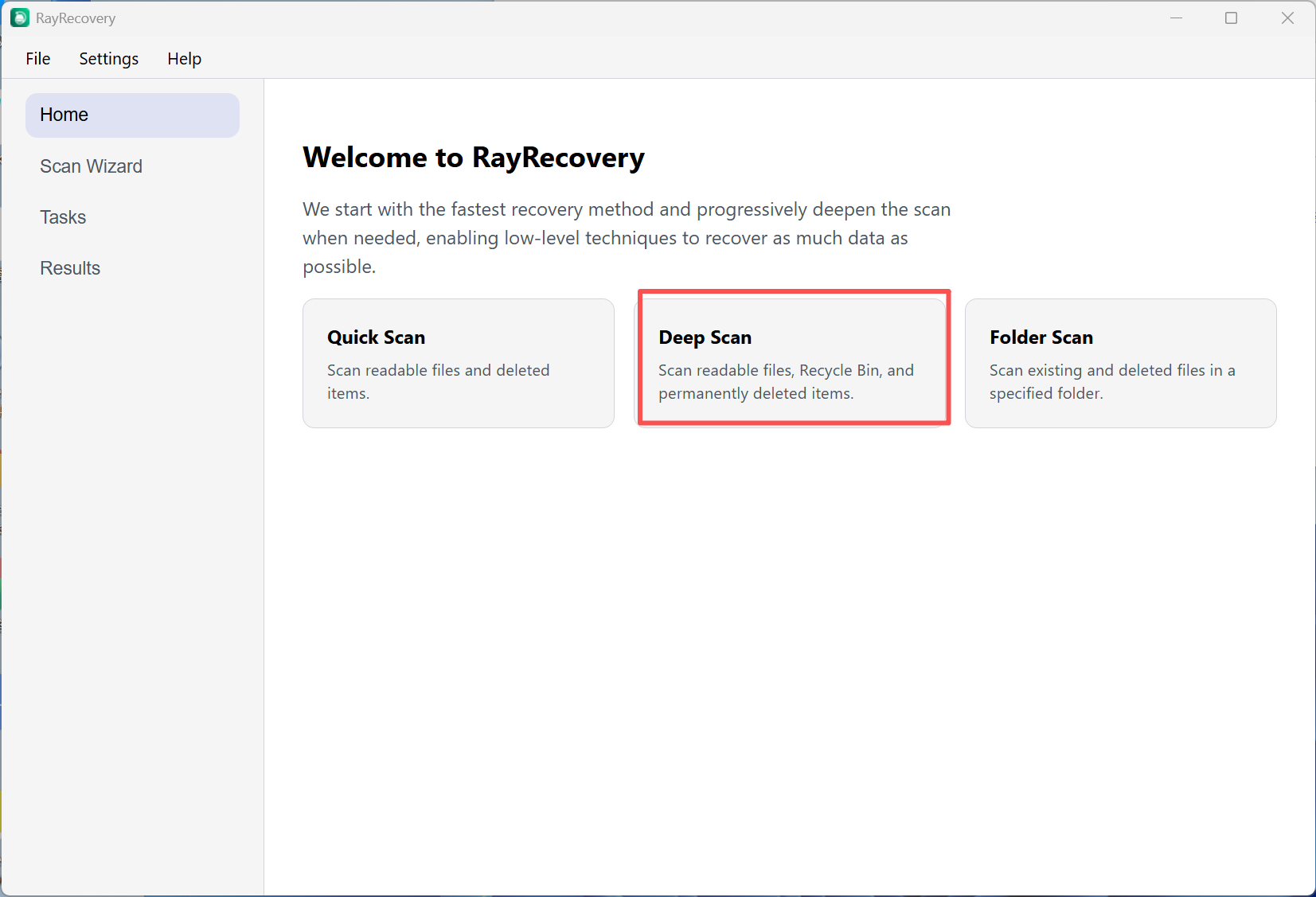
Step 1. On the Home screen, click the Deep Scan card.
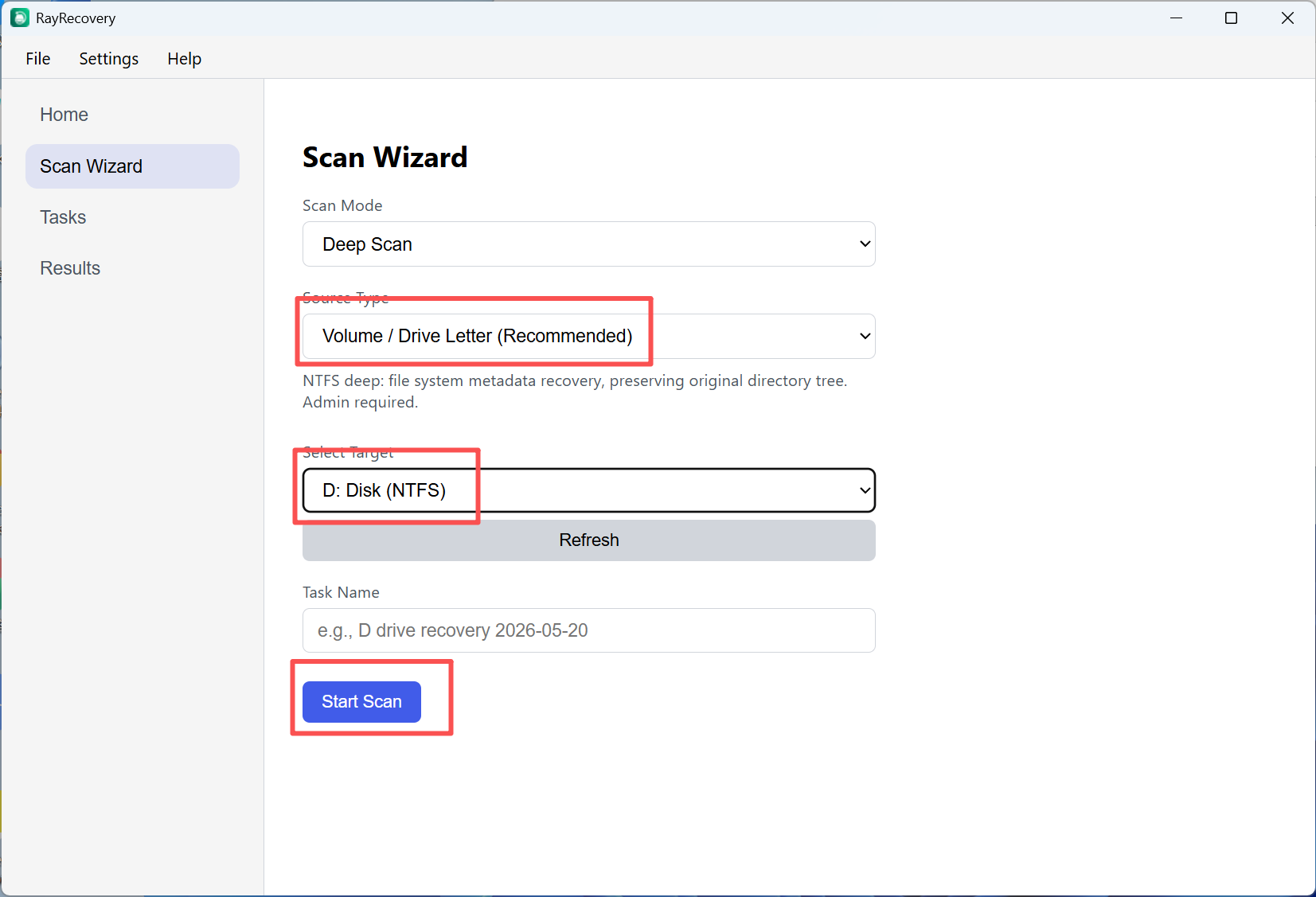
Step 2. In Scan Wizard, confirm Scan Mode is set to Deep Scan. Choose the target drive, then click Start Scan.
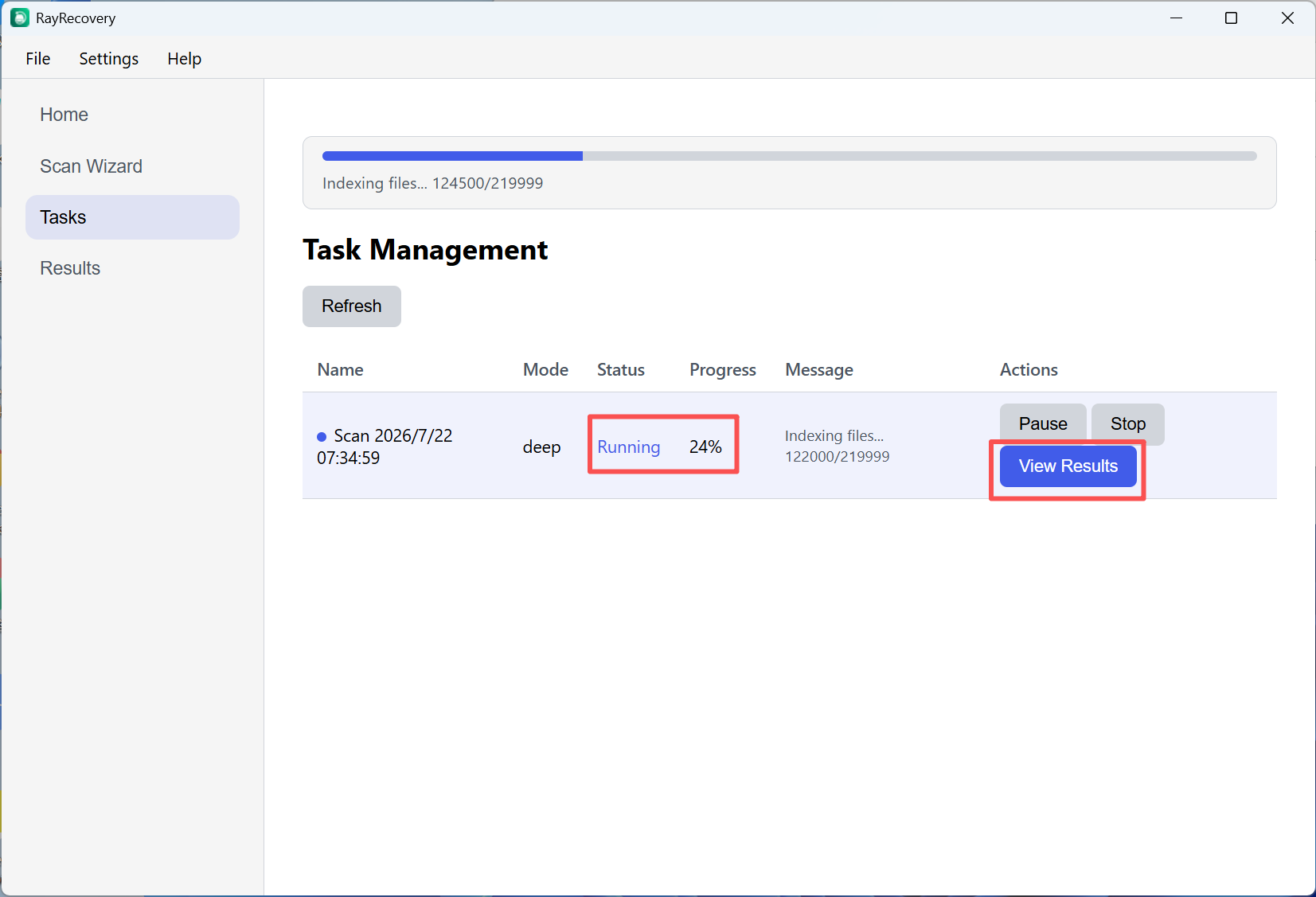
Step 3. Open Tasks to watch progress. When results are ready, click View Results.
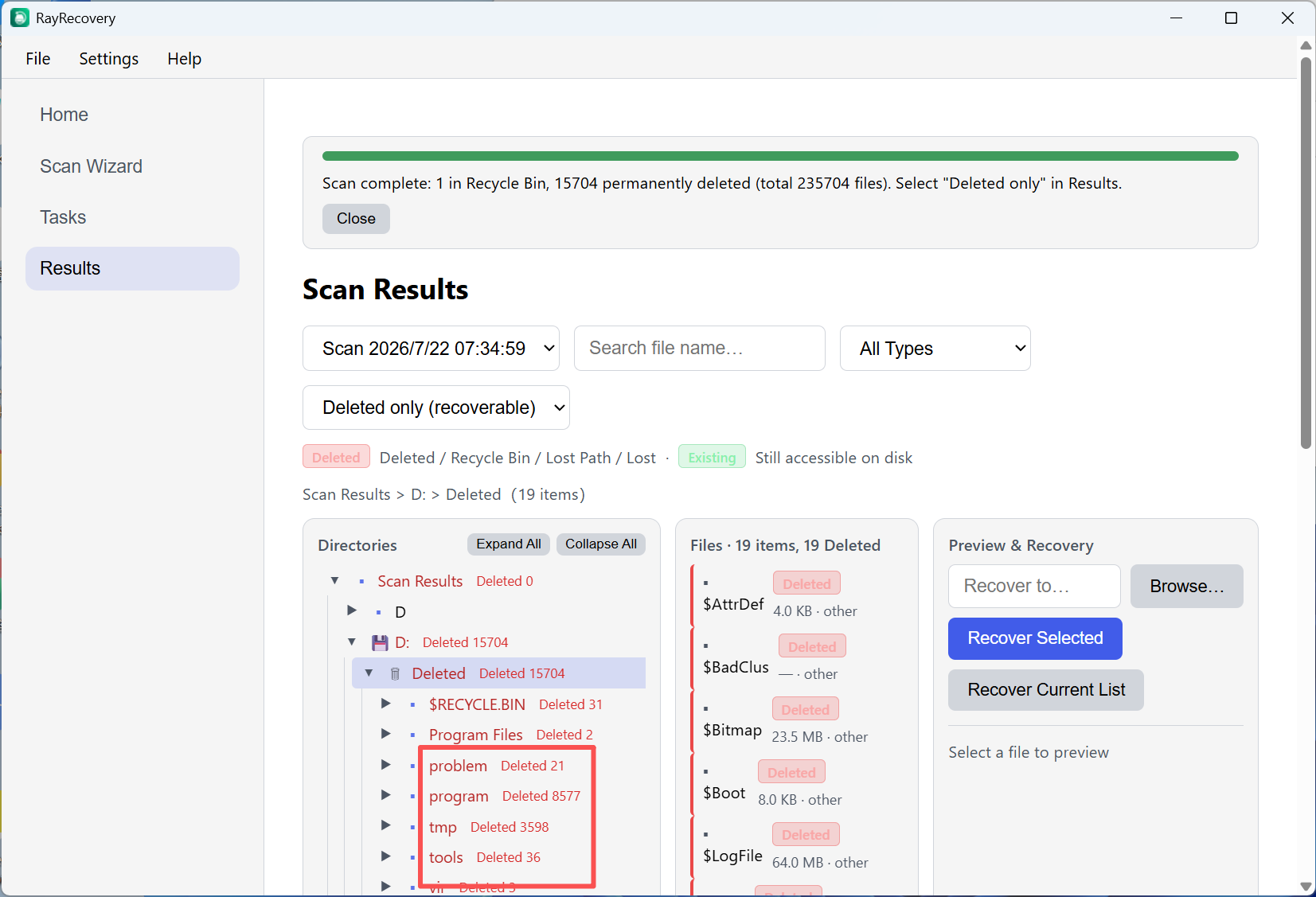
Step 4. In Results, filter to Deleted only (recoverable). Select files, choose a recovery path, then click Recover Selected.
Tip: Do not recover files back onto the same drive you are scanning.